Manage Administrators with Role-Based Access Control (RBAC)
EssentialsCall Telemetry role-based access control (RBAC) lets Full System Administrators give each administrator only the access required for their work. You can separate phone operations, call-policy management, CDR reporting, E911 location management, and read-only review instead of sharing full-system access.
Call Telemetry RBAC controls access to the Call Telemetry appliance. It does not change Cisco Unified Communications Manager roles, access control groups, or CUCM application-user permissions.
Before you begin
- Sign in as a Full System Administrator. Other administrators can view permissions but cannot change them.
- Granular administrator permissions and multiple administrator accounts require an Essentials or higher license.
- Community licenses support one administrator account.
Add an administrator
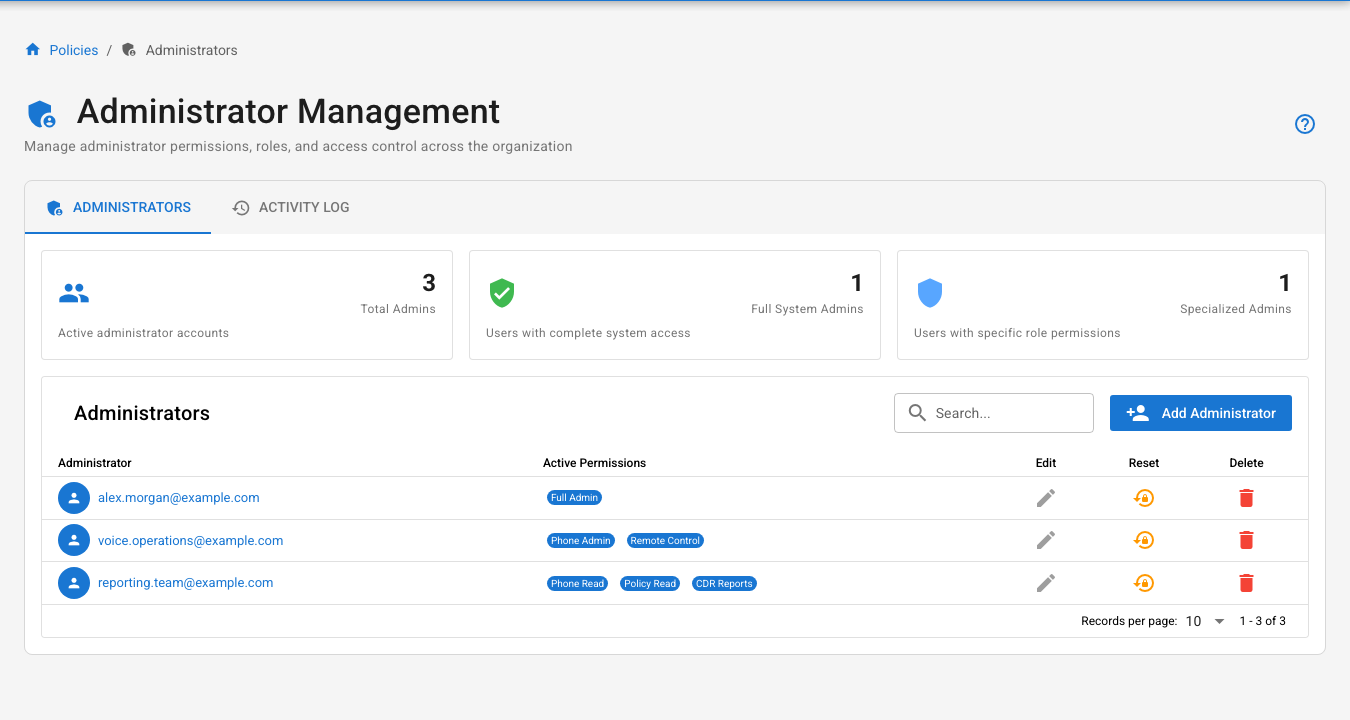
- In the sidebar, expand Settings > User & Access, then select Administrators.
- Select Add Administrator.
- Enter the administrator's email address and an initial password.
- Select Create Administrator.
- In the new administrator's row, select the email address or Edit to assign permissions.
The administrator can change the initial password after signing in.
Assign permissions
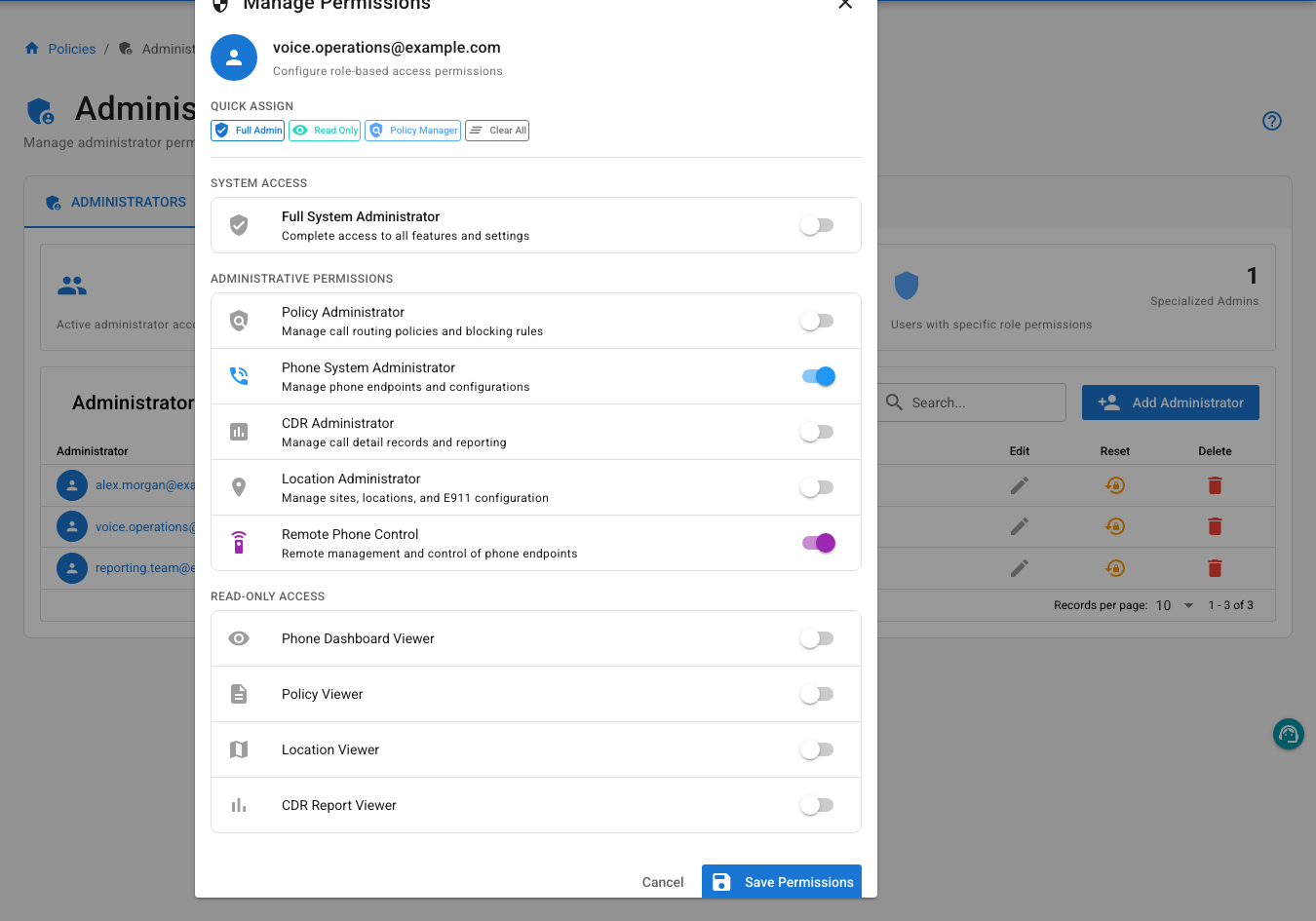
Select an administrator's email address or Edit to open Manage Permissions. Permissions are additive: enable each administrative or viewer permission needed for the person's job, then select Save Permissions. Enter a reason and confirm the change when prompted.
Permission reference
| Permission | Access granted | Typical use |
|---|---|---|
| Full System Administrator | Complete access to all features, settings, and administrator management | Platform owner or recovery administrator |
| Policy Administrator | Manage call-routing policies and blocking rules | Voice security or policy operations |
| Phone System Administrator | Manage phone endpoints and configurations | UC endpoint operations |
| CDR Administrator | Manage call detail records and reporting | Reporting platform owner |
| Location Administrator | Manage sites, locations, and E911 configuration | Emergency-services administrator |
| Remote Phone Control | Remotely manage and control phone endpoints | Help desk or UC support |
| Phone Dashboard Viewer | View phone dashboards without administrative access | Operations analyst |
| Policy Viewer | View policy configuration without changing it | Auditor or security analyst |
| Location Viewer | View site, location, and E911 configuration | Compliance reviewer |
| CDR Report Viewer | View CDR reports without administrative access | Reporting consumer |
Quick Assign templates
Quick Assign replaces the current selection with a common permission set. Review the resulting toggles before saving.
- Full Admin enables only Full System Administrator.
- Read Only enables Phone Dashboard Viewer, Policy Viewer, Location Viewer, and CDR Report Viewer.
- Policy Manager enables Policy Administrator and Policy Viewer.
- Clear All removes every permission.
Enable RBAC enforcement
To enforce the assigned administrator permissions:
- In the sidebar, select Settings.
- Open Org Settings.
- Turn on Enforce Admin Role Permissions.
- Select Save.
The toggle is disabled when the current license does not include administrator RBAC.
Change permissions
- Open Settings > User & Access > Administrators.
- Select the administrator's email address or Edit.
- Change the role toggles or apply a Quick Assign template.
- Select Save Permissions.
- Enter a reason for the change and select Confirm Changes.
Use least privilege: start with the smallest set of permissions that covers the administrator's responsibilities, then add access only when required.
Reset an administrator password
- In the administrator's row, select Reset.
- Enter and confirm the new password.
- Select Reset Password.
Only a Full System Administrator can reset another administrator's password.
If an administrator cannot sign in to the web interface, a console operator can reset the password from the Call Telemetry installation directory:
sudo ./cli.sh users list
sudo ./cli.sh reset-password 'admin@example.com' 'new-password'
The first command lists every account with its ID, email, roles, and last login. Copy the exact email address into reset-password. The reset takes effect immediately and does not send an email. See Reset an administrator password with the CLI for usage details.
Review administrator activity
Open the Activity Log tab to review administrator actions, including permission changes, password resets, and account-management events. Use the log when validating an access change or investigating an unexpected permission assignment.
Remove an administrator
In the administrator's row, select Delete, then confirm the removal. Deletion cannot be undone.
Use LDAP-managed administrators
For centralized authentication, configure LDAP authentication and role mappings. LDAP groups can map users to the same Call Telemetry permissions described on this page.
Troubleshooting
| Symptom | What to check |
|---|---|
| Enforce Admin Role Permissions is disabled | Verify that the appliance has an Essentials or higher license. |
| Add Administrator is unavailable | Community licenses are limited to one administrator. Upgrade the license or remove the existing administrator. |
| The permission dialog is read-only | Sign in with a Full System Administrator account. |
| An administrator cannot access a feature | Review the active permission chips and the role toggles for that account. |
Related guides
- LDAP Authentication — authenticate administrators with Active Directory or LDAP groups.
- CUCM Integration — configure the AXL, RIS, and CTI application user used by Call Telemetry.
- Cisco Phone Remote Control — understand the feature governed by Remote Phone Control.
- CDR Reporting — reporting workflows covered by CDR permissions.
- E911 — location and emergency-response workflows covered by Location permissions.