Appliance Notification Setup
Configure outbound email and Webex so any Call Telemetry feature—including missed call alerts, emergency notifications, and daily reports—can deliver messages from the appliance.
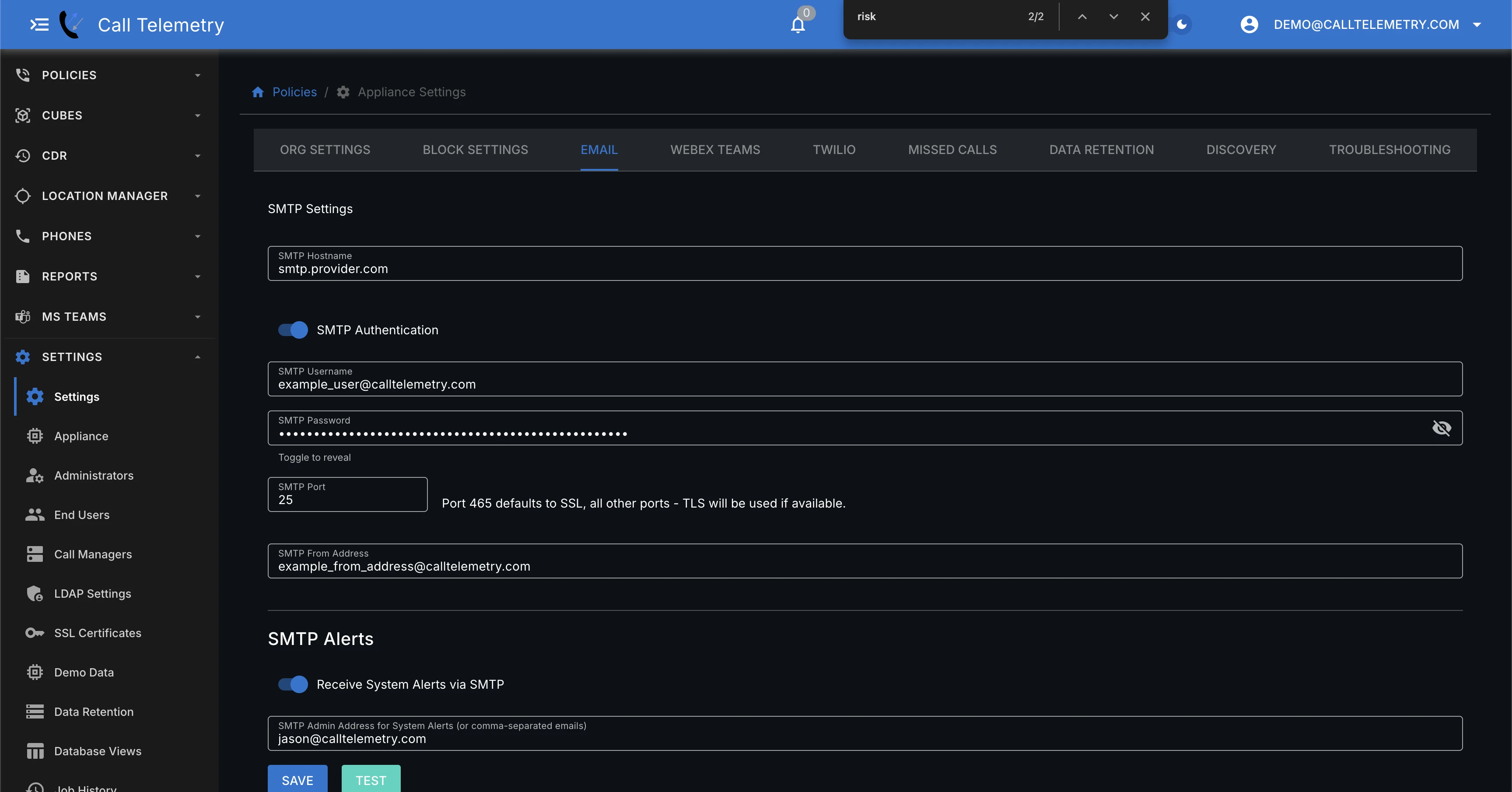
Configure SMTP
- Go to Settings → Email.
- Enter SMTP Server, Port, Username, and Password.
- Choose the TLS/SSL settings required by your mail provider.
- Set the From Address and optional Display Name shown to recipients.
- Click Send Test Email to verify delivery from the appliance.
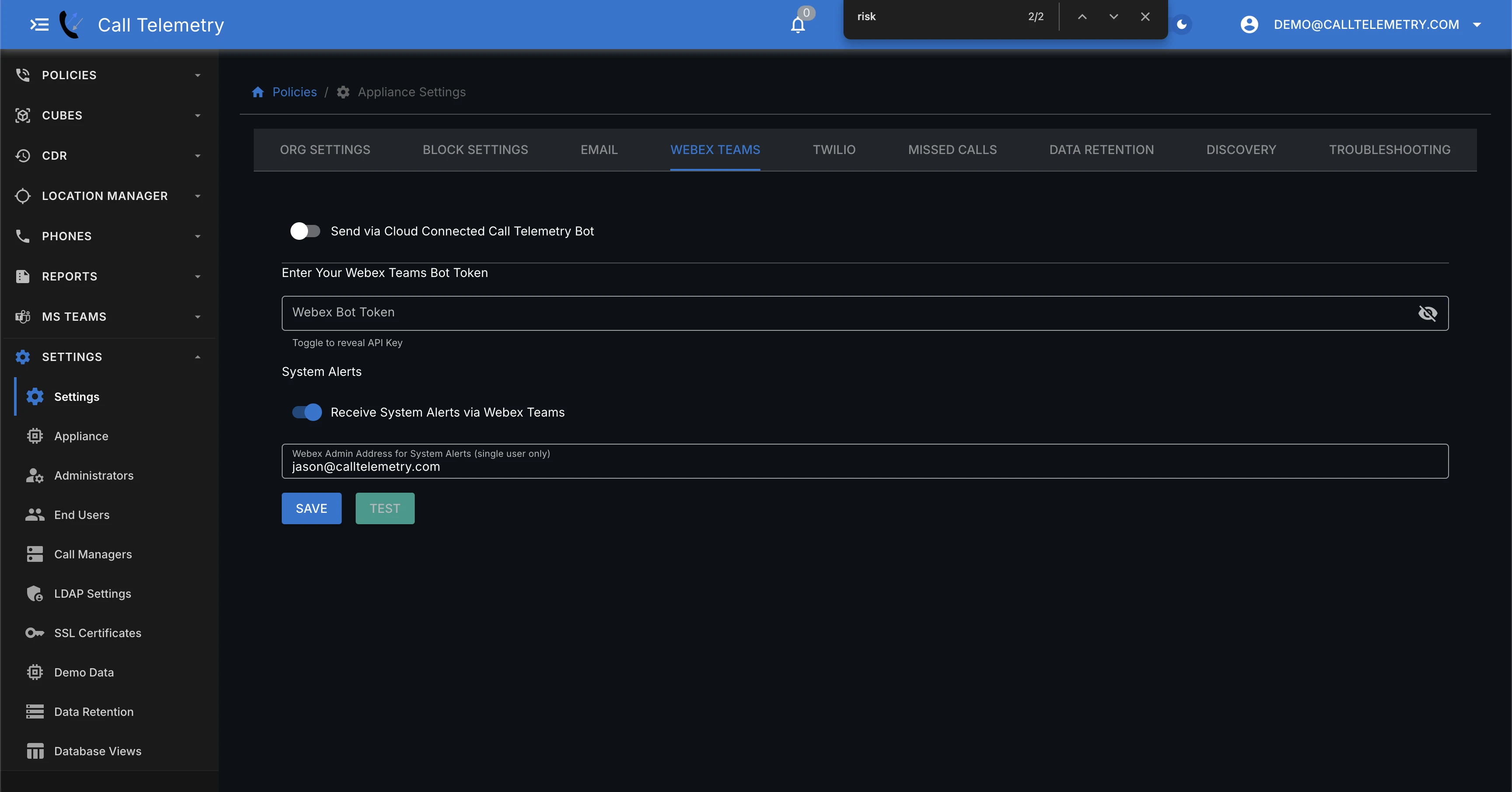
Configure Webex Notifications
- Go to Settings → Webex Teams.
- Choose one:
- Call Telemetry Cloud Bot (licensed customers; coordinate with support).
- Provide Bot Token to use your own Webex bot.
- Enter a System Alert Email/Webex address for appliance-level alerts.
- Click Test to confirm Webex can reach your recipients.
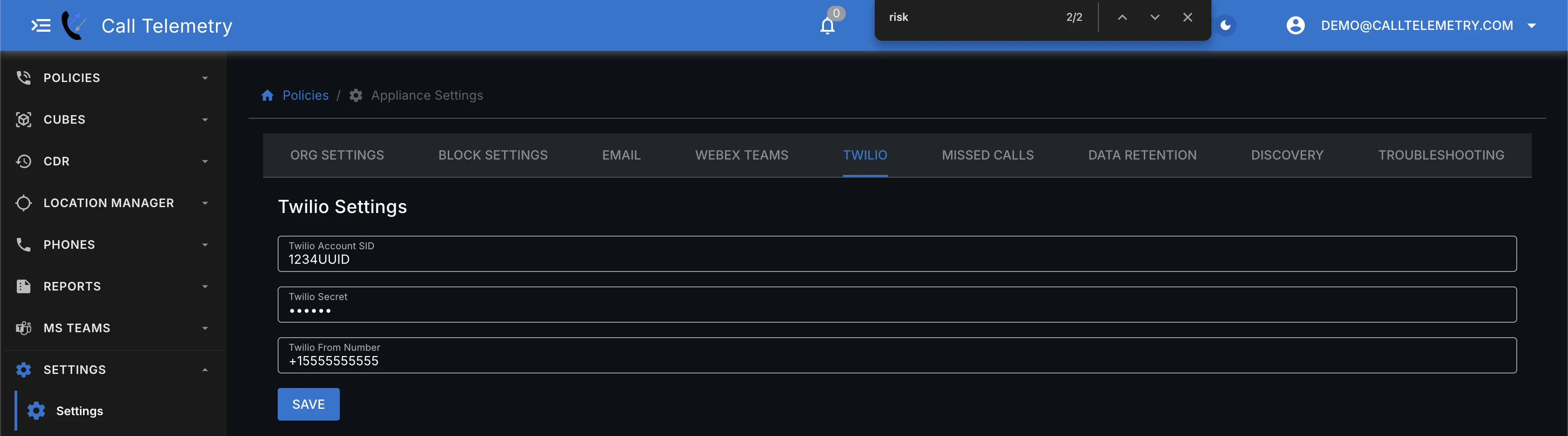
Configure Twilio SMS
Some alerts and apps can use Twilio to send SMS (for example, policy alerts or custom webhook apps). Enable it if you plan to deliver SMS notifications from the appliance.
- Go to Settings → Twilio.
- Enter your Twilio Account SID and Twilio Secret.
- Set the Twilio From Number that is provisioned in your Twilio account.
- Click Save and send a test from the feature that uses SMS.
Where Twilio is used
- Policy apps like Twilio SMS and Twilio SMS to Caller.
- Call Alerts that deliver SMS for policy-driven notifications.
Where Webex notifications are used
- Missed Call Alerts to notify users of missed calls.
- Call Alerts to deliver policy-driven notifications over Webex.
Next steps
- Enable notification channels per user in Settings → End Users.
- Turn on feature-level toggles (for example, Enable Missed Call Processing in Settings → Missed Calls).
- If email or Webex tests fail, re-verify firewall rules and credentials, then re-run the test buttons from the same screens.