Customer Data Import and Export
Customer data import/export moves an organization configuration from one Call Telemetry appliance to another. Use it for lab restore, migration, or appliance replacement. The workflow allows full backup and restore of all operational configurations - for example users, settings, policies, rules, apps, tags, CUBEs, phones, switches, and LDAP settings.
Requirements
- Call Telemetry Appliance 0.8.7 or later.
- A Full Admin account on the source and target appliances.
Navigate to Import / Export Page
Click Settings -> System & Infrastructure -> Data Import Export for the organization you want to export or restore.
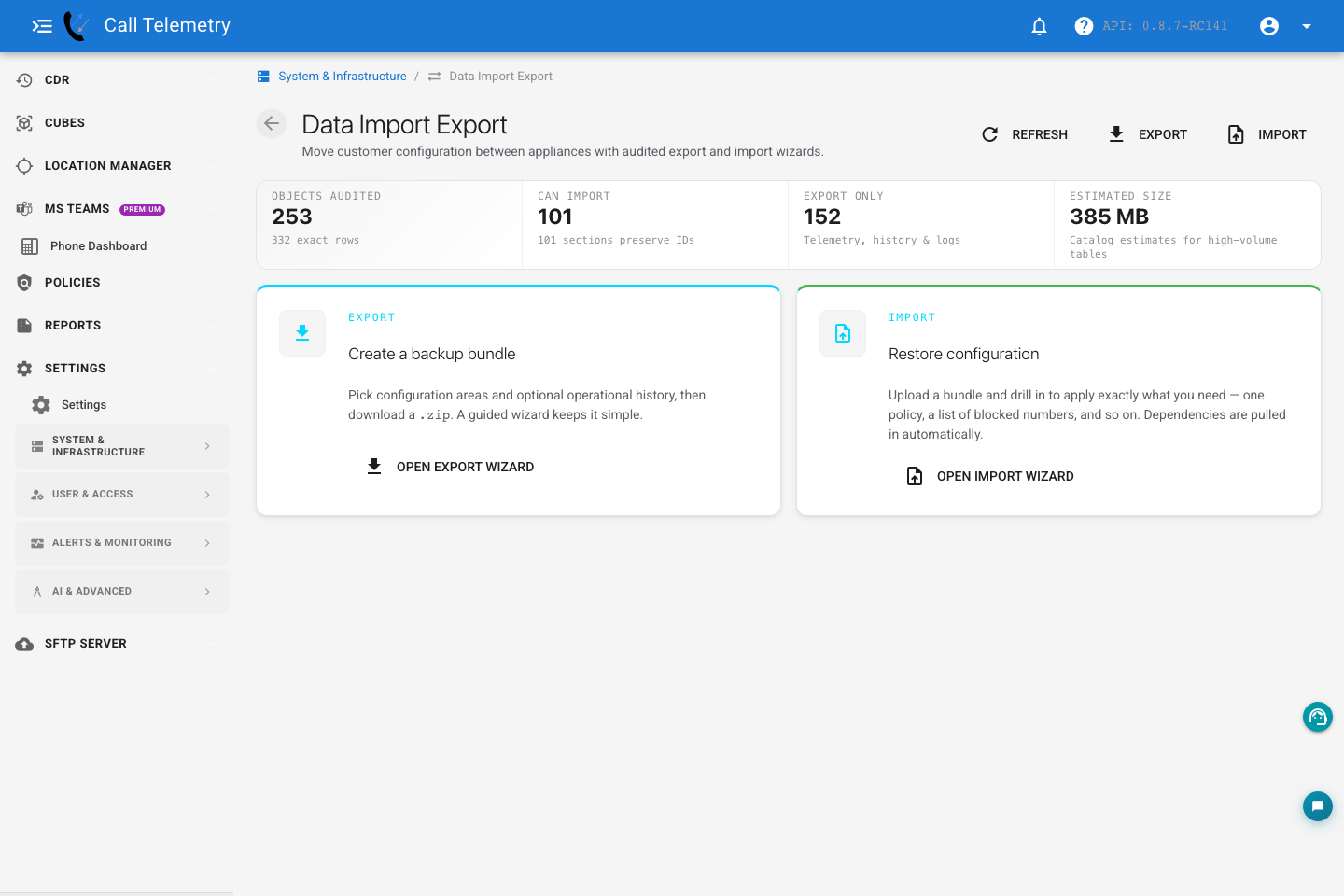
The page shows the current audit summary:
- Objects audited: sections and exact rows counted from the source organization.
- Can import: configuration sections that can be restored.
- Export only: operational history, logs, and analytics that can be exported for review but not restored.
- Estimated size: estimated size for the selected catalog.
What Gets Exported
The default export includes importable configuration. Operational history is off by default because it can be large and cannot be restored.
Importable configuration includes:
- Organization settings, alarm settings, end-user portal settings, retention, storage, AI, and cost allocation settings.
- LDAP settings and end-user LDAP auth settings, including the bind password stored in the exported auth config.
- CallManager clusters, phones, switches, switch ports, subnets, emergency addresses, ELINs, end users, and end-user LDAP identities.
- Policies, rules, apps, rule-to-app associations, whitelist tags, blocklist tags, numbers, calling devices, notification contacts, contacts, and watch lists.
- CUBEs, CUBE peers, CUBE webhooks, CDR integrations, CDR webhooks, alerting configuration, workflows, dashboards, SFTP action accounts, and report destinations.
- Login users and organization memberships. Users are matched by email during import and their RBAC roles are restored.
Export-only data includes:
- CUBE events and call history.
- Policy history.
- App history.
- Alarms and alerts.
- CDR records.
- CMR records.
- Phone, JTAPI, and SIP diagnostics.
- Config audit history.
- Automation runs.
- AI assistant activity.
- Teams activity.
- Saved reports and report subscriptions.
- API tokens.
- User-specific report and settings data.
Export Data
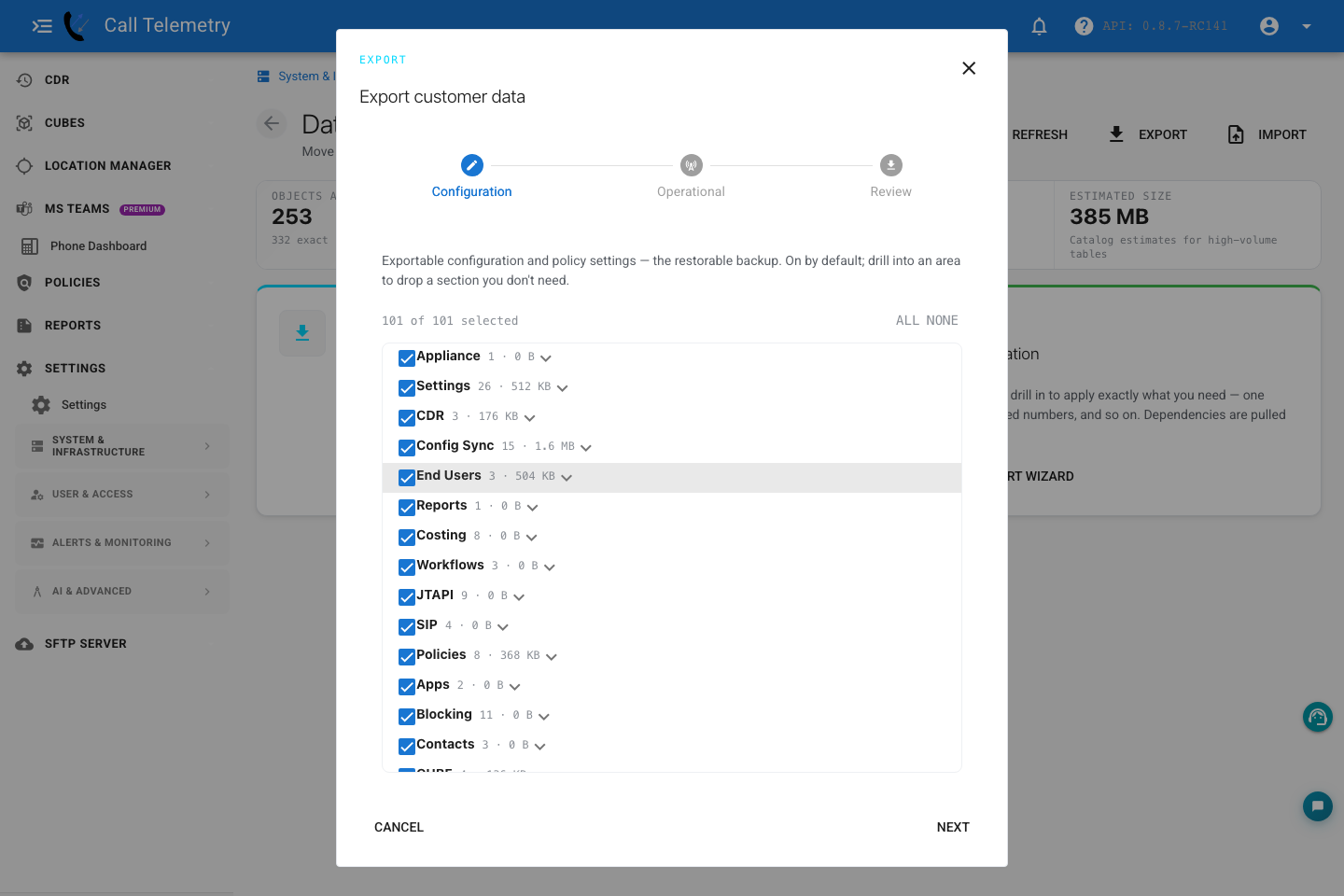
- Click Export or Open Export Wizard.
- In Configuration, keep all sections selected for a full restore bundle, or drill into an area and clear sections you do not want.
- In Operational, optionally select export-only history groups for support analysis or archival review.
- In Review, confirm the selected areas and estimated size.
- Click Download .zip.
The downloaded file is named like:
calltelemetry-customer-data-org-<org_id>-YYYY-MM-DD.zip
The zip contains a JSON bundle with a schema version, source organization id, appliance version metadata, selected sections, and exported rows.
Import Data
- Open the target organization.
- Click Import or Open Import Wizard.
- Upload the exported
.zipor legacy.jsonbundle. - In Select objects, keep all importable records selected for a full restore, or choose a smaller set.
- Click Review records.
- Resolve any blocked rows before continuing.
- Click Import records and wait for the progress stream to complete.
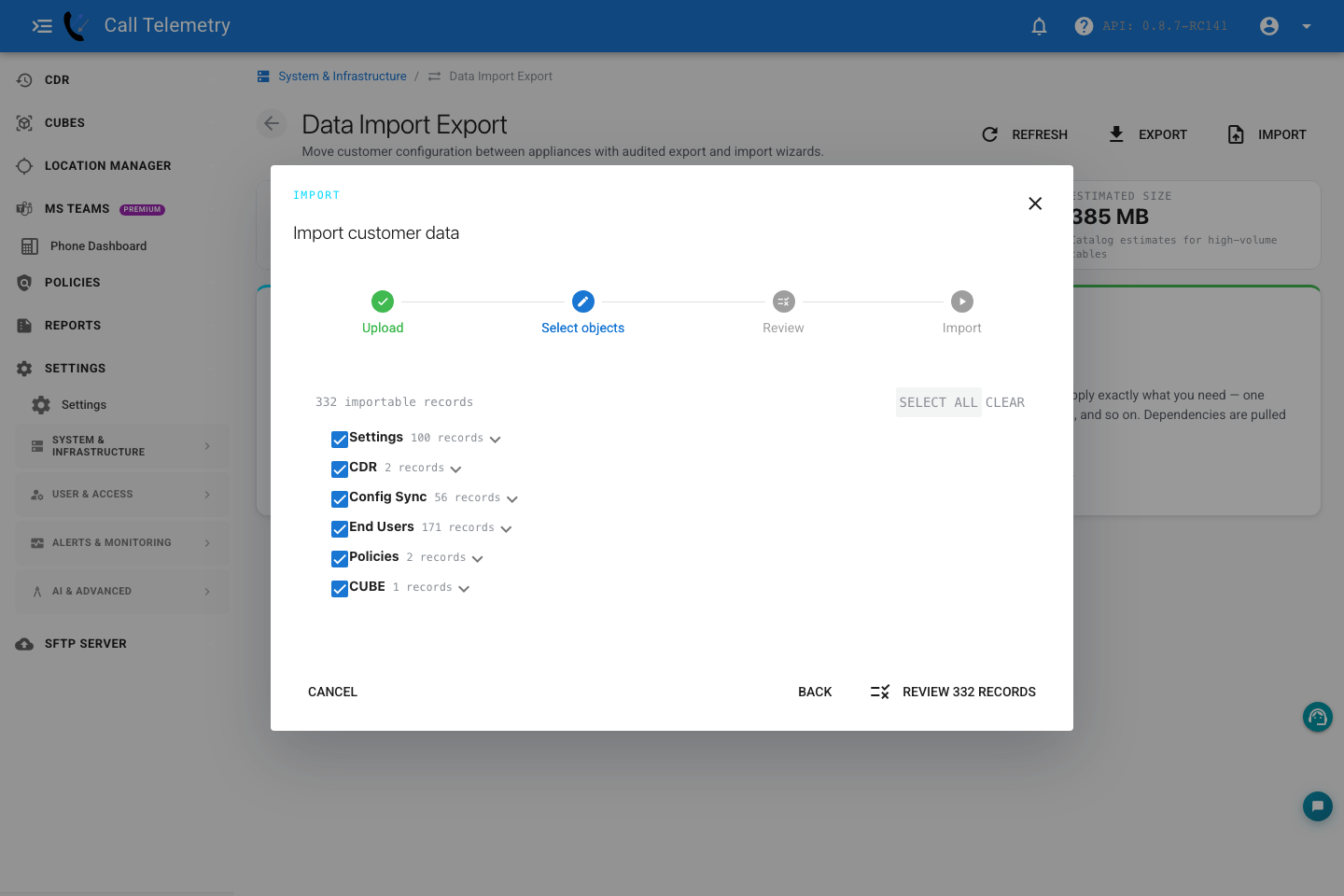
Some sections support record-level selection. For example, selecting a policy rule automatically includes the referenced policy, app, tag, number, or device records needed to keep foreign keys valid. Sections without fully modeled relationships are imported as a whole section so partial restores cannot create orphaned child rows.
Preview Results
The preview step classifies each selected row before anything is written.
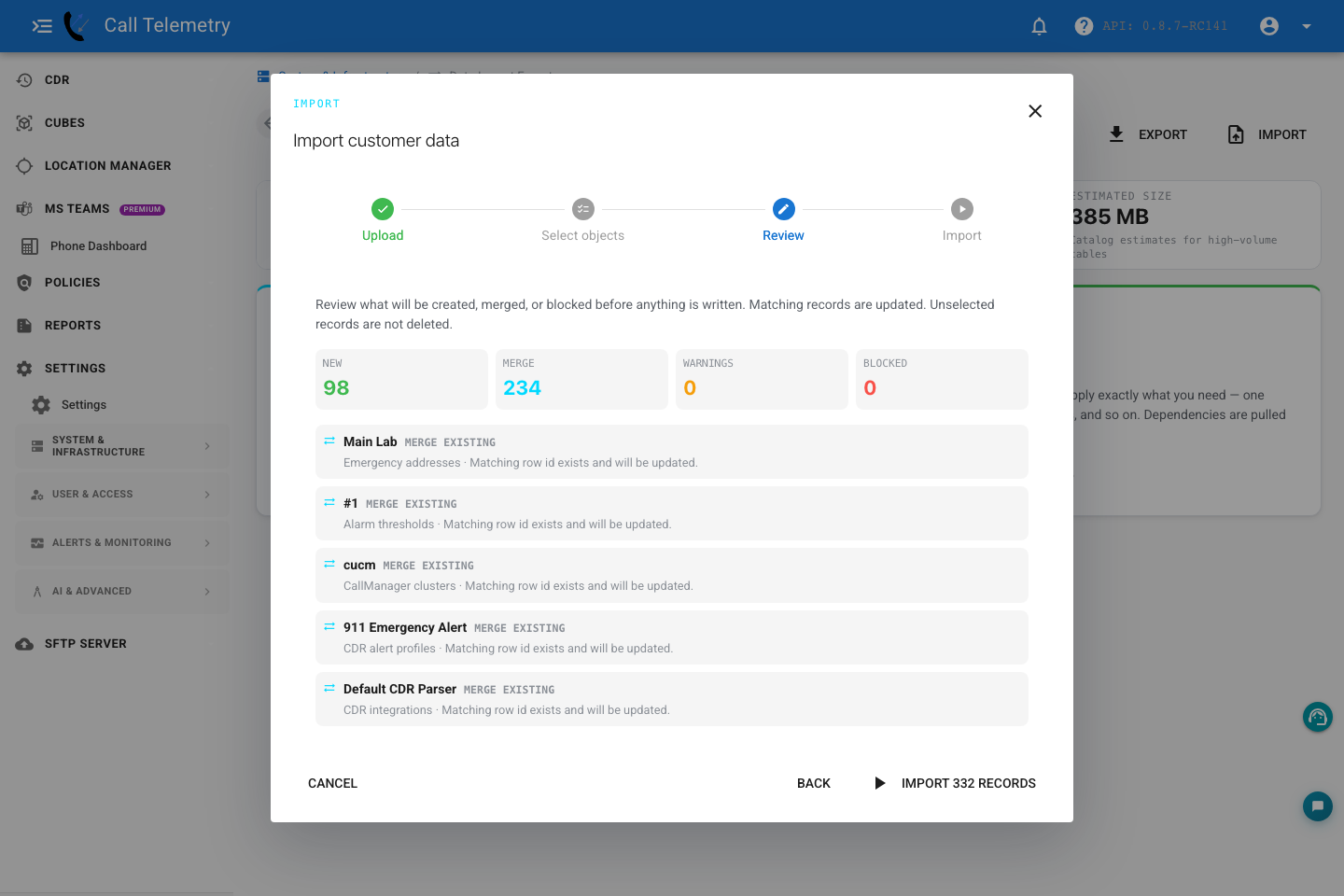
| Status | Meaning |
|---|---|
| New | No matching target row exists; import will create it. |
| Merge | The target has the same id or configured natural key; import will update it. |
| Warning | A possible duplicate exists; review before importing. |
| Blocked duplicate | The row would collide with an existing target record. |
| Blocked org conflict | The row belongs to another org or cannot be remapped safely. |
Import Completion
When the job completes, refresh the target appliance and validate the restored configuration.