Microsoft Teams Emergency Notifications - Azure Integration
This integration uses Azure resources in your organization's environment. Microsoft Graph and Azure Event Hubs are Microsoft-managed services that handle notifications before delivery to the Event Hub and Call Telemetry deployment configured for your environment. Your organization controls the Azure resources and can configure downstream data handling; set retention and access according to your policies.
What This Integration Does
When someone in your organization makes an emergency call (like 911) through Microsoft Teams, this integration automatically captures and forwards that emergency notification to Call Telemetry for immediate processing and alerting.
What You'll See
- Real-time MS Teams Emergency Call alerts in your Call Telemetry dashboard
- Automatic notifications to security teams via SMS, email, or other channels
- Workflow Automation including E911 location discovery and response procedures
Why This Matters
- Faster emergency response: Security teams get immediate notifications
- Improve Location Accuracy: Workflow Apps can enhance location data for emergency calls
Before You Begin
What You Need to Know
- This setup requires Azure administrator and MS Teams administrator access
- You'll be creating Azure resources that incur small monthly costs (around $30/month)
- Setup typically takes 60-90 minutes for most organizations
- You'll need coordination between Azure Tenant admins, MS Teams admins, and Call Telemetry administrators
Prerequisites by Role
Azure Administrator Needs:
- Azure subscription with permissions to create resources
- Ability to create resource groups and Event Hub resources
- Permission to register applications and assign Graph API permissions
Microsoft 365/Teams Administrator Needs:
- Teams administrator rights
- Ability to create Microsoft Teams user accounts
- Access to modify Teams calling policies and emergency notification settings
Call Telemetry Administrator Needs:
- Call Telemetry 0.8.5 or later
- Premium license
- Admin Access to Call Telemetry settings
Dedicated MS Teams Service User Account:
- Microsoft 365 user account specifically for monitoring emergency calls
- Microsoft Teams license assigned to MS Teams service account
- Must configure MS Teams to send emergency call notifications (configured via Teams calling policies) to this service account.
- Account will be used for OAuth authentication to Microsoft Graph API
Teams License Requirements
The service account must have a valid Teams license in order to:
- Receive emergency call notifications in Teams
- Enable Microsoft Graph API access to chat messages
- Participate in MS Teams calling policies
Integration Overview - How It Works
This integration connects three main components to monitor Teams emergency calls:
The Flow
- Emergency Call Made: User dials 911 through Microsoft Teams
- Teams Generates Notification: Microsoft Teams automatically creates a chat notification
- Azure Captures Event: Microsoft Graph API subscription detects the notification
- Event Hub Streams Data: Azure Event Hub forwards the event using industry-standard Kafka protocol
- Call Telemetry Processes: Your Call Telemetry system receives and processes the emergency event
- Alerts Triggered: Security teams get immediate notifications through configured channels
Key Components
- Azure App Registration: Provides secure authentication to Microsoft Graph API
- Microsoft Graph API Subscription: Monitors for emergency call notifications in Teams
- Azure Event Hub: High-throughput message streaming between Microsoft and Call Telemetry
- Call Telemetry Integration: Processes events and triggers your existing emergency response workflows
Permissions Needed
The integration requires specific permissions to monitor emergency notifications. All permissions are delegated (acting on behalf of the service user) rather than application-level or admin consent permissions.
These are the minimum permissions necessary and only access emergency-related notifications. The service user account controls what data the integration can access.
Required Microsoft Graph API Permissions
| Permission | What It Does | Why We Need It |
|---|---|---|
| User.Read | Read user profile | Basic user information for authentication |
| Chat.Read | Read chat messages | Access chat messages for emergency monitoring |
| Chat.ReadBasic | Read basic chat info | Read names and members of user chat threads |
| ChatMessage.Read | Read chat messages | Read individual chat messages and content |
| openid | OpenID Connect authentication | Standard authentication flow |
| offline_access | Access resources when user not present | Token refresh capability for continuous monitoring |
| profile | View user's basic profile | User identification and profile information |
Network Requirements
Outbound Connectivity Requirements
The Event Hub integration requires outbound connectivity only - no inbound firewall rules needed:
| Destination | Port | Protocol | Purpose |
|---|---|---|---|
graph.microsoft.com | 443 | HTTPS | Microsoft Graph API access |
login.microsoftonline.com | 443 | HTTPS | Azure AD device authentication |
*.servicebus.windows.net | 9093 | Kafka/SSL | Event Hub Kafka protocol |
DNS Requirements
Ensure DNS resolution for these domains:
*.microsoft.com*.microsoftonline.com*.servicebus.windows.net
Service User Account
The Service Account is a dedicated Microsoft 365 user account that Call Telemetry will use to authenticate with Microsoft Graph API, and to subscribe to MS Teams emergency notifications. This account should not be used for any other purpose.
- Create a new Microsoft 365 user specifically for this integration
- Username:
calltelemetry-service@yourcompany.com(or similar) - Display name:
Call Telemetry Teams Integration
- Username:
- Assign an MS Teams license to this account, such as Microsoft 365 Business Basic or higher
- Configure MS Teams calling policies so this account receives emergency call notifications
Step 1 - Azure Authentication Setup
Call Telemetry uses an Azure App Registration to authenticate with Microsoft Graph API and subscribe to Teams emergency notifications. This registration allows Call Telemetry to securely access Teams data on behalf of the service user account, using delegated permissions, and a user token.
Authentication Flow
Call Telemetry uses OAuth 2.0 Device Authorization Grant for secure, unattended authentication:
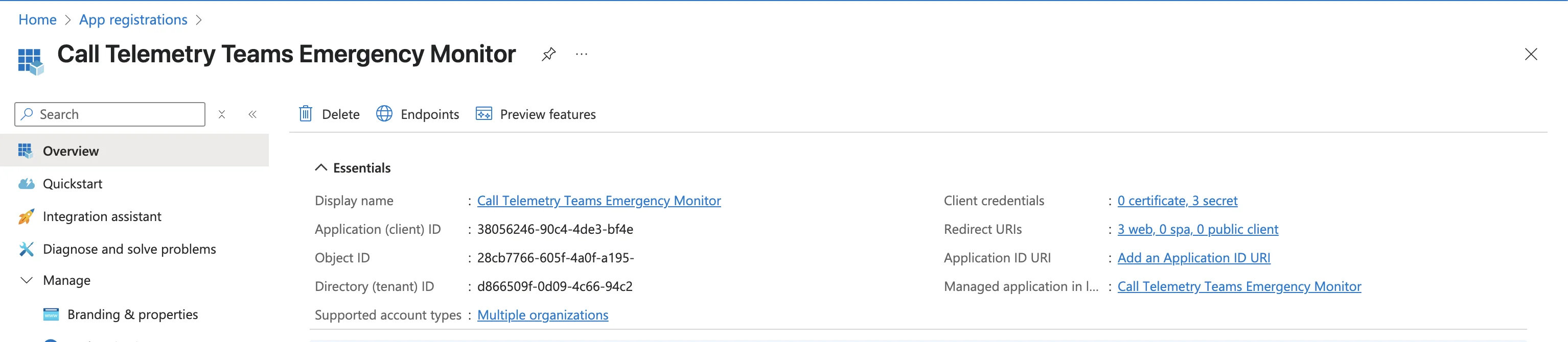
Create the Application
- Sign in to your Azure Portal
- Navigate to Azure Active Directory → App registrations
- Click "New registration"
- Fill out the registration form:
- Name:
Call Telemetry MS Teams Integration - Account types: "Accounts in this organizational directory only"
- Redirect URI: Leave blank
- Name:
- Click "Register"
Configure Authentication Settings
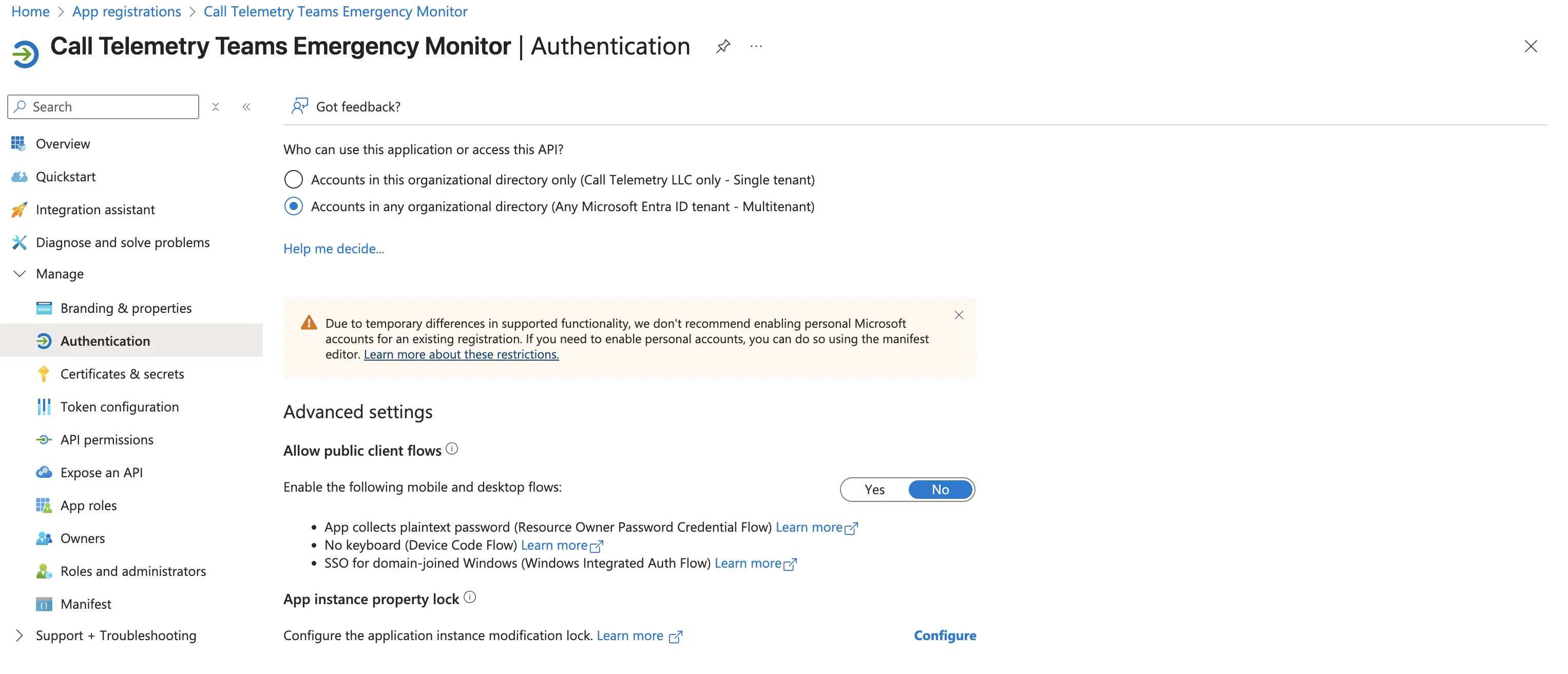
To enable device flow authentication, which is required for this integration, enable public client flows:
- Go to "Authentication" in the left menu
- Scroll down to "Advanced settings"
- Set "Allow public client flows" to YES
- Click "Save"
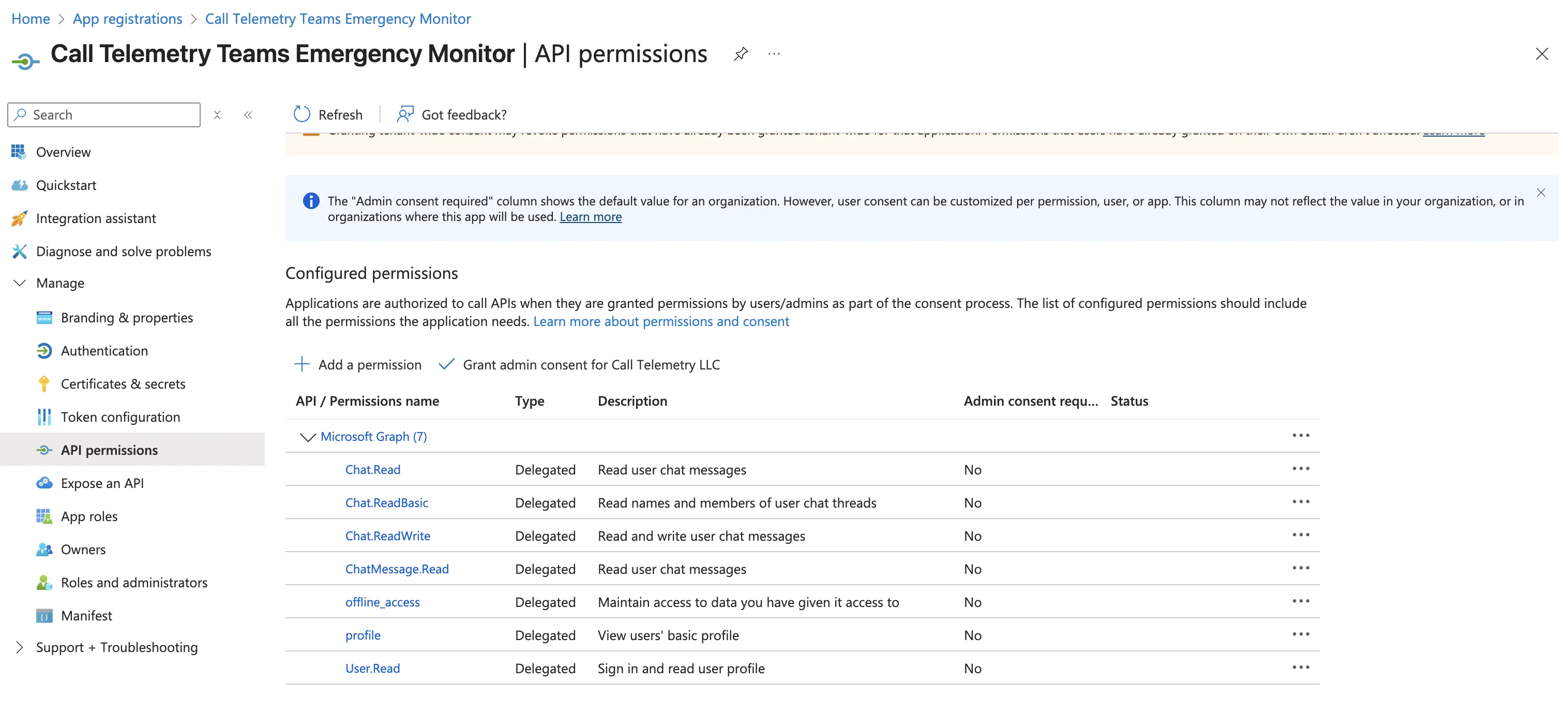
Configure API Permissions
- Go to "API permissions"
- Click "Add a permission"
- Select "Microsoft Graph"
- Choose "Delegated permissions"
- Add these permissions (search for each one):
User.ReadChat.ReadChat.ReadBasicChatMessage.Readopenidprofileoffline_access
- Click "Add permissions"
These delegated permissions don't require admin consent because they only access data the service user account can already see.
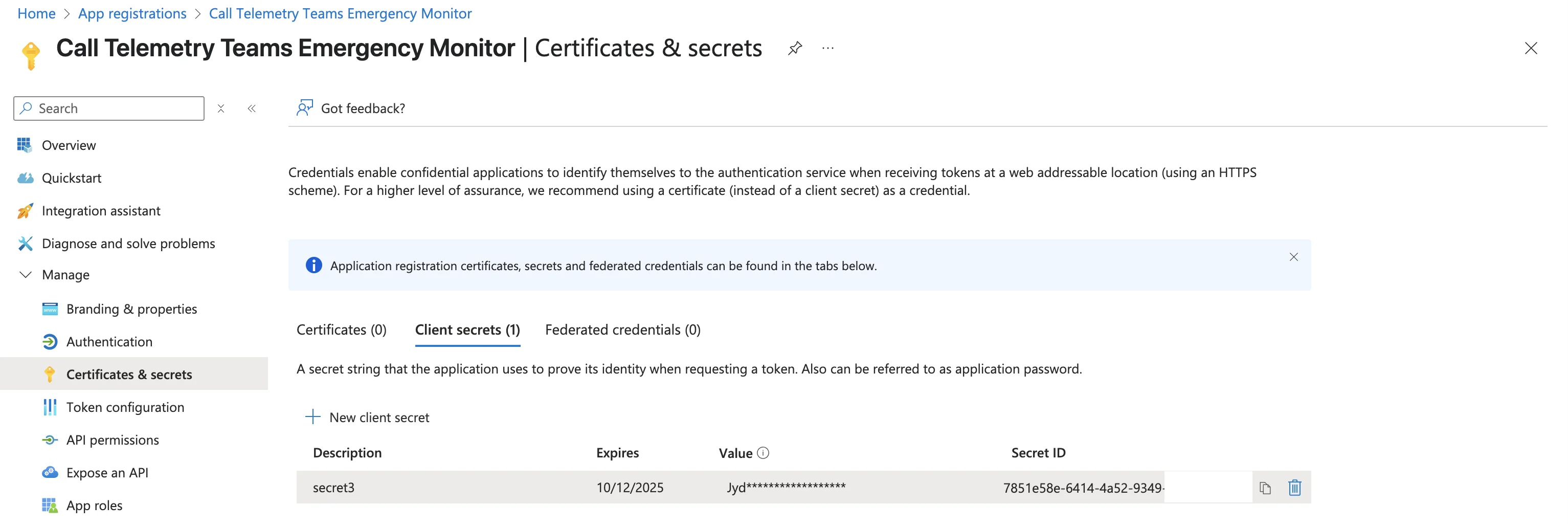
Create Security Credentials
- Navigate to "Certificates & secrets"
- Click "New client secret"
- Enter a description:
Call Telemetry Secret - Choose expiration: 24 months (adjust as needed)
- Click "Add"
- Copy the secret value - once you leave this page, you won't be able to see it again.
Save These Values
You'll need these three pieces of information for Call Telemetry configuration:
- Application (client) ID: Found on the Overview page
- Directory (tenant) ID: Also on the Overview page
- Client secret value: The secret you just created
Configure Call Telemetry Integration
Next you'll configure Call Telemetry with your MS Teams OAuth settings to connect to Microsoft Teams.
Add Azure Configuration to Call Telemetry
- Log into Call Telemetry as an administrator
- Navigate to Microsoft Teams → Teams Integration → Teams Settings
- Click "Configure OAuth Configuration" tab
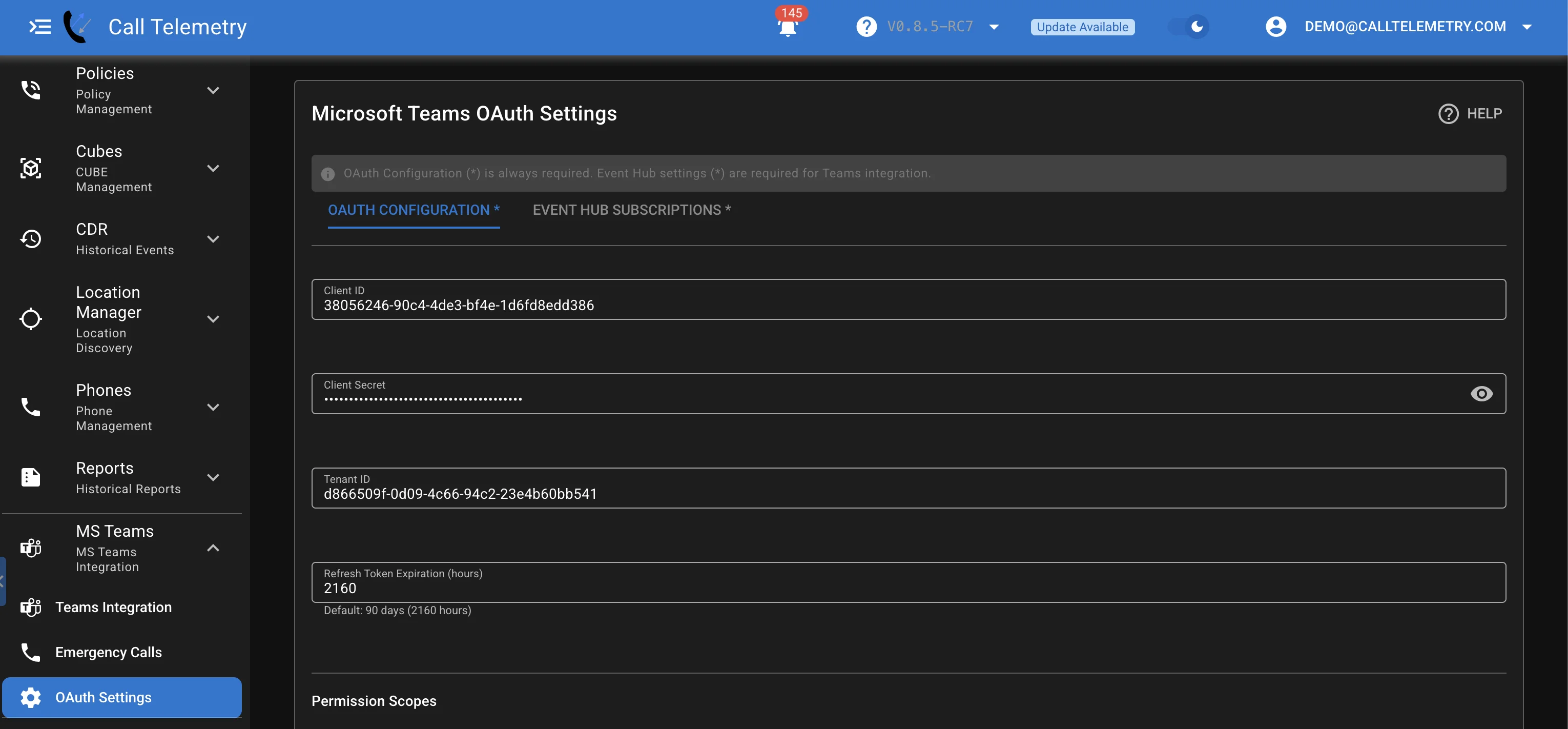
- Enter the Azure information you collected earlier:
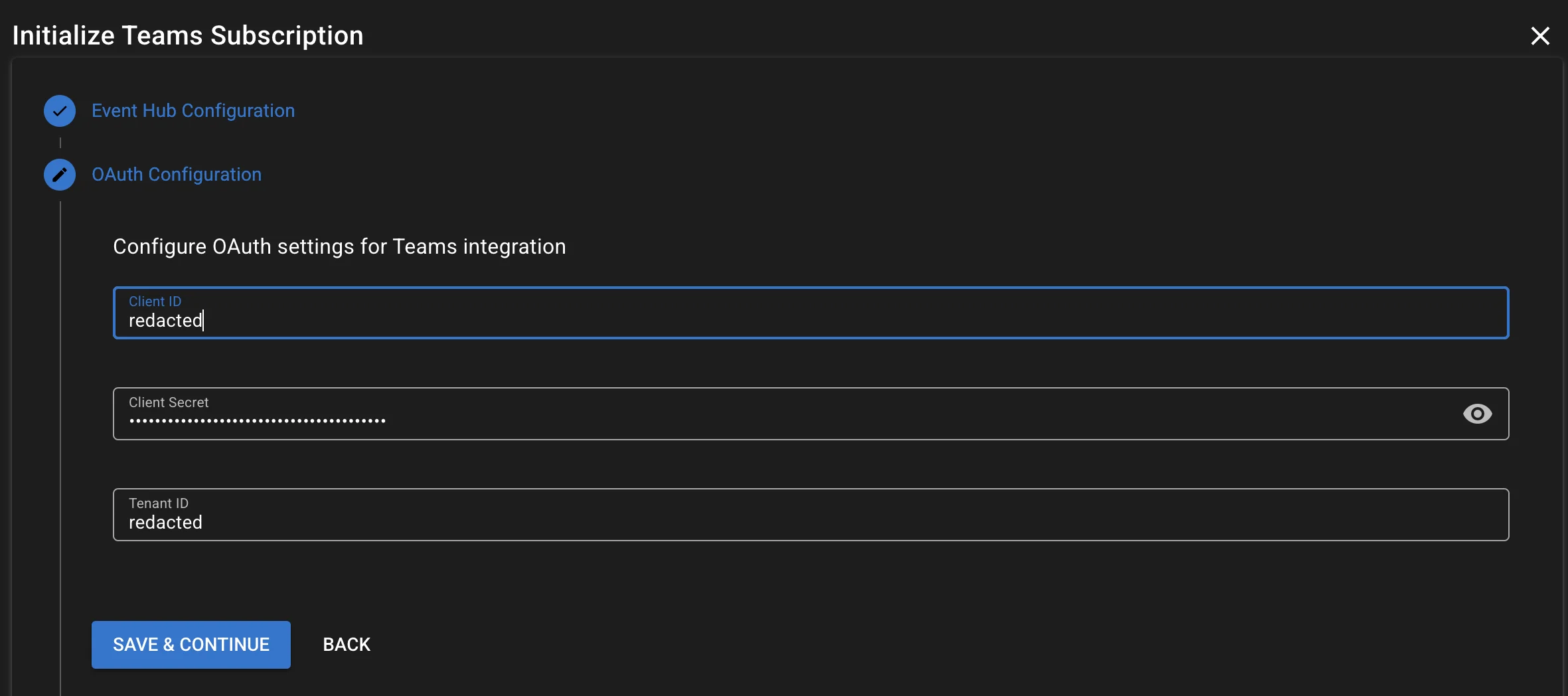
- Client ID: Your Application (client) ID from Azure
- Tenant ID: Your Directory (tenant) ID from Azure
- Client Secret: The secret value you created
- You can leave Permissions as default, all should be selected.
Step 2 - Azure Event Hubs
Azure Event Hubs is a message streaming service that will forward Teams emergency notifications to Call Telemetry. This uses the Kafka protocol for high throughput and reliability, allowing Call Telemetry to process emergency events in real-time.
No inbound connections are required, only outbound connectivity to Azure Event Hubs.
Create the Azure Infrastructure
-
Create Resource Group
- Name:
RG-Call-Telemetry-Teams - Region: Choose the Azure region closest to your Call Telemetry deployment
- Name:
-
Create Event Hub Namespace
- Name:
your-company-calltelemetry-teams-events(must be globally unique within Azure) - Pricing tier: Standard (see cost estimates below)
- Location: Same region as your resource group
- Name:
-
Create the Event Hub
- Name:
teams-events - Partition count:
2(handles multiple concurrent emergency calls) - Message retention:
1day (Standard tier default)
- Name:
Graph API Sending Permissions
You must assign the Azure Event Hubs Data Sender role to the Microsoft Graph Change Tracking. Without this permission, the integration will fail when trying to create subscriptions. Microsoft Graph Change Tracking needs permission to send events to your Event Hub.
From Azure Portal:
- Go to your Event Hub namespace
- Click "Access control (IAM)" in the left menu
- Click "Add" → "Add role assignment"
- Search for "Azure Event Hubs Data Sender" role and select it
- Click "Next"
- Click "Select members"
- Search for "Microsoft Graph Change Tracking"
- Select the service principal and click "Select"
- Click "Review + assign"
Verify the Graph Sender Role
Use Azure CLI when you need to confirm the role assignment before you return to Call Telemetry. Assign the role to Microsoft Graph Change Tracking, not the Microsoft Graph application registration and not the Teams service account.
resource_group="RG-Call-Telemetry-Teams"
namespace="your-company-calltelemetry-teams-events"
change_tracking_app_id="0bf30f3b-4a52-48df-9a82-234910c4a086"

change_tracking_object_id=$(az ad sp show \
  --id "$change_tracking_app_id" \
  --query id -o tsv)
namespace_scope=$(az eventhubs namespace show \
  --resource-group "$resource_group" \
  --name "$namespace" \
  --query id -o tsv)

az role assignment create \
  --assignee-object-id "$change_tracking_object_id" \
  --assignee-principal-type ServicePrincipal \
  --role "Azure Event Hubs Data Sender" \
  --scope "$namespace_scope"

az role assignment list \
  --assignee-object-id "$change_tracking_object_id" \
  --scope "$namespace_scope" \
  --query "[].{role:roleDefinitionName,scope:scope}" -o table
Assign the role at the Event Hub namespace scope, as shown in the Azure portal steps. If you have just changed the role assignment, wait for Azure RBAC to apply it, then create the subscription again.
Configure Call Telemetry Event Hub Settings
Now that your Event Hub is set up, you need to configure Call Telemetry with those settings.
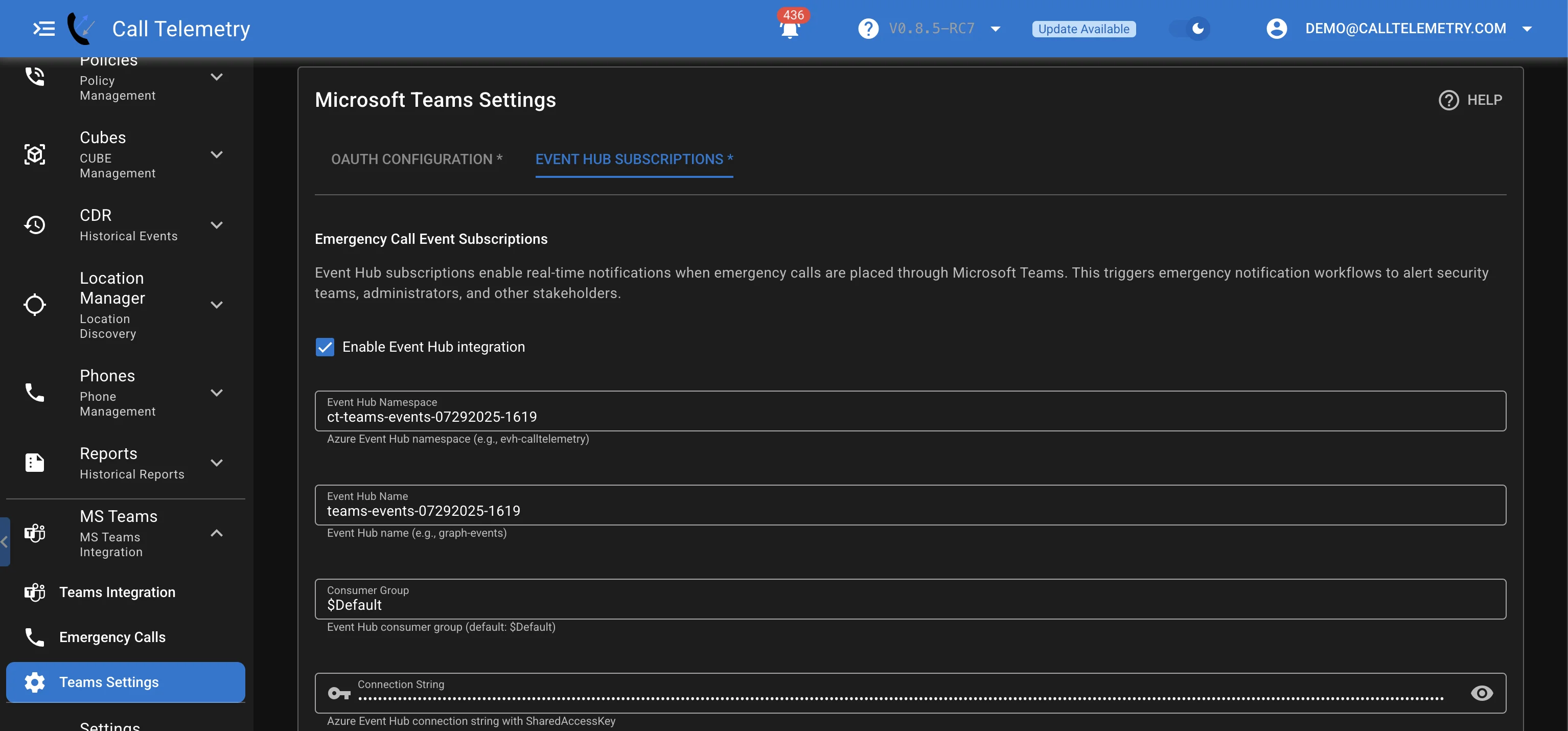
- In Call Telemetry, go to Settings → Microsoft Teams → Teams Settings
- Click "Configure Event Hub Subscriptions" tab
- Enable Event Hub Integration: Check this box
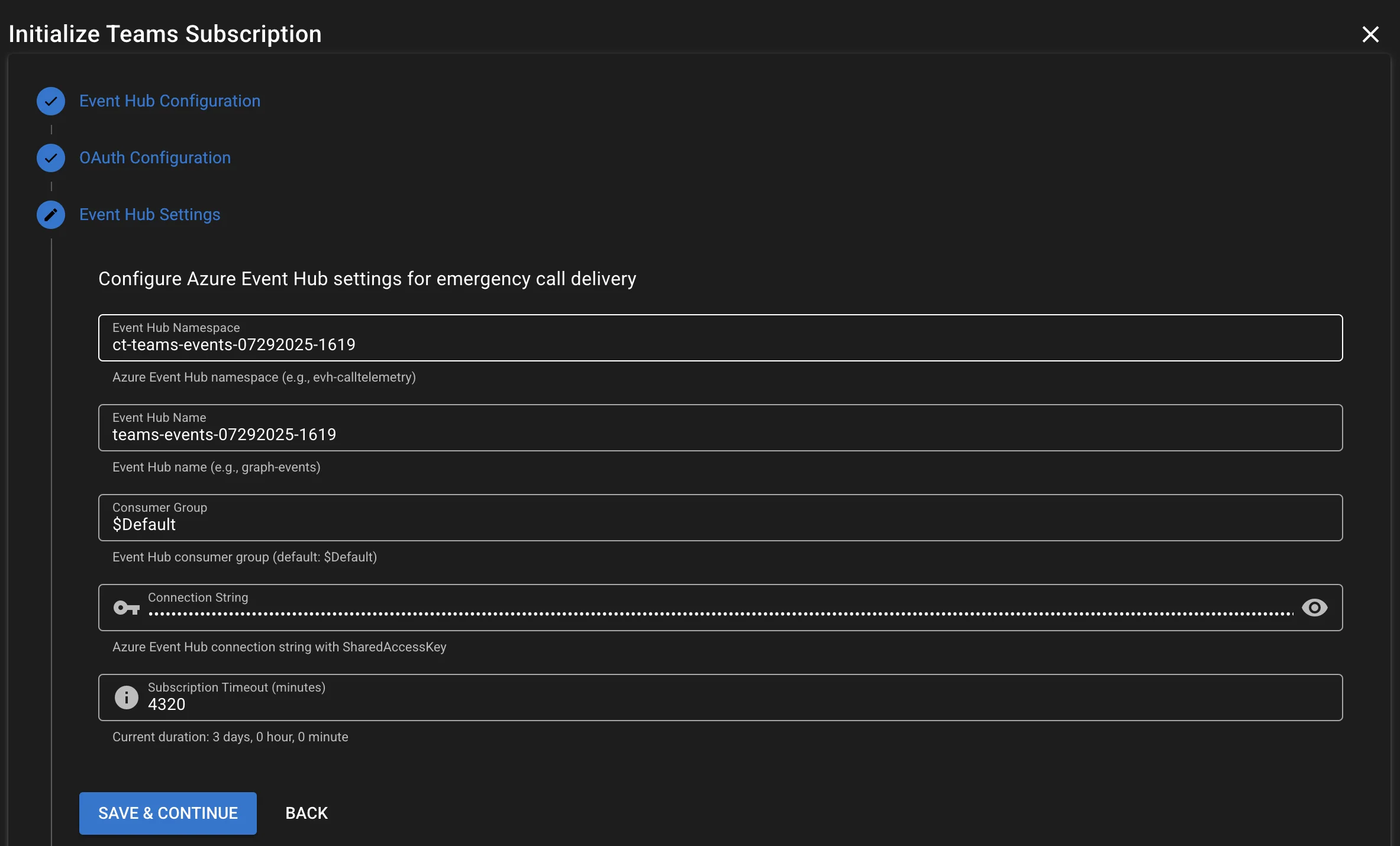
- Event Hub Namespace:
your-company-calltelemetry-teams-events(the namespace you created) - Event Hub Name:
teams-events(the Event Hub you created) - Event Hub Consumer Group:
$Default(default consumer group) - Event Hub Connection String: Found in your Event Hub namespace settings
- Event Hub Partition Count:
2(as configured)
- Click "Save Settings"
Step 3 - Authenticate Service Account
Authenticate Service Account
- In Call Telemetry, go to Settings → Microsoft Teams → Teams Integration
- Click "Authenticate Service Account"
- Click Authenticate to start the process.
- Follow the device authentication flow:
- You'll see a code displayed
- Open a browser and go to the provided URL
- Enter the code when prompted
- Sign in with your service user account
- Confirm Target Application is the same you created in Azure
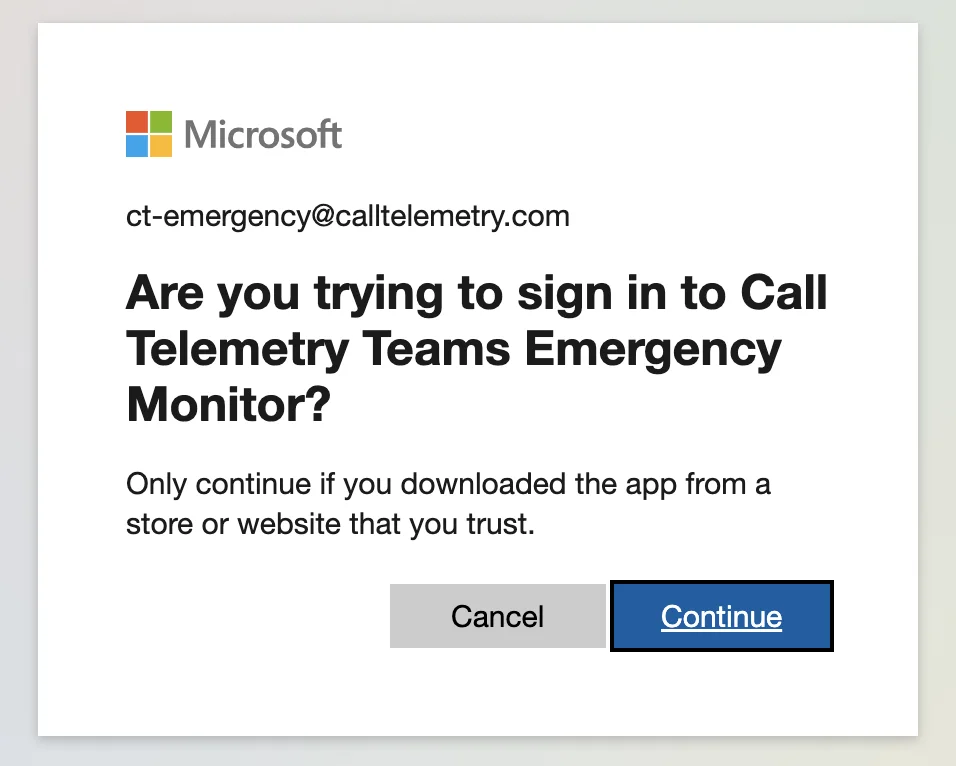
- Grant permissions to the application. These are delegated permissions, so you are granting access to the service user account only.
- Close the browser window after successful authentication
- Check for successful authentication message in Call Telemetry
Step 4 - Create Subscription
Subscription Creation
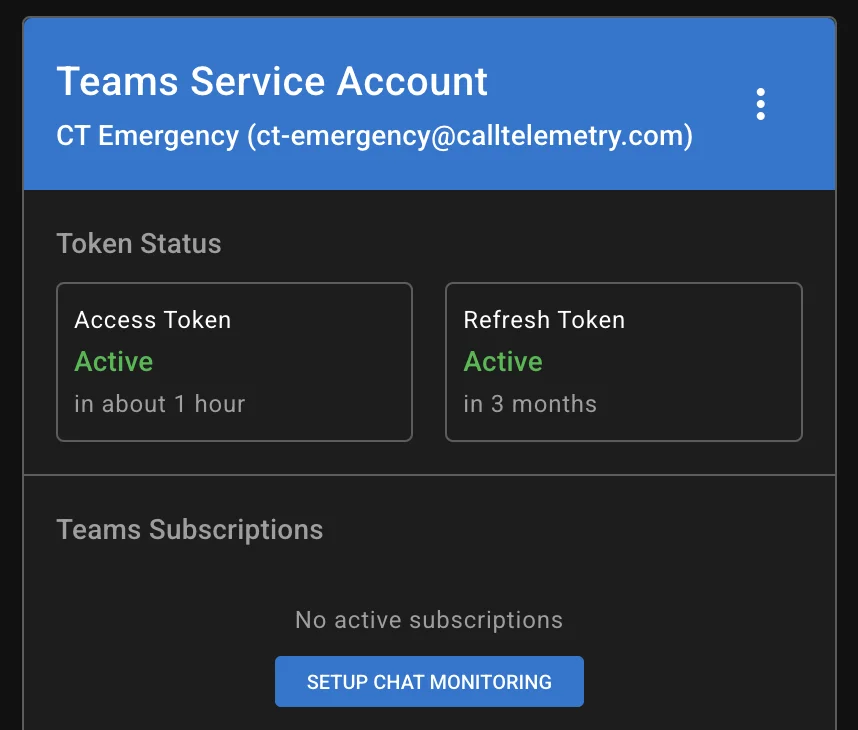
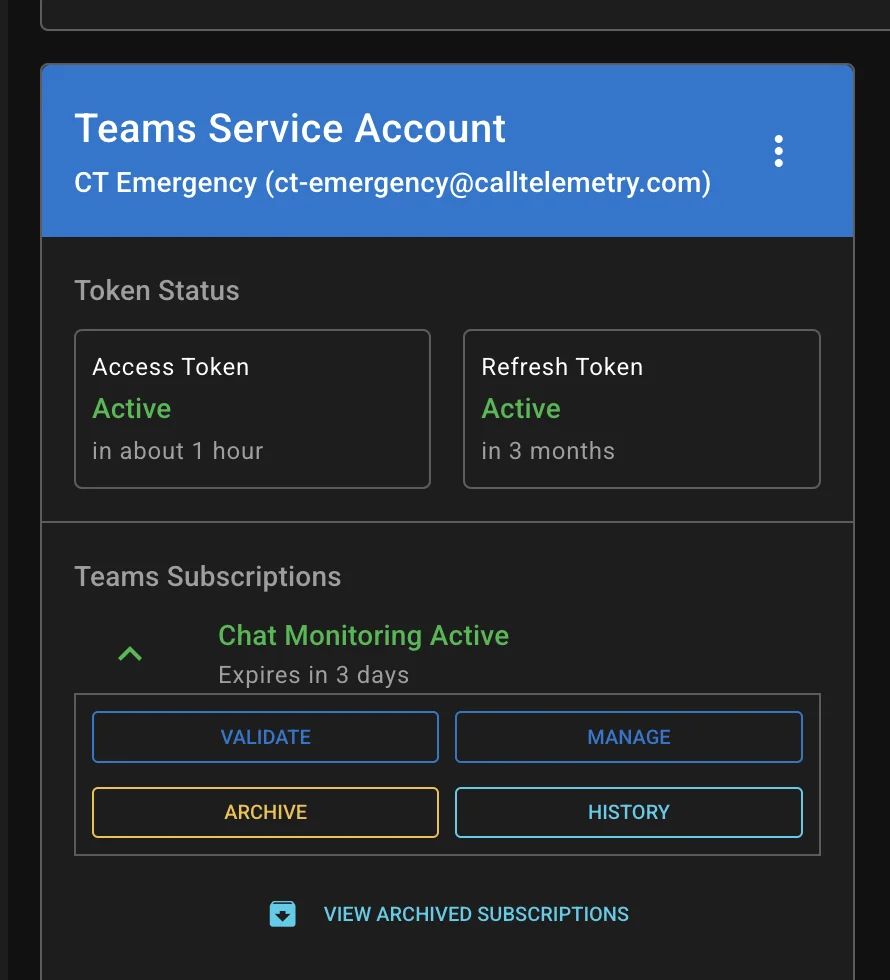
After successful authentication, you will see your user in the dashboard area and renewal tokens are valid and ready to use. Next we need to create the Microsoft Graph subscription to monitor Teams emergency calls.
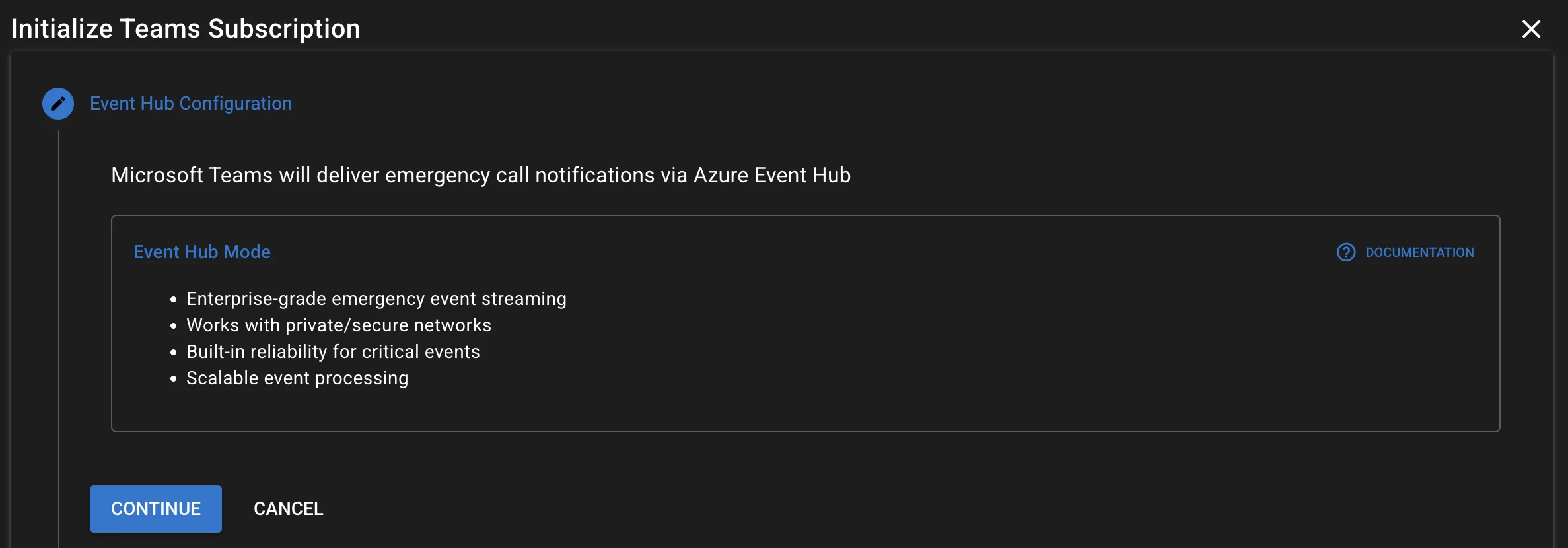
- Click Setup Chat Monitoring
- Review Event Hub notes, and click Continue
- Configure your OAuth configuration, and click Save and Continue
- Configure your Event Hub configuration, and click Save and Continue
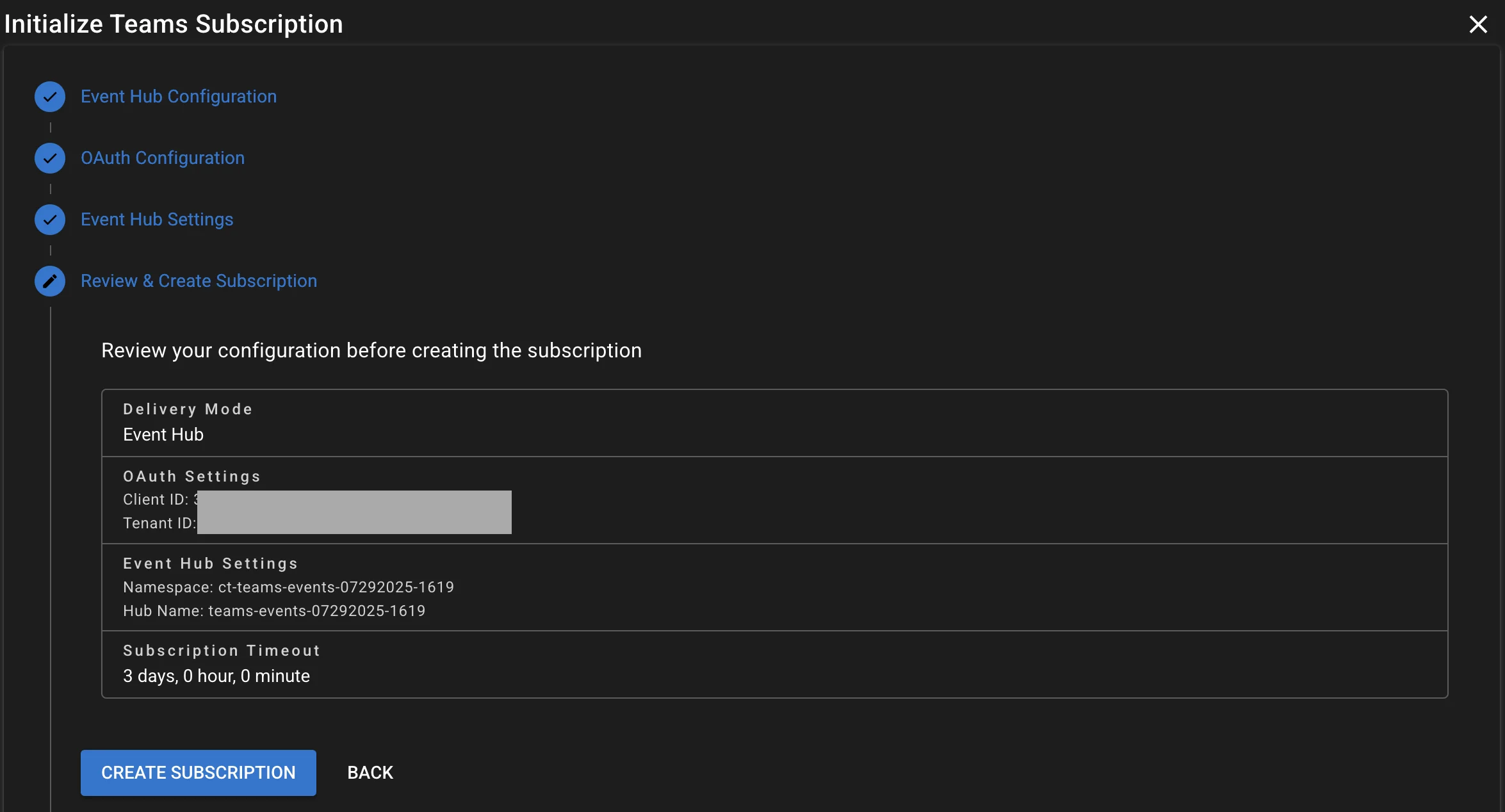
- Review the summary of your configuration, and click Create Subscription
- Check for successful subscription creation message in Call Telemetry
Verify Subscription and Event Hub Health
Before you place a test call, confirm that Call Telemetry shows an active chat subscription and a healthy Event Hub consumer.
- Navigate to Settings → Microsoft Teams → Teams Integration.
- Confirm the service user has an active subscription for
/me/chats/getAllMessages. - Navigate to Settings → Microsoft Teams → Teams Settings and confirm the Event Hub consumer is healthy.
For an API-level check, the Event Hub health response must report
overall_status as healthy, pipeline.status as healthy, and
connection_quality as 100.
curl -sS \
  -H "Authorization: Bearer <Call Telemetry API token>" \
  "https://<call-telemetry-host>/api/org/<org-id>/eventhub/health"
Healthy Event Hub transport proves that Call Telemetry can consume from Azure.
It does not prove that your Teams policy generated a new emergency notification.
Complete the 933 receipt test in the next section before you close the setup.
Step 5 - Emergency Call Testing
Now that everything is set up, it's time to test the integration end-to-end.
Setup 933 Emergency Call Policy
- In Microsoft Teams Admin Center, go to Voice → Emergency policies
- Create a new emergency policy and add
933as your approved test emergency number. - Add the Service Integration User to the notification group for this policy.
Test the Integration
To verify that the integration is working correctly, dial the approved test number
that your Microsoft Teams policy classifies as an emergency call. This guide uses
933. Confirm the number and notification group with your Microsoft Teams
administrator before you test. Do not substitute a live emergency number.
Record the UTC start time before dialing. It gives you the exact window to use when you check Azure Monitor metrics if the receipt is delayed or missing.
The service account must be in the 933 policy notification group. A Teams
license alone allows the service account to sign in; it does not cause Teams to
send it an emergency-call chat notification.
Troubleshoot Subscription Creation
| What You See | What to Check | How to Fix It |
|---|---|---|
UnauthorizedAccessException with Send claims required | The Event Hub sender role is missing or assigned to the wrong principal. | Assign Azure Event Hubs Data Sender to Microsoft Graph Change Tracking at the Event Hub namespace scope, then create the subscription again. |
| Service user appears in Call Telemetry but no subscription is listed | Authentication completed, but chat monitoring was not created. | Return to Settings → Microsoft Teams → Teams Integration and click Setup Chat Monitoring. Complete the review and click Create Subscription. |
Event Hub is healthy but no 933 call appears | Transport is healthy, but the Teams policy did not create a notification for the service user. | Confirm the 933 policy and notification group, then place a new approved test call while you watch MS Teams → Emergency Calls. |
Use Azure Monitor to Separate Policy and Consumer Problems
When Call Telemetry reports a healthy consumer but the receipt test does not find a new emergency call, check the Event Hub namespace metrics for the exact test window.
az monitor metrics list \
  --resource "$namespace_scope" \
  --metric IncomingMessages OutgoingMessages \
  --interval PT1M \
  --aggregation Total \
  --start-time "<test-start-utc>" \
  --end-time "<test-end-utc>" \
  --query "value[].{metric:name.value,points:timeseries[0].data[]}" -o json
IncomingMessagesstays at0during the call window: Teams did not send a notification to Event Hub. Recheck the933emergency policy and notification group.IncomingMessagesincreases but Call Telemetry has no emergency-call record: the tenant delivery path is working. Collect the receipt-run report and investigate the appliance event parser or consumer configuration.- Both
IncomingMessagesandOutgoingMessagesincrease: Azure accepted the event and a consumer read it. This still requires a fresh Call Telemetry emergency-call receipt before the integration is accepted.
Azure Monitor can publish Event Hubs metrics a few minutes after an event. For an immediate test result, treat the fresh Call Telemetry emergency-call receipt as authoritative; use Azure Monitor after the delay to narrow a failure to the Teams policy, Event Hub delivery, or the appliance consumer.
Validating Call Events
When the integration is working correctly, you should see the emergency call event in Call Telemetry.
- Dial 933 from a Teams client (desktop or mobile)
- Click Emergency Calls link from the Sidebar, under MS Teams → Emergency Calls.
You can see the emergency call listed in the Emergency Calls table.
- You can click to see precise location on a map, the UPN of the caller, and raw call metadata extracted.
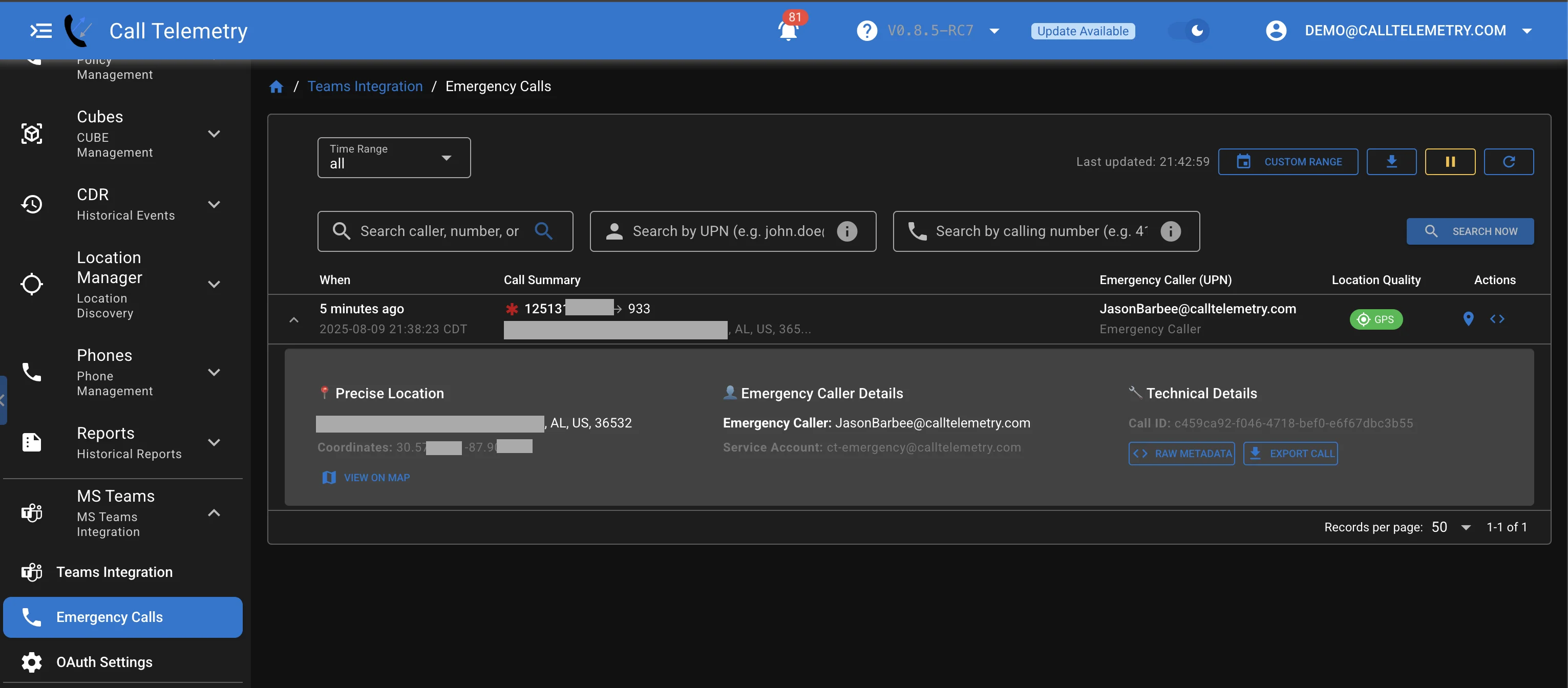
- You can click to see precise location on a map, the UPN of the caller, and raw call metadata extracted.
Emergency call events take less than 10 seconds to appear in Call Telemetry after the call is made. Longer than this indicates a problem with the integration.
Viewing Call and Chat Events
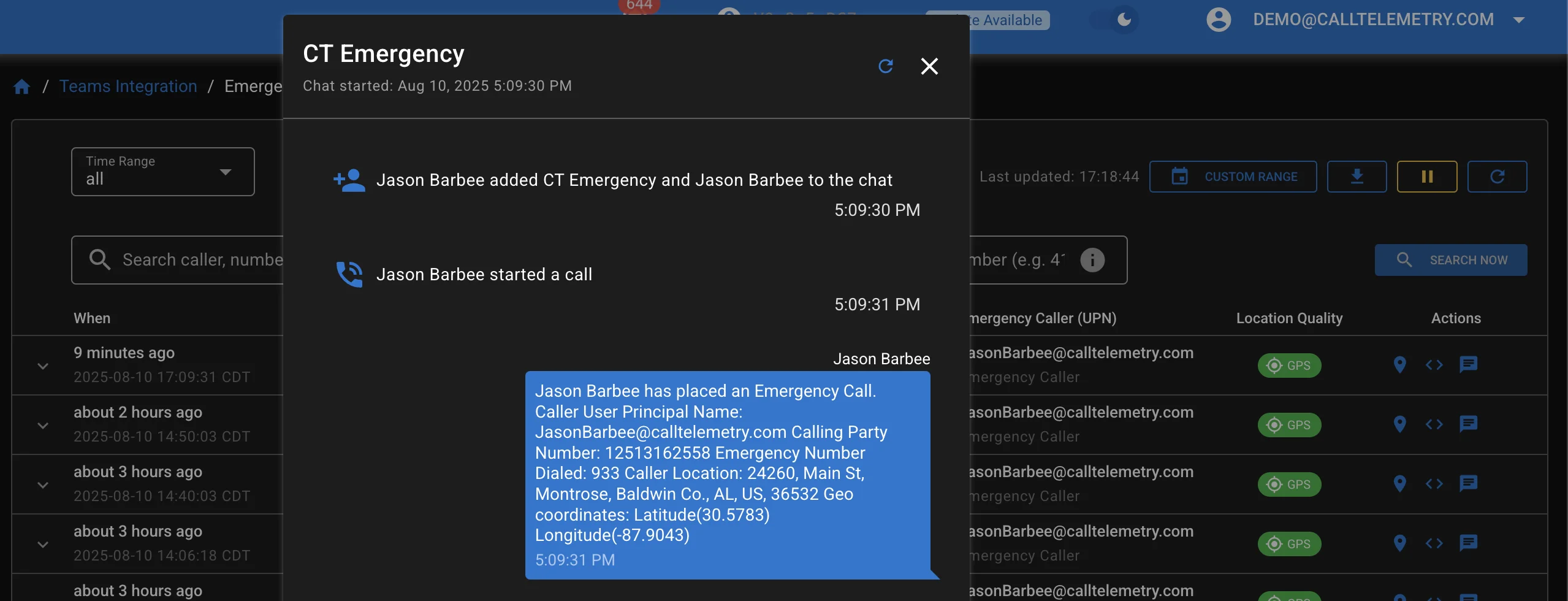
For more details about the call and chat events, you can click on the action for "View Chat History" for the Emergency Call event.
Viewing Subscription Call Event History
You can see all chat events recorded by the service user account, from the Integration Page.
- In Call Telemetry, go to Settings → Microsoft Teams → Teams Integration
- Open Recent Activity for the service user account.
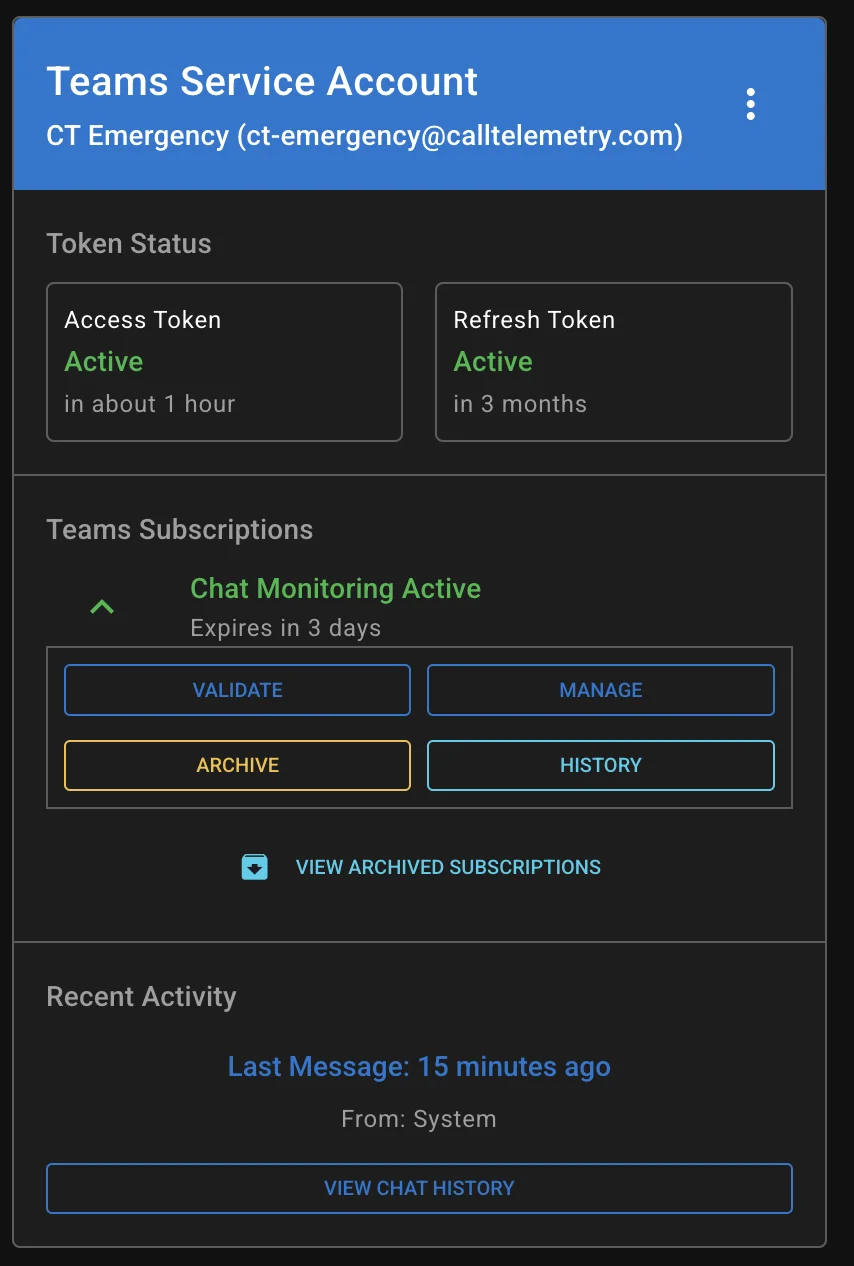
- Click View Chat History to see the Call and Chat History recorded for the service user account.
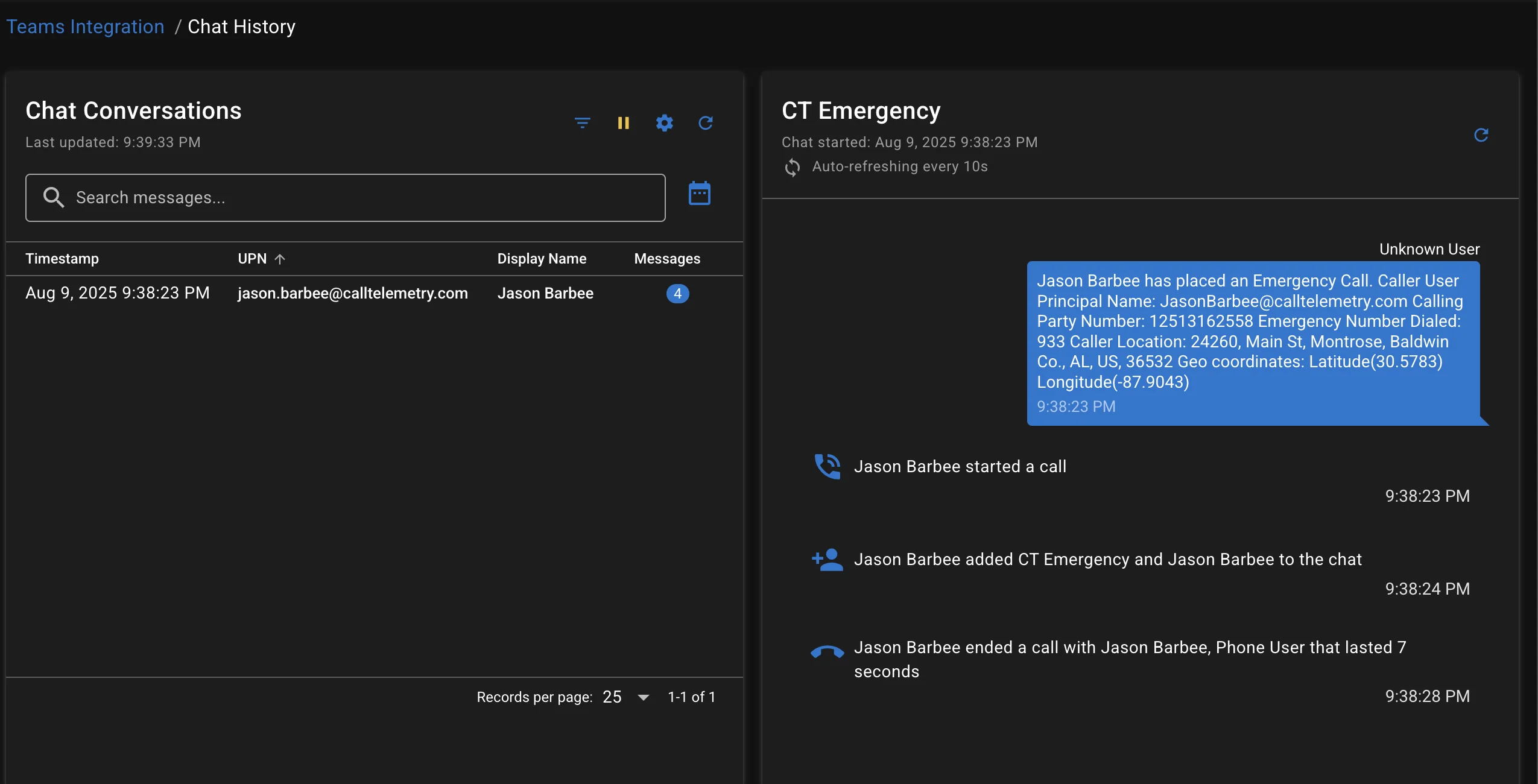
Microsoft Teams emergency notifications are delivered as chat messages in a dedicated chat thread. The service user account monitors its received chat messages to detect emergency calls, according to the Microsoft Emergency Calling Notification policies, which specify the Chat User is joined into the emergency call notification chat.
Technical Reference
Emergency Call Flow
When an emergency call is made, here's what happens:
Security Design
- End-to-End Encryption: All communication uses TLS 1.2+
- Minimal Permissions: Only chat reading permissions, no administrative access
- Delegated Access: Integration only sees what the service user can see
- No Inbound Connections: Only outbound connections required
- MFA Support: Works with organizational multi-factor authentication policies
Technical Specifications
| Component | Specification | Notes |
|---|---|---|
| Graph API Subscriptions | 3-day expiration | Auto-renewed by Call Telemetry |
| Access Tokens | 1-hour expiration | Auto-refreshed |
| Event Hub Partitions | 2 recommended | Handles concurrent emergency calls |
| Message Retention | 1-7 days | Configurable based on Event Hub tier |
| Protocol | Kafka/SSL on port 9093 | Industry standard message streaming |
Maintenance Requirements
- Client Secret: Configurable expiration, but you will have to set the new secret in Call Telemetry before it expires, possibly every 12-24 months if configured as such.
Cost Estimates
Understanding the costs involved helps you plan and budget for this Teams integration. The main cost driver is Azure Event Hub, with minimal additional costs for other components.
Monthly Cost Breakdown
Azure Components
| Component | Cost | Notes |
|---|---|---|
| App Registration | Free | No charge for creating Azure AD app registrations |
| Azure Event Hub Standard | $25/month | Main cost - based on 1 throughput units for typical deployments |
| Event Hub Storage | $0/month | Minimal Event Storage data |
| Azure Resource Group | Free | No additional cost for organizing resources |
Microsoft 365 Components
| Component | Cost | Notes |
|---|---|---|
| Teams License (Service Account) | $6.30/month | Microsoft 365 Business Basic with Teams (April 2025 pricing) |
| Azure Entra ID Users | Included | Service account uses existing Entra ID at no additional cost |