Microsoft Teams Settings & Onboarding
Call Telemetry connects to Microsoft 365 and Microsoft Teams through enterprise-grade authentication and streaming event architectures. This guide explains how to onboard your Microsoft 365 tenant, configure application and delegated credentials, and set up mandatory Azure Event Hubs streaming in Settings → Microsoft Teams.
Authentication Architecture
Call Telemetry separates administrative and real-time operations into two distinct authentication planes:
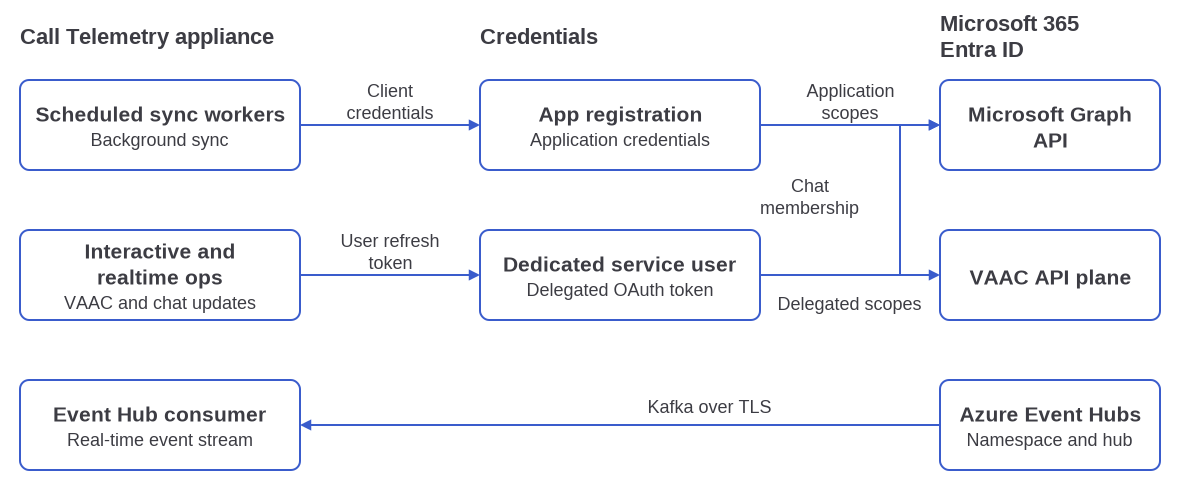
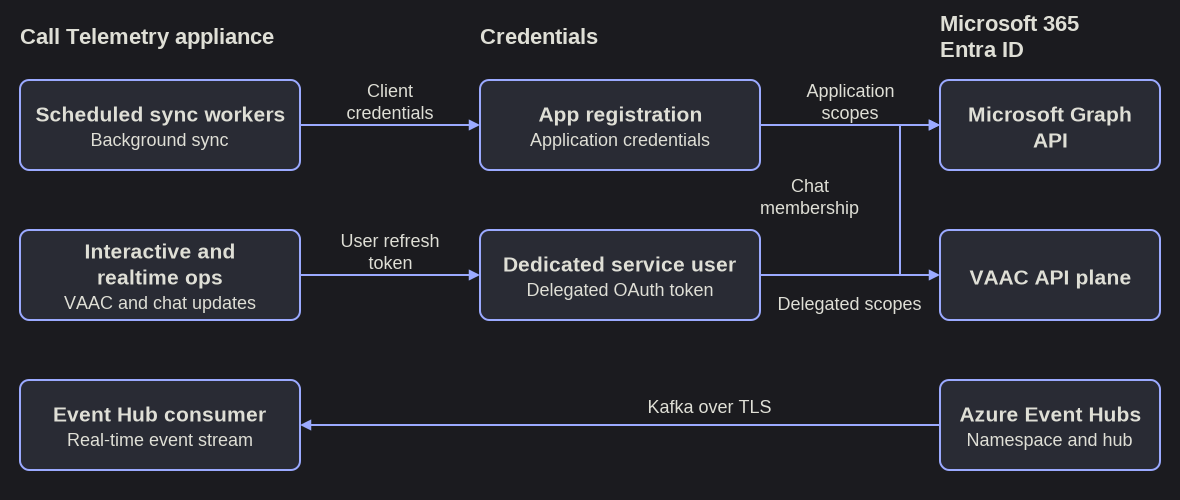
Application vs. Delegated Accounts
| Attribute | Application Account (Service Principal) | Delegated Account (Service User) |
|---|---|---|
| Authentication Flow | OAuth 2.0 Client Credentials flow (client_id + client_secret or certificate). | OAuth 2.0 Authorization Code flow with PKCE (offline_access). |
| Execution Context | Runs headless in background batch workers. | Operates on behalf of a signed-in service account. |
| Primary Functions | Daily reporting sync: call records, PSTN usage, directory attributes, license inventories, and quality statistics. | Real-time Auto Attendant / Call Queue analytics (VAAC), emergency chat postings, and chat change notifications. |
| Token Refresh | Ephemeral access tokens requested per sync run using client secret. | Durable refresh token stored encrypted in the database; refreshed before expiry. |
| Required Roles | Global Administrator (for one-time admin consent). | Teams Administrator or Teams Communications Support Specialist role + active Teams Phone license. |
Step-by-Step Onboarding
1. Configure Microsoft Entra ID App Registration
In the Microsoft Entra admin center:
- Navigate to Identity → Applications → App registrations → New registration.
- Name the application
Call Telemetry Connector. - Choose Single tenant and click Register.
- Note the Application (client) ID and Directory (tenant) ID from the Overview pane.
- Under Certificates & secrets, generate a new Client secret. Set an appropriate expiry date and securely store the secret value.
2. Enter Tenant Credentials in Call Telemetry
- In the Call Telemetry appliance, navigate to Settings → Microsoft Teams.
- Select Add Tenant (or edit existing tenant).
- Enter the following parameters:
- Tenant Name: Friendly identifier for your organization.
- Directory (Tenant) ID: GUID from the Entra ID app overview.
- Application (Client) ID: GUID from the Entra ID app overview.
- Client Secret: Secret value generated in step 1.
- Click Save Settings.
3. Grant Application Permissions & Admin Consent
Under API permissions in the Entra ID App registration, add the following Microsoft Graph Application permissions:
CallRecords.Read.AllCallRecord-PstnCalls.Read.AllReports.Read.AllUser.Read.AllDirectory.Read.AllOrganization.Read.AllCallEvents-Emergency.Read.All(Required for Teams E911 real-time emergency call event streaming)
Select Grant admin consent for [Organization] and confirm all permissions display a green checkmark.
4. Authorize Delegated Service User
To enable Voice Applications Analytics (VAAC) and emergency chat interactions:
- Create a dedicated service user account in Microsoft 365 (e.g.,
svc-calltelemetry@yourdomain.com). - Assign the user an active Microsoft Teams license and the Teams Administrator directory role.
- In Settings → Microsoft Teams, locate the Delegated Account section and click Sign in with Microsoft.
- Complete the Microsoft OAuth login using the service account credentials.
- Accept the permissions Microsoft lists. By default these are
openid,profile,offline_access,User.Read,Chat.Read,Chat.ReadBasic, andChatMessage.Read. The voice apps permission,user_impersonation, is requested separately after sign-in. See Teams Call Queue & Auto Attendant Analytics Requirements. - Upon successful callback redirect, Call Telemetry stores the encrypted refresh token and displays Status: Connected with the service user's UPN.
Mandatory Azure Event Hubs Requirement
Prior Call Telemetry versions supported receiving Microsoft Graph change notifications via HTTP webhooks. In Call Telemetry 0.8.6, webhook delivery mode is completely removed. All real-time event streaming—including E911 emergency notifications—must use Azure Event Hubs.
Microsoft Graph change notifications for enterprise call events stream to Azure Event Hubs, providing at-least-once delivery, partitioned scaling, and consumer failure isolation.
Pre-Upgrade Requirement
If upgrading an existing appliance to 0.8.6:
- Provision Azure Event Hubs resources in your Azure subscription before starting the upgrade.
- Configure Event Hubs parameters in Settings → Microsoft Teams → Event Hubs.
- Verify transport readiness. The 0.8.6 upgrade pre-flight check validates that Event Hubs is configured and will halt the upgrade if legacy webhook mode is still enabled.
Azure Resource Provisioning
Run the following Azure CLI commands to create the required namespace, hub, and RBAC role assignments:
# Set variables
RESOURCE_GROUP="rg-calltelemetry"
LOCATION="eastus"
NAMESPACE_NAME="eh-calltelemetry-$RANDOM"
EVENTHUB_NAME="graph-events"
CONSUMER_GROUP="$Default"  # Or custom consumer group name, e.g. "calltelemetry-consumer"

# 1. Create Resource Group
az group create --name $RESOURCE_GROUP --location $LOCATION

# 2. Create Event Hubs Namespace (Standard tier required for Kafka/Graph integration)
az eventhubs namespace create \
  --name $NAMESPACE_NAME \
  --resource-group $RESOURCE_GROUP \
  --location $LOCATION \
  --sku Standard

# 3. Create the Event Hub
az eventhubs eventhub create \
  --name $EVENTHUB_NAME \
  --resource-group $RESOURCE_GROUP \
  --namespace-name $NAMESPACE_NAME \
  --message-retention 1 \
  --partition-count 2  # Call Telemetry defaults to 2 partitions; adjust as needed

# 4. Create Consumer Group
az eventhubs eventhub consumer-group create \
  --name $CONSUMER_GROUP \
  --resource-group $RESOURCE_GROUP \
  --namespace-name $NAMESPACE_NAME \
  --eventhub-name $EVENTHUB_NAME

# 5. Assign 'Azure Event Hubs Data Sender' to Microsoft Graph Change Tracking
# Microsoft Graph Change Tracking Enterprise Application App ID: 0bf30f3b-4a52-48df-9a82-234910c4a086
GRAPH_APP_ID="0bf30f3b-4a52-48df-9a82-234910c4a086"
NAMESPACE_ID=$(az eventhubs namespace show --name $NAMESPACE_NAME --resource-group $RESOURCE_GROUP --query id -o tsv)

az role assignment create \
  --assignee $GRAPH_APP_ID \
  --role "Azure Event Hubs Data Sender" \
  --scope $NAMESPACE_ID
Enter Event Hubs Configuration in Call Telemetry
In Settings → Microsoft Teams → Event Hubs Configuration, supply:
- Namespace Fully Qualified Domain Name:
eh-calltelemetry-xxxx.servicebus.windows.net - Event Hub Name:
graph-events - Consumer Group:
$Default(or your custom consumer group name) - Partition Count:
2(default, or matching your Event Hub partition count) - Connection String: Shared Access Policy connection string with Listen rights (e.g.,
Endpoint=sb://...;SharedAccessKeyName=...).
Click Test Connection. Call Telemetry connects to the Event Hub with the Kafka protocol over TLS (port 9093), validates consumer group connectivity, and initializes checkpoint state in the local database.
Token Lifecycle Management
Call Telemetry continuously monitors credential health across both authentication planes:
- Automated Refresh: Delegated refresh tokens are renewed automatically every 24 hours.
- Expiry Warnings: The appliance raises an alarm (
teams_auth_delegated_token_expiring) if a refresh token cannot be renewed or is within 7 days of maximum validity. - Client Secret Rotation: Entra ID client secret expiration is tracked. An administrative alert triggers 30 days before expiration.
- Re-Authentication Flow: If a token is revoked or the service account password changes, click Re-authenticate under Settings → Microsoft Teams to re-establish authorization without disrupting existing reporting history.