Microsoft Teams Alerts & Paging
Call Telemetry provides bidirectional alerting and emergency communications with Microsoft Teams:
- Inbound Emergency Alerts: Capturing real-time Teams E911 emergency calls from Azure Event Hubs, triggering instant location-based notifications and posting updates into Teams emergency chats.
- Outbound Notify Paging: Broadcasting multi-channel mass notifications from Call Telemetry Notify into Microsoft Teams channels via Incoming Webhooks, running alongside Cisco IP phone audio and Webex paging.
Teams Emergency Call Alerts
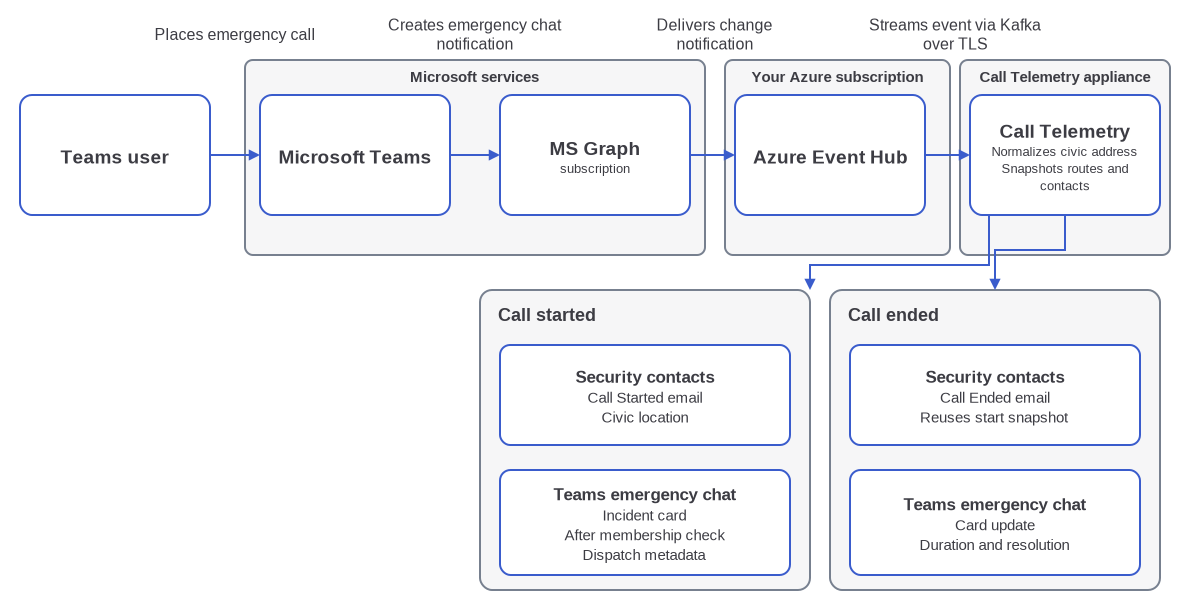
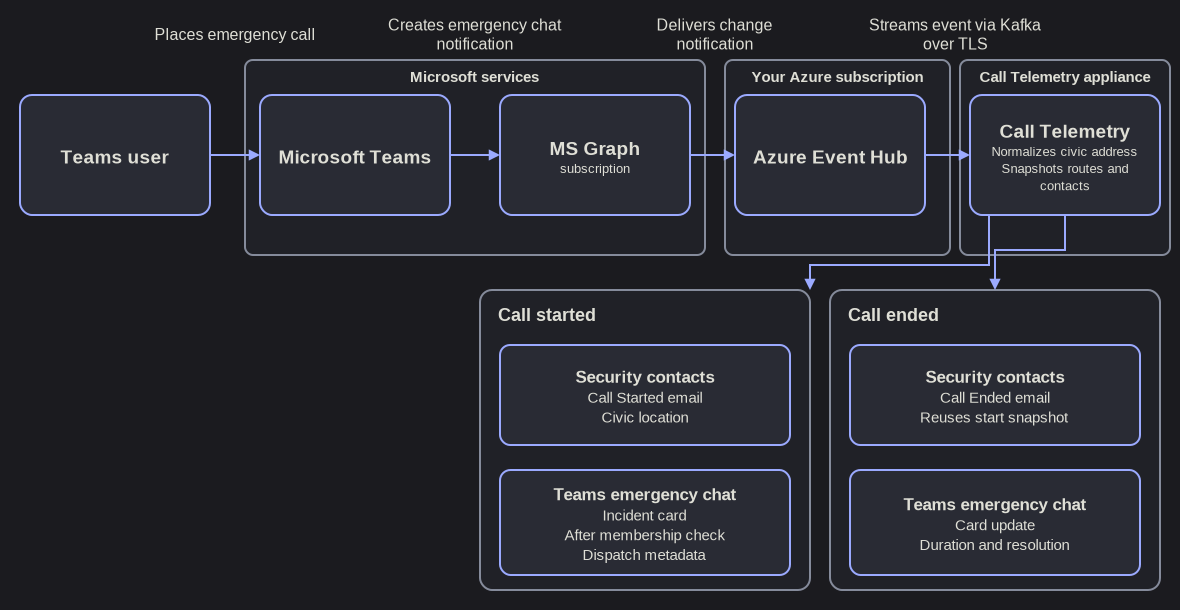
Emergency call alerts for Microsoft Teams operate on a dedicated real-time event stream in Alerts → CDR Alerts. Unlike delayed call record batch feeds, Teams emergency alerts process events within seconds of a user dialing 911 or 933.
Key Capabilities
- Lifecycle Alerting: Independent triggers for Call started and Call ended. An alert profile can deliver an immediate alert when the emergency call connects, followed by a completion notice with duration details when the call disconnects.
- Civic Location Routing: Matches structured civic address fields (street, city, state, postal code) against internal E911 location directories. If an address is unmatched, the profile dispatches to a designated fallback route.
- Call-Start Snapshot: At the moment a call starts, Call Telemetry captures an immutable snapshot of the matched location, contact list, and active templates. Call-end notifications reuse this snapshot even if an administrator modifies routing rules while the call is in progress.
- Dedicated Token Namespace: Custom templates have access to source-safe token groups:
call.*: Event ID, start/end timestamps, call state.caller.*: Display name, UPN, phone number.claimed_location.*: Structured civic location sent by the Teams client.resolved_location.*: Matched internal building, floor, and site metadata.teams.*: Tenant ID and emergency policy name.
Emergency Chat Integration
When Update emergency chat is enabled in an alert profile:
- Call Telemetry correlates the emergency event with the active Teams emergency group chat created for that incident.
- The appliance checks whether the configured Call Telemetry delegated service account is a member of that chat.
- If the account is a member, Call Telemetry posts an Adaptive Card containing location details, callback numbers, and incident metadata. When the call concludes, it updates the card with the call outcome.
- Graceful Skip: If the service account is not a member of the emergency chat, Call Telemetry records
skipped_agent_not_memberin alert history. Chat failures never block or delay emergency email delivery.
Notify Broadcast Paging via Microsoft Teams
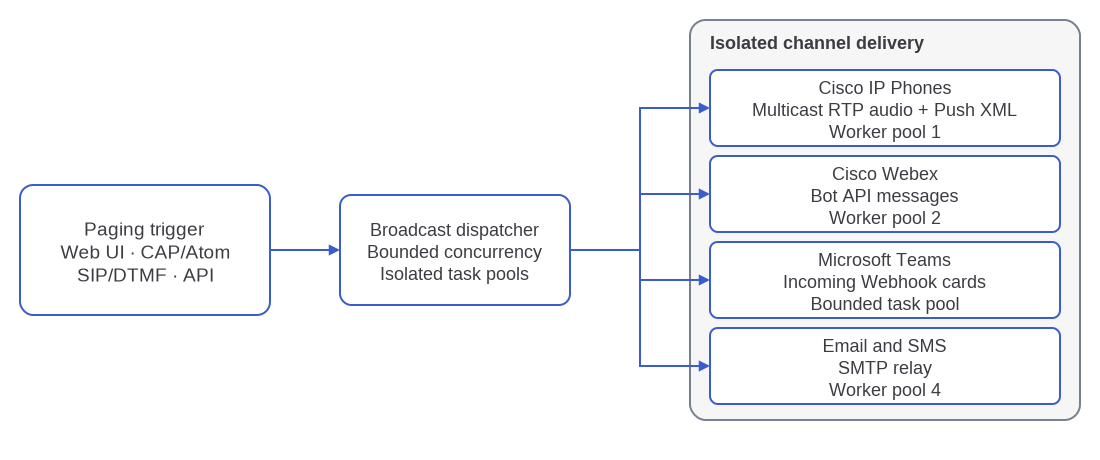
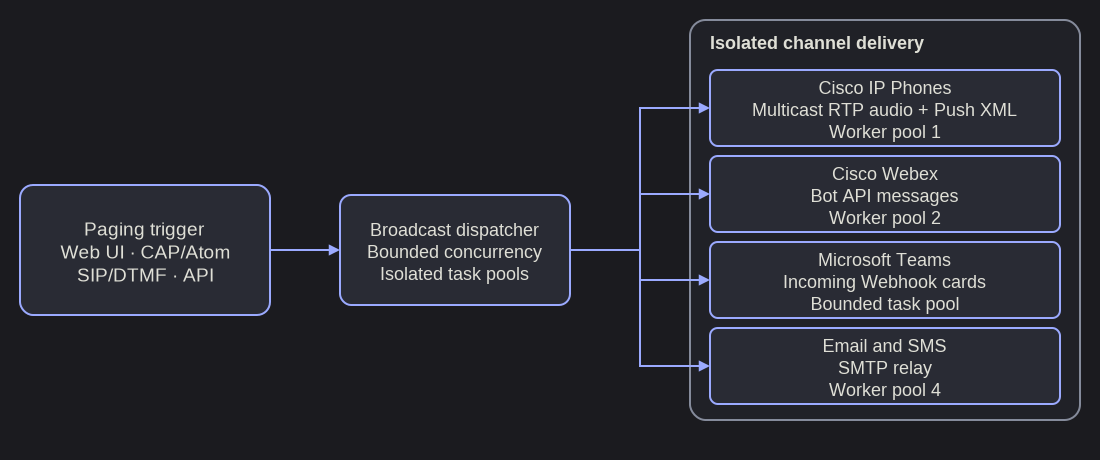
Call Telemetry Notify enables operators and automated safety triggers to broadcast emergency pages simultaneously across multiple endpoints. Through the multi-channel broadcast engine, Microsoft Teams channels receive formatted alert cards alongside Cisco IP phone audio and digital signage.
Multi-Channel Architecture
The broadcast engine uses bounded concurrency and isolated task pools to deliver notifications across disparate channels:
Failure Domain Isolation
Under high-load emergency conditions, public cloud APIs may experience rate limiting or transient latency. Call Telemetry enforces strict failure domain isolation:
- Independent Worker Pools: Teams webhook delivery executes in an asynchronous worker pool separate from real-time phone audio multicast.
- Non-Blocking Execution: If Microsoft Teams webhook endpoints experience delay or return an HTTP 504 timeout, the broadcast dispatcher isolates the failure. It cannot stall Cisco IP phone audio broadcast, phone XML displays, or Webex notifications.
- Bounded Concurrency: Outbound webhook requests are rate-limited to avoid exhausting local appliance sockets or triggering cloud throttling.
Configuring Teams Webhook Paging Contacts
To add a Microsoft Teams channel as a paging destination in Call Telemetry Notify:
1. Create Incoming Webhook in Microsoft Teams
- In Microsoft Teams, navigate to the channel where alert broadcasts should appear (e.g.,
#security-opsor#all-hands-alerts). - Select More options (⋯) → Manage channel → Connectors (or Workflows → Post to a channel when a webhook request is received).
- Choose Incoming Webhook, provide a name (e.g.,
Call Telemetry Notify), and click Create. - Copy the generated webhook URL (e.g.,
https://outlook.office.com/webhook/...).
2. Add Contact in Call Telemetry
- Navigate to Contacts → All Contacts → New Contact.
- Set First Name to
Teams Channeland Last Name to#security-ops. - In the Delivery Channels section, select MS Teams Webhook.
- Paste the Incoming Webhook URL into the Webhook URL field.
- Click Save Contact.
3. Add to Paging Group
- Navigate to Notify → Paging Groups.
- Select an existing paging group or click New Paging Group.
- Under Recipients, add the Teams contact.
- Select the card style or message template to use for broadcast notifications.
- Save the paging group.
Broadcast History & Delivery Auditing
Every broadcast page records end-to-end delivery metrics in Notify → Broadcast History:
- Per-Channel Delivery Status: Each target reports individual progress:
Pending→Sent→Delivered(orFailed). - Response Diagnostics: If a Teams webhook request fails (e.g., invalid URL, channel deleted, or HTTP 429 rate limit), the error status and response payload are captured in the delivery audit log for immediate troubleshooting.
- Audit Trails: All broadcast dispatches log the triggering user, timestamp, message content, and recipient outcomes in compliance with life-safety auditing policies.