Phone 360 — Investigate Cisco IP Phones
The Phone Dashboard is the main workspace for Cisco phone inventory, registration health, discovery, network topology, user activity, device history, recent calls, and phone-level call quality. Administrators can move from the fleet view into one phone's evidence and supported actions — including Remote Control — without leaving the dashboard.
Explore the phone inventory
The dashboard is more than a registration-status report. Its customizable table can combine CUCM identity, registration state, addressing, physical location, discovered CDP/LLDP topology, recent call activity, Extension Mobility, and detected device conditions in one view.
Select Columns to build the view needed for inventory, operations, site analysis, user activity, or troubleshooting. Search and column filters narrow the result set, Group By reveals shared boundaries, and Export downloads the current filtered view.
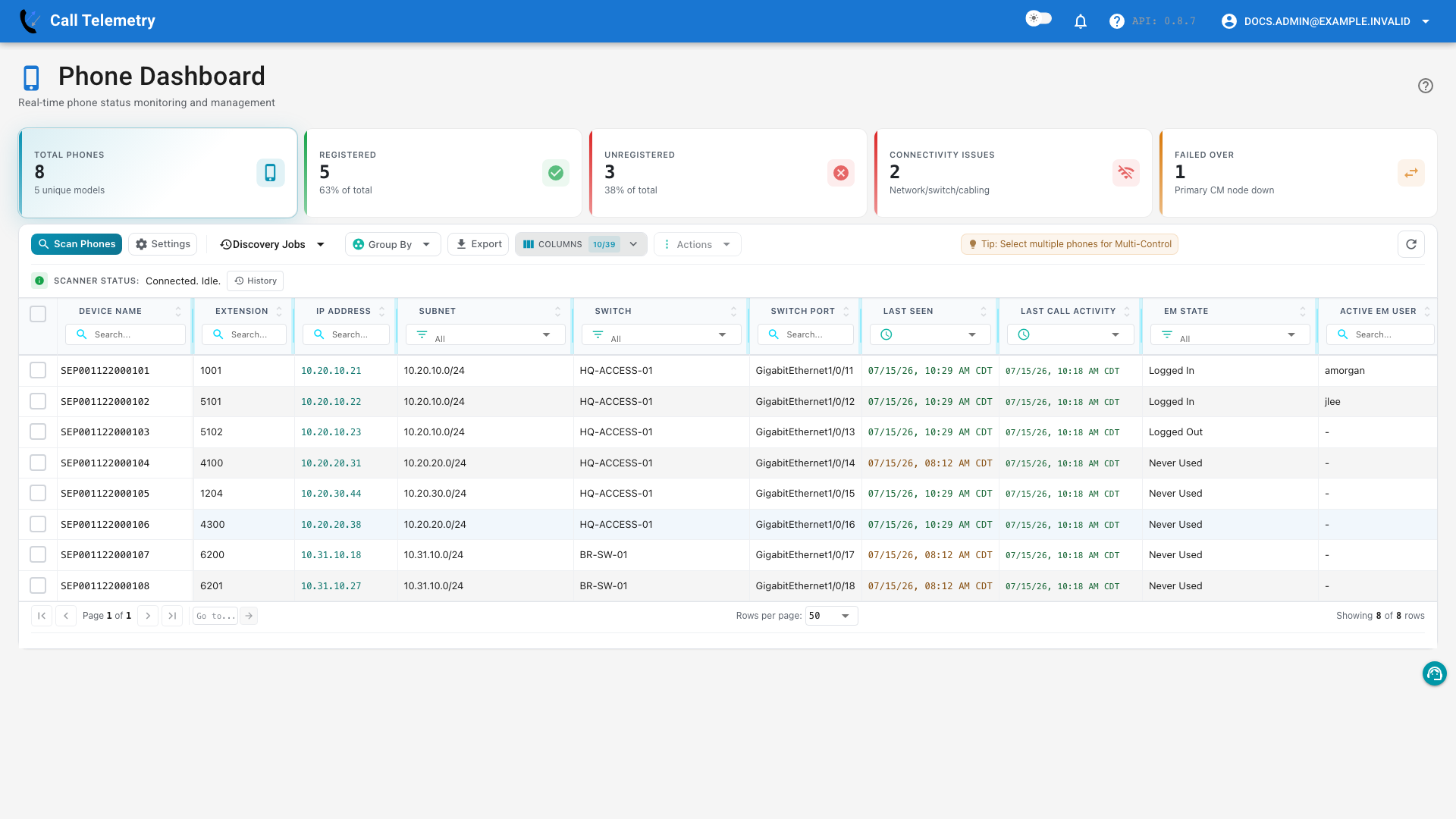
Scroll horizontally or select the image to zoom.
The Columns menu exposes all 39 available fields:
| Field group | Available columns |
|---|---|
| Device identity | Device Name, Description, Extension, Model, Firmware, HW Version, MAC Address, Serial |
| CUCM and registration | Device Pool, CallManager Group, Registration Node, Reported By, CUCM Cluster, Status, Health Category, Unregistered Reason |
| Address and topology | IP Address, IPv6 Address, CIDR Host IPv4, CIDR Host IPv6, Subnet, Subnet IPv6, Physical Address, Switch, Switch IP, Switch Port, Address Source, Address Name, Address ELIN |
| Operational activity | Last Seen, Last Call Activity, Last Inbound, Last Outbound |
| Extension Mobility | EM State, Active EM User, Last EM User, Last EM Login, Last EM Logout |
| Detected conditions | Issues |
Several fields add operational context beyond a standard CUCM inventory:
- Subnet, Switch, Switch IP, and Switch Port show the network attachment. Switch fields use discovered topology records and can fall back to CDP/LLDP neighbor evidence reported by the phone.
- Last Seen is the latest time Call Telemetry observed the phone through its discovery sources. Compare it with registration state to distinguish a current device from an old inventory record.
- Last Call Activity is the most recent inbound or outbound call associated with the phone. Last Inbound and Last Outbound are available when direction matters.
- EM State and Active EM User show current Extension Mobility context. Last EM User, Last EM Login, and Last EM Logout retain the most recent known activity.
- Issues reports detected phone conditions, while Health Category classifies registration state and reason. These are separate signals.
Before you begin
- Configure CUCM and confirm that AXL and RIS polling succeed.
- Allow the appliance to reach phone web interfaces if you need serial, hardware, subnet, CDP, or LLDP details.
- Confirm that CDR and CMR records are flowing if you need Recent Calls or Quality in Phone 360. Registration health does not require CMR.
- Use an Essentials or higher plan to see full call-quality metrics in Phone 360. On Community, the Quality tab shows a live count of recent activity (for example, poor-quality calls in the last 24 hours) with an upgrade prompt in place of the detailed metrics — it is a preview, not the full data. Phone inventory, registration health, and per-phone call history are available on every plan. Community shows complete details for the first 1,000 phones; additional phones remain visible with licensed fields masked or previewed.
Investigate a registration problem
Start with the affected inventory, narrow it to a shared failure domain, and then open an individual phone for evidence.
Filter from the KPI row
The cards summarize the same inventory as the table after search and non-KPI filters:
| Card | What it identifies | Useful next step |
|---|---|---|
| Total Phones | Every phone currently in scope | Select it to clear a status or health KPI filter |
| Registered | Phones currently registered with CUCM | Use as the baseline when the complaint is call quality rather than registration |
| Unregistered | Phones not currently registered, regardless of reason | Select it, then group the result to find the affected scope |
| Connectivity Issues | No response, keepalive timeout, connectivity error, or forced reset | Group by Subnet or CDP Neighbor |
| Failed Over | Phones that initiated fallback because the primary CallManager was unavailable | Group by Registration Node or CallManager Group |
| Rejected | Malformed registration, sequence error, or invalid-capability reasons | Open Details and verify the CUCM device configuration |
| Config Issues | Duplicate registration, configuration mismatch, SCCP throttling, or database configuration errors | Confirm the reason in Details, then correct it in CUCM |
Select a card to filter the table. Select the active card again, or select Total Phones, to clear the KPI filter. Active filters also appear below the toolbar.
The issue cards appear only when unregistered phones exist in that category and space is available in the current layout. Reasons such as Extension Mobility activity, device resets, and CallManager restarts can appear under Other in the table without receiving a separate KPI card.
Health category is an operational classification derived from RIS registration status and reason. It is not a CUCM alarm or a call-quality score. The separate Issues column reports detected phone configuration problems such as an ITL mismatch; it is unrelated to the Issues tab under call quality.
Group the affected phones
After selecting a KPI, use Group By to test whether the phones share an operational boundary:
- Subnet or CDP Neighbor can expose an access-switch, cabling, VLAN, or site pattern.
- Registration Node, CallManager Group, or CUCM Cluster can expose a node, failover, or cluster pattern.
- Model or Firmware can expose a device-family or software pattern.
- Status or Health Category provides an operational rollup before you compare Unregistered Reason and Last Seen.
Use Columns to bring Status, Health Category, Unregistered Reason, Issues, IP Address, Subnet, CDP Neighbor, and Last Seen into the current view. A useful grouping is evidence, not a root-cause determination; open an affected phone before acting.
Open Phone 360
Select a phone row to keep the inventory in view while opening Phone 360, the device-centered pivot panel for that phone. Its header identifies the device and registration state, shows a current screen thumbnail when available, and provides three quick actions:
- Remote Control opens the live phone controller.
- Open Web opens the phone's web interface in a new browser tab.
- Rediscover refreshes registration, network-neighbor, hardware, and configuration data for that phone.
Start with Details:
- Network shows IP information, registration state, and the Cisco status reason behind the health category.
- Identity shows the directory number, device pool, CallManager group, registration node, and related CUCM identity.
- Hardware shows model, firmware, and serial data when discovery can retrieve it.
- Network Topology shows the discovered switch, switch IP, and port when phone web and CDP/LLDP data are available.
- Extension Mobility context and detected configuration warnings appear when present. An ITL Certificate Mismatch warning is a device-configuration issue, not a call-quality finding.
The shared time selector defaults to the last 24 hours and controls the Quality, Calls, and State Changes tabs in Phone 360.

Trace phone state changes
Open State Changes before assuming the current snapshot tells the whole story. The summary and timeline show before-and-after values, event type, and reporting source.
Use the timeline to determine whether the phone recently recovered registration, changed IP address or switch port, moved firmware, changed Extension Mobility state, or disappeared from a discovery source. Sources such as RIS queries, AXL synchronization, Extension Mobility, and discovery runs contribute events when configured.

Act on the evidence
- Select Remote Control or the screen thumbnail when you need a live view and supported key controls.
- Select Open Web when you need the phone's own diagnostic pages.
- Select Rediscover when the stored registration, topology, or hardware data is stale.
- For an intentional bulk operation, select phones and use Open Multi-Control or Actions > Reset ITL for selected when the action is available for your plan.
See Remote Control for Cisco IP Phones for screen, key, refresh, multi-device, and recovery workflows.
Investigate call quality for one phone
Open Quality only when CMR records exist for the organization and selected period. An empty state means that no matching quality data is available; it does not mean the phone had perfect quality.
The metrics are scoped to the selected device name, or its directory number when used as a fallback. They describe the media path observed on calls involving the phone and do not by themselves prove that the handset caused the problem. Compare peer phones on the same subnet, switch, location, or CUCM node before assigning root cause.
Check phone-level call quality Essentials
Use the inner tabs as an investigation sequence:
- Overview answers whether the period contains enough calls and whether the overall pattern is healthy. Its summary includes total calls, the Call Telemetry Quality Score, average and P95 R-factor, average duration, and total talk time. MOS appears in a separate card below the summary. Quality Score is a Call Telemetry composite, not a Cisco RIS field or CUCM alarm.
- Network shows affected packet-loss calls, average and maximum loss, and time-based jitter, latency, and loss trends. Concealment and Problem Indicators help distinguish a short spike from sustained media-path degradation.
- Quality shows MOS or R-factor bands, R-factor trend, and call volume. A growing fair or poor share across several windows suggests a repeated pattern; one poor window can be an isolated call or event.
- Issues lists recent time windows whose aggregated measurements crossed local poor-MOS, jitter, latency, packet-loss, or severe-concealment thresholds. Treat these as investigation leads, not CUCM alarms or verified per-call incidents. Use the timestamp to inspect Calls and State Changes in the same period.
Review recent calls for one phone
Open Calls (shown as Call History in the panel) to inspect individual call legs for the same time period. Filter by direction or duration, change the timestamp used for sorting, or search visible values.
When CMR data is present, the table keeps MOS, packet loss, jitter, and latency beside each call. Use these records to determine whether a quality issue affected one call or repeats across callers and time windows, then compare its timestamp with State Changes.

Find, organize, and export inventory
- Enter a device name, description, directory number, IP address, model, serial number, subnet, switch, or port in Search.
- Select Columns to show only the fields needed for the current task.
- Select Group By to organize devices by a supported field.
- Use column filters for precise status, time, model, cluster, or neighbor queries.
- Select Export to download the filtered inventory as CSV.
Useful licensed fields include complete serial and hardware data, switch-neighbor details, Extension Mobility status and login history, and last inbound, outbound, or overall call activity.
Keep the inventory current
- In the application sidebar, open Phone Management > Phone Dashboard.
- Select Scan Phones to start discovery across the configured CUCM clusters.
- Open Discovery Jobs to follow the active run and review recent runs.
- Use Scanner Status to confirm that the scanner is connected and idle or to identify an active scan.
Discovery combines several sources:
- AXL supplies provisioned device and CUCM configuration data.
- RIS supplies current registration state and reason.
- Phone polling collects reachable hardware, subnet, and CDP/LLDP neighbor details.
- Registration history, CDR, and CMR supply historical state, recent calls, and media quality when configured.
Use Rediscover from Phone 360 to refresh only that device.
Configure Phone Dashboard settings
Select Settings in the Phone Dashboard toolbar to configure organization-wide discovery, polling, and health-check behavior.
General
Use Device Prefix Filtering to include only device names that begin with configured prefixes such as SEP or CSF. Leave the list empty to include every device name returned by CUCM. Use Phone Web Query Timeout to set how long discovery waits for a phone web interface to respond.

Performance
Use Performance to tune discovery workers, scrape workers, maximum active phone connections, and batch size. Timing and reliability controls set the per-phone timeout, delay between batches, and retry count. The performance indicator and fleet timeline estimates show how the current values affect discovery speed.
Start with the defaults. Increase concurrency or reduce pacing only when the appliance and phone network have enough capacity for the additional requests.

CTI Health Check
Use CTI Health Check to validate the configured CTI helper account, required roles, device associations, and remote-control readiness.
Advanced
Use Advanced to clear all discovered phone records before rebuilding the inventory. This is a destructive organization-wide action; use it only when a complete rediscovery is intended.