Block Your First Call
This guide walks you through blocking your first unwanted call using the Global Block List. You'll have a working block in place in under 5 minutes.
Prerequisites
Before you start:
- Call Telemetry installed and connected to Cisco CUCM
- CURRI configured for real-time call control
- Admin access to Call Telemetry
Step 1 - Open the Global Block List
Navigate to Call Blocking > Global Block List. This is your centralized block list shared across all policies.
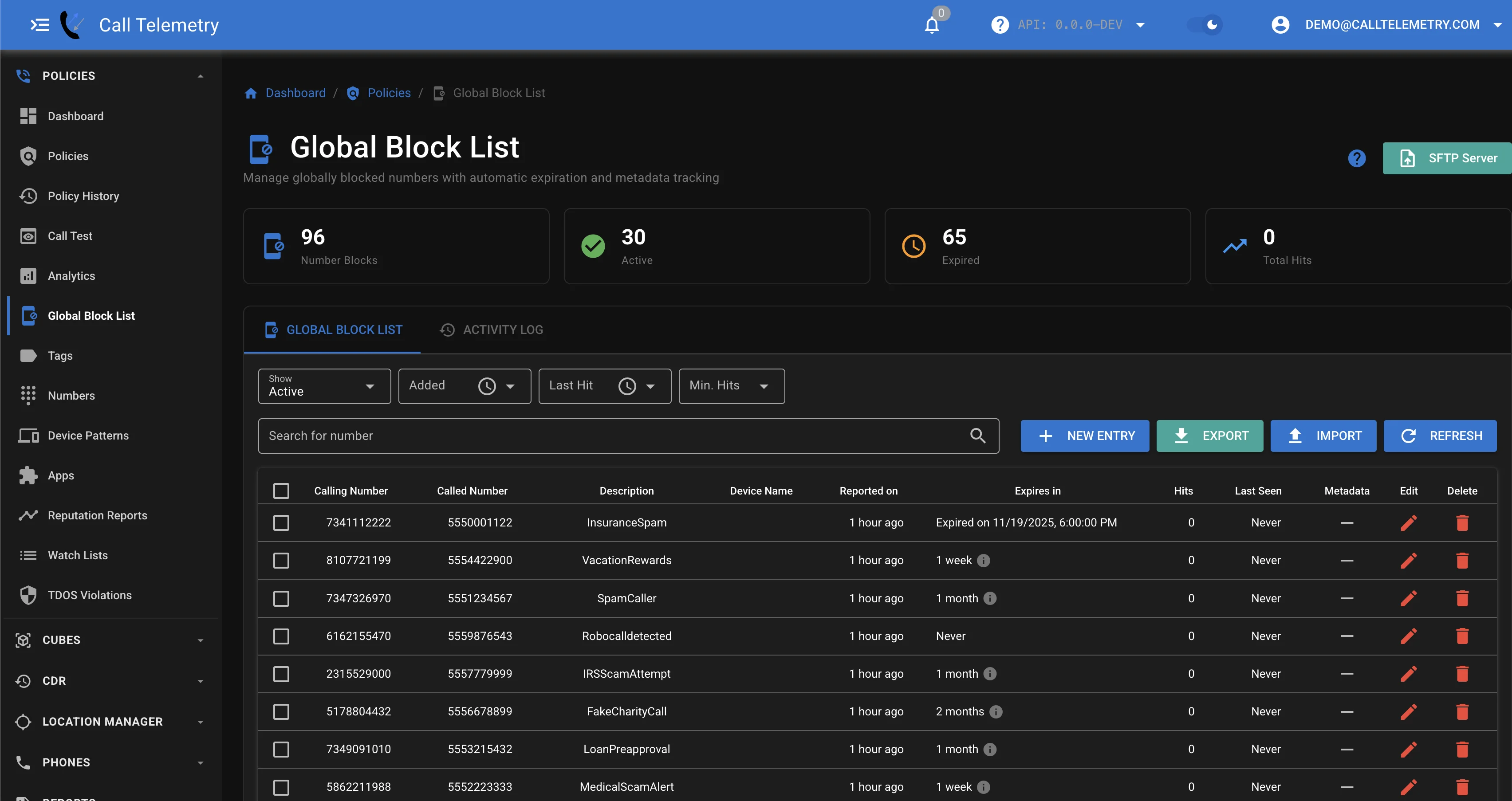
Community Edition is limited to 100 blocked numbers. Essentials and higher have unlimited entries with auto-expiration.
Step 2 - Add a Number to Block
Click Add to create a new block entry.
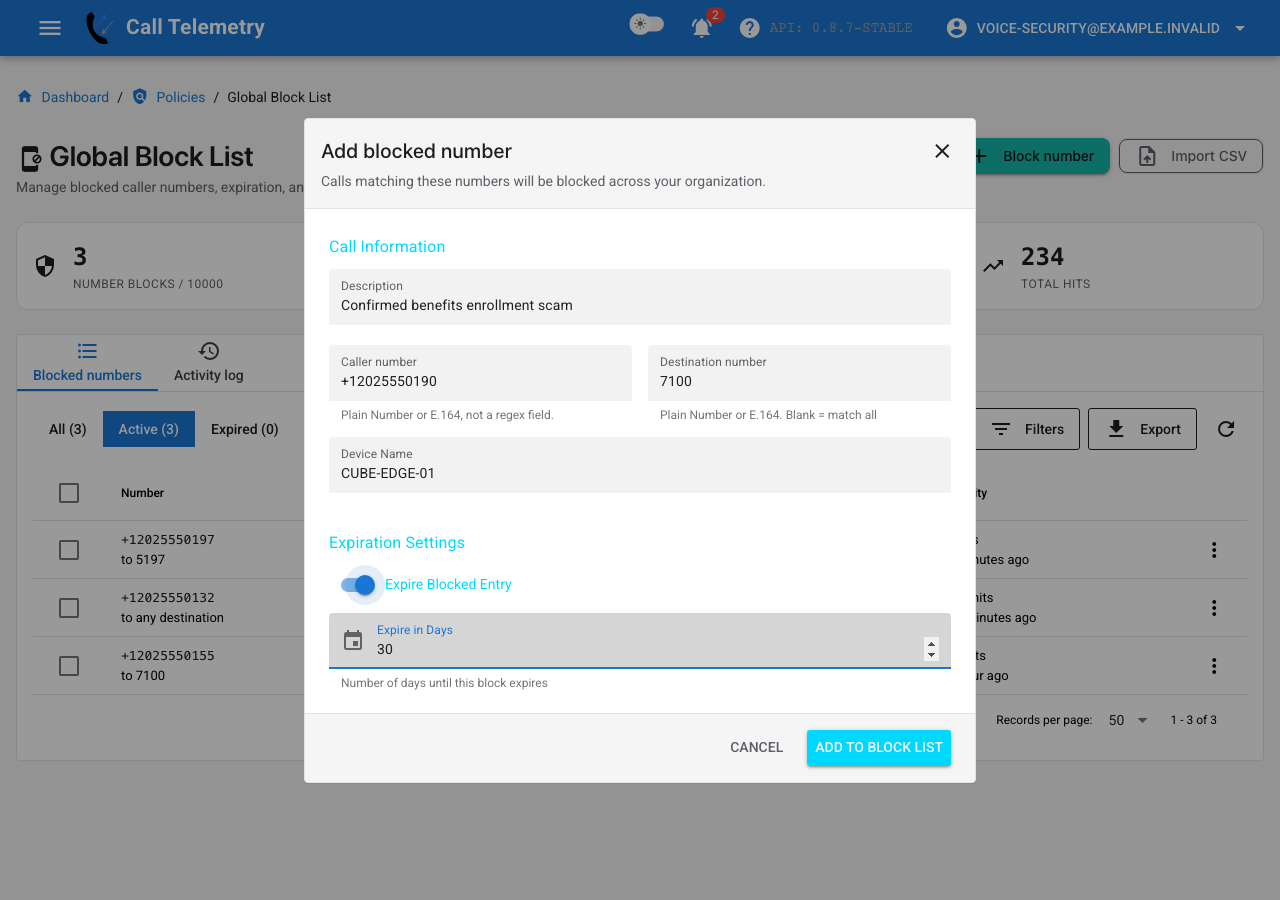
Fill in the details:
- Calling Party - The number you want to block (e.g.,
5551234567) - Called Party - Optional. Leave blank to block across all lines, or specify a destination for per-line blocking
- Auto Expiration - Toggle on to set a time limit
- Expiration - Number of days before the block expires
- Description - Add a note about why you blocked this number
Click Submit.
Step 3 - Verify the Block
Your block is now active. Calls from this number will be blocked for any policy with Global Block List enabled.
To verify:
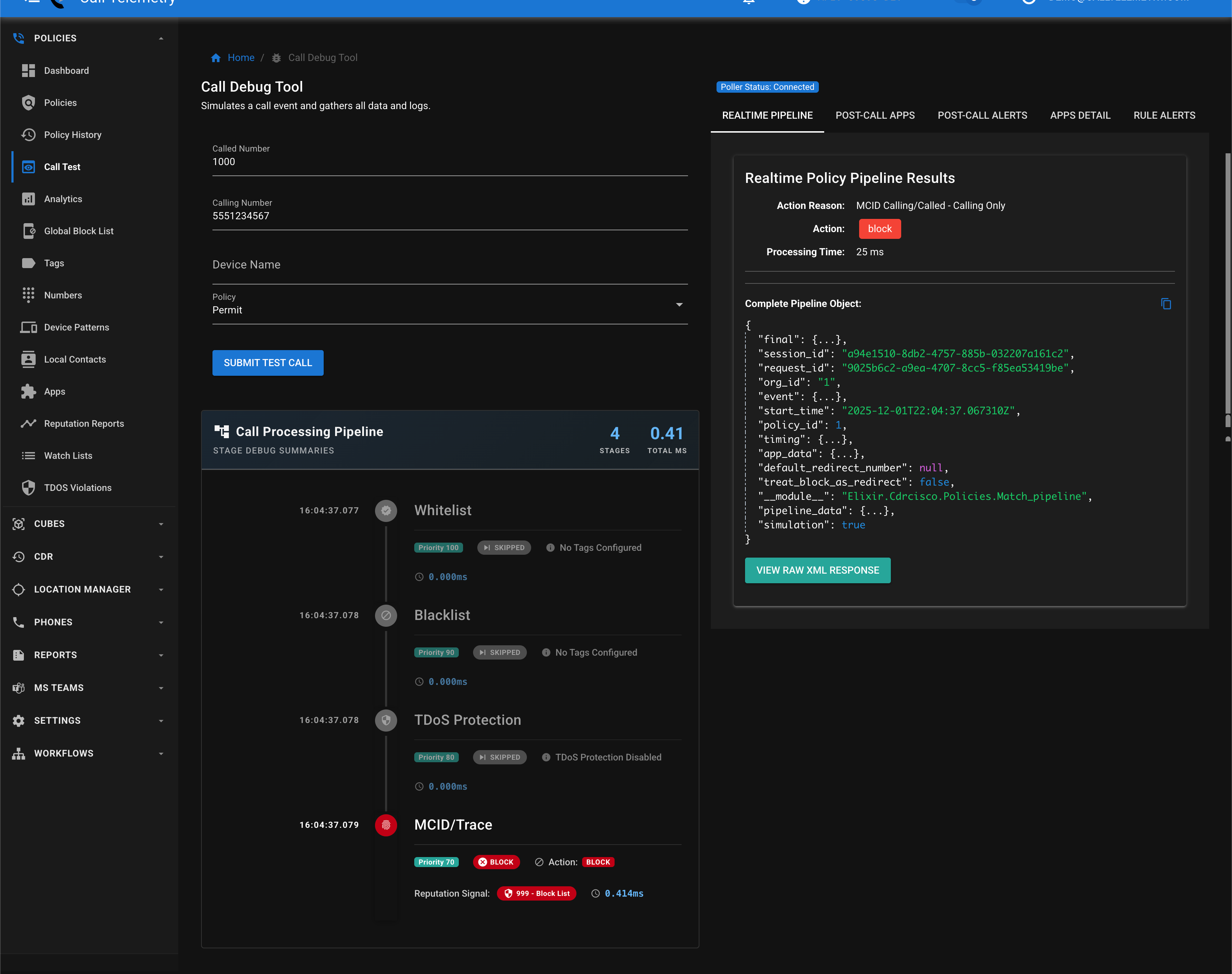
- Navigate to Policies > Call Test
- Enter the blocked number as the Calling Number
- Click Submit Test Call
- Review the Call Processing Pipeline to see the block in action
Step 4 - Check Policy History
Navigate to Policies > Policy History to see your blocked call in the logs.
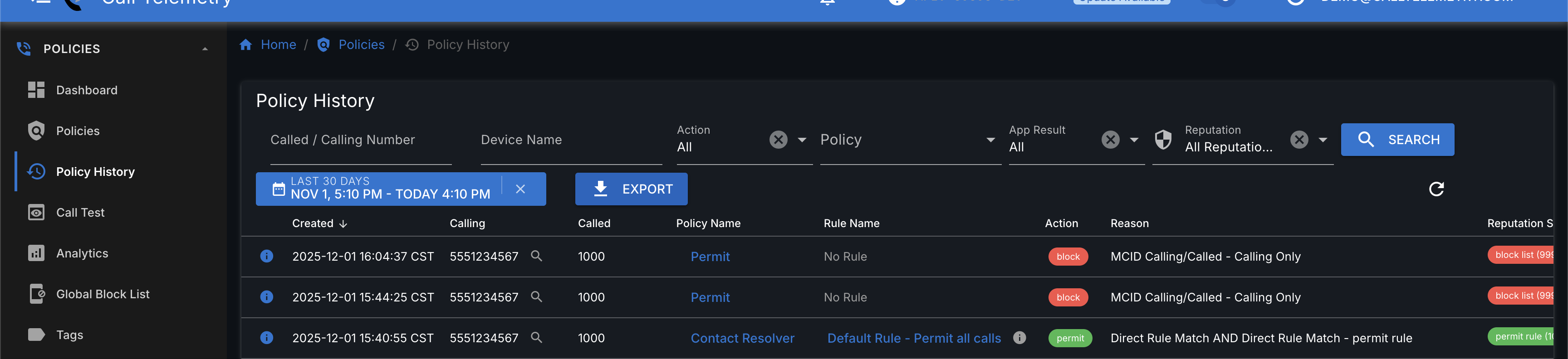
The history shows:
- Action: Block (red badge)
- Reason: MCID Calling/Called - Calling Only
- Reputation Score: Block List match
What Happens When a Call is Blocked?
When an incoming call matches your block list:
- CUCM sends the call to Call Telemetry via CURRI
- Call Telemetry checks the Global Block List
- If matched, Call Telemetry tells CUCM to reject the call
- The caller hears a busy signal or disconnect
- The block event is logged for reporting
Bulk Import from CSV
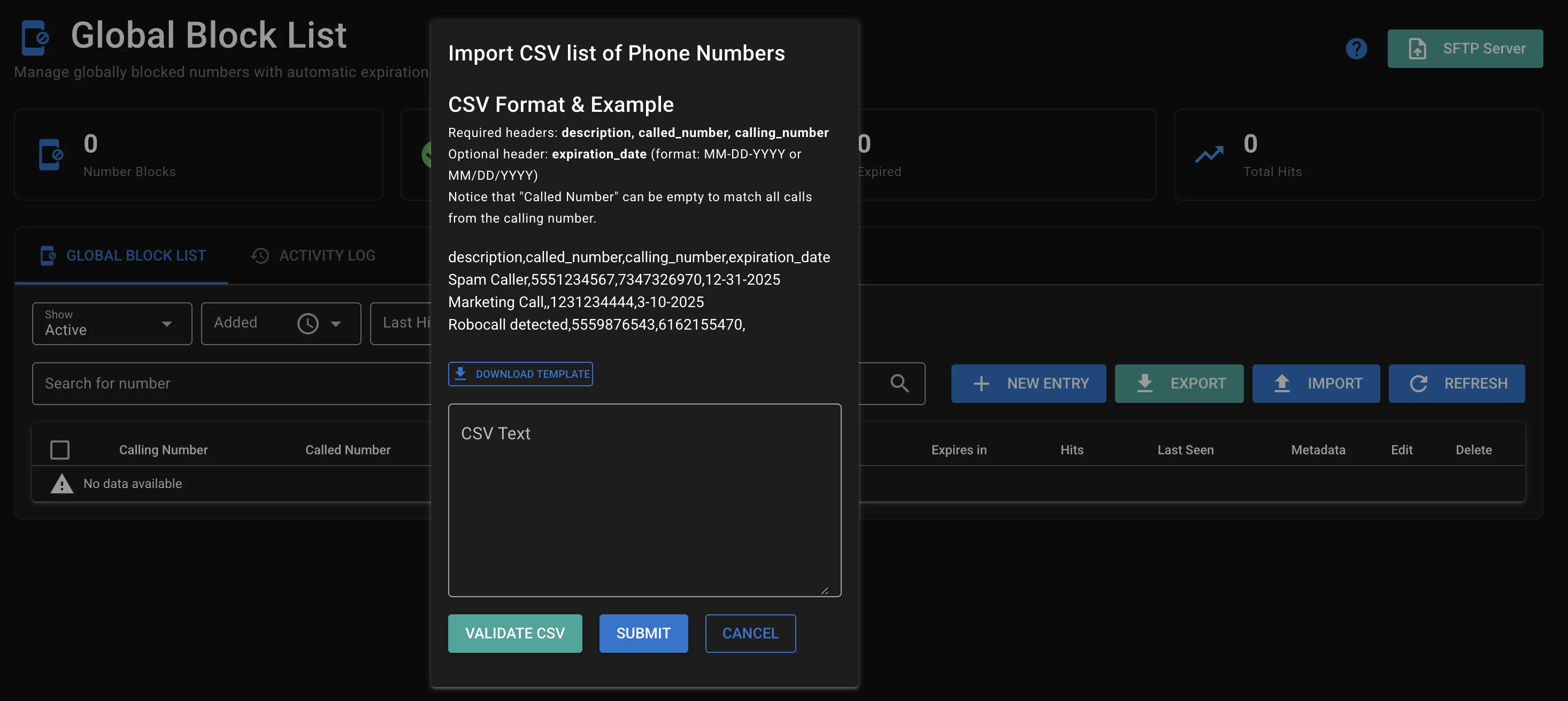
Have a list of numbers to block? Import them all at once.
Click Import on the Global Block List page, paste your CSV data, and submit.
Next Steps
Now that you've blocked your first call, explore more options:
| Feature | What it does |
|---|---|
| TrueSpam Filtering | Auto-block known spam using reputation data |
| Watch Lists | Monitor suspicious patterns before blocking |
| TDoS Protection | Protect against telephony denial of service |
| User Self-Service | Let users block callers from their phones |
| Voice Firewall API | Automate block management via REST API |
Troubleshooting
Call not being blocked?
- Verify CURRI is connected and healthy
- Check that your policy has Global Block List enabled
- Verify the number format matches (with or without country code)
- Check call logs to see if the call reached Call Telemetry
Need help? Contact Call Telemetry Support.