Greeting Injection Quick Start
Get greeting injection working with a single test phone.
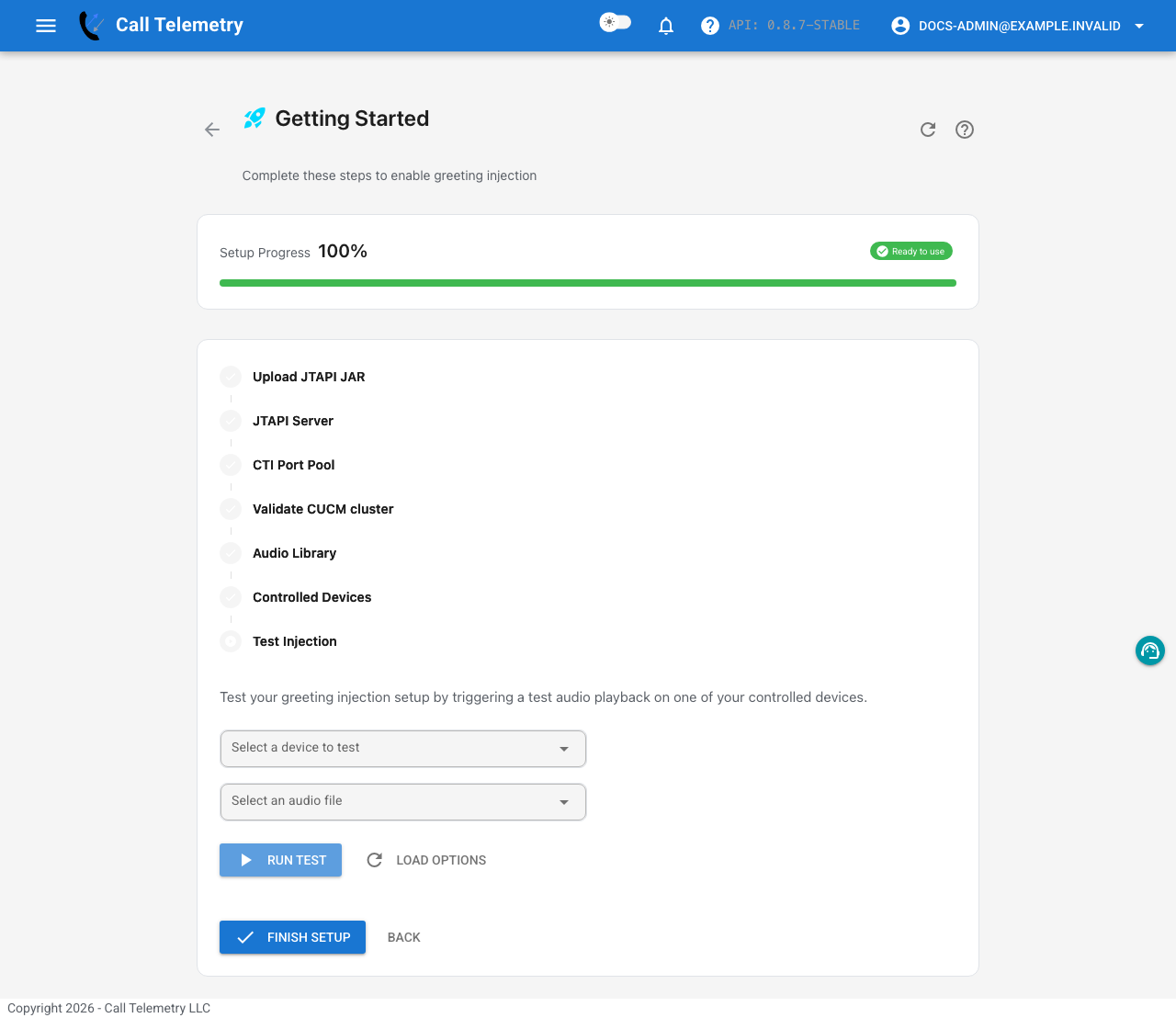
The setup wizard guides initial JTAPI configuration
Prerequisites
- Call Telemetry license with JTAPI/greeting injection enabled
- CUCM admin access (Application Users, CTI ports)
- A test phone device name (example:
SEPXXXXXXXXXXXX) - CUCM Application User configured with CTI roles
1) Connect a JTAPI Server
Navigate to Settings > JTAPI Servers, click Add Server, and enter your CUCM host and Application User credentials.
See JTAPI Server Configuration for details.
2) Provision a CTI Port Pool
CTI ports bridge audio into calls. Start small (5-10 ports) for testing.
- Navigate to Settings > CTI Pool
- Select a JTAPI server
- Configure pool settings (prefix, size, CUCM placement)
- Provision
- Verify the ports are registered in CUCM
See CTI Port Pool for sizing guidance.
3) Add Audio to the Library
Upload a short clip, or generate one with TTS.
- Accepted uploads:
.wav,.mp3,.ogg,.flac,.opus
See Audio Library for format details and TTS.
4) Create a Greeting Policy
Greeting policies define defaults (audio + injection behavior) and optional rules.
- Pick a default audio file
- Choose injection behavior (timing)
- Optional: add rules for calling/called patterns and schedules
See Greeting Policies for configuration options.
5) Add Your Test Phone as a Controlled Device
Controlled Phones are the Cisco endpoints Call Telemetry monitors for greeting injection. Navigate to the Controlled Phones tab on the Greeting Management page.
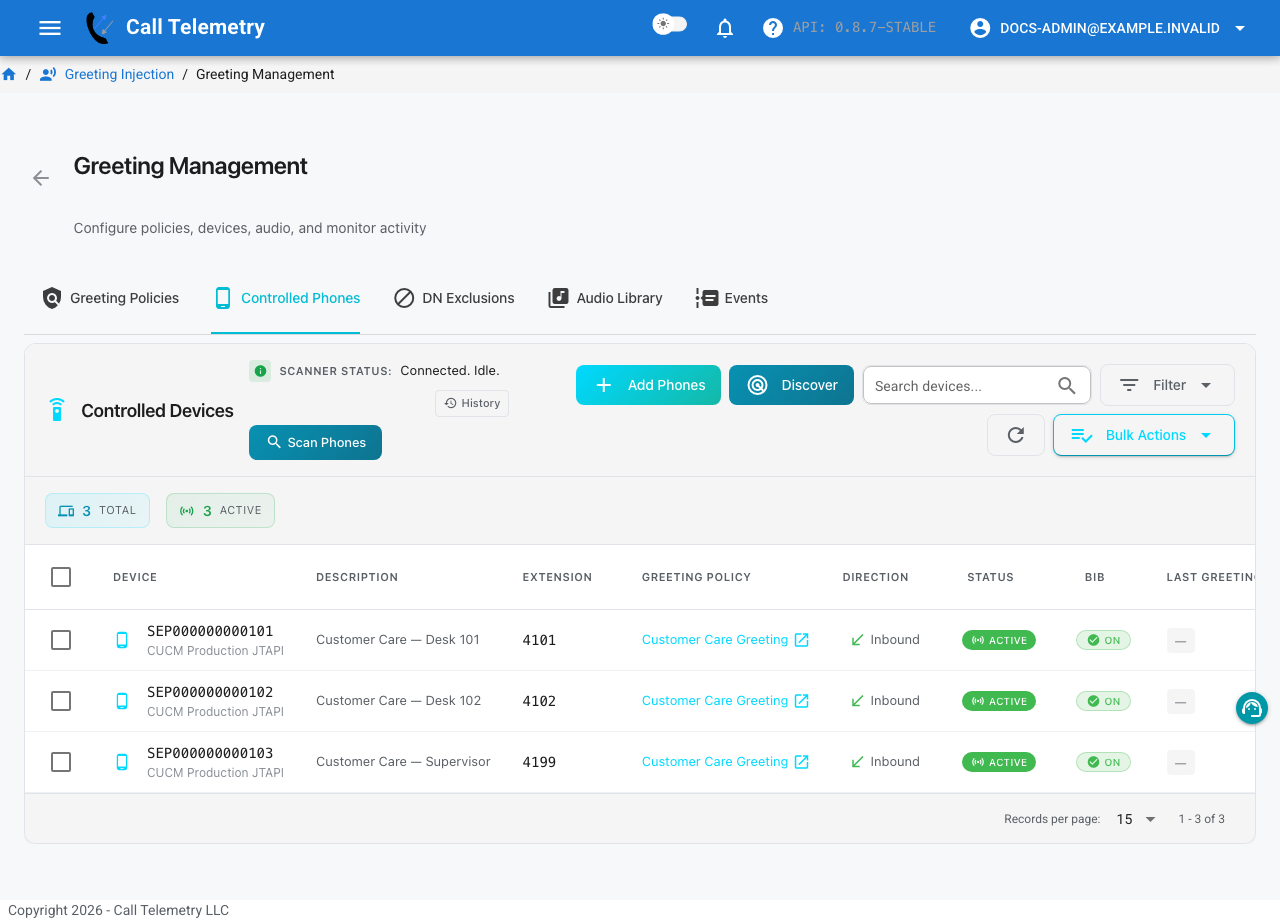
There are two ways to add devices:
- Add Devices — manually enter a device name (e.g.,
SEP0022905C7710) - Scan Phones — scan the JTAPI provider for all available phones and select from the results
Each controlled device shows:
| Column | Description |
|---|---|
| Device | CUCM device name (SEP MAC address) |
| Description | Auto-populated from CUCM (e.g., "Auto 1000 7975 Phone3") |
| Extension | The device's primary directory number |
| Greeting Policy | Assigned policy — "No greeting policy" means injection is inactive |
| Direction | Which calls trigger injection: Inbound, Outbound, or Both |
| Status | Active (connected to JTAPI) or inactive |
| Control | Toggle to enable/disable monitoring without removing the device |
Assign the greeting policy you created in step 4 and set the direction to match your use case. For testing, use Both to capture all calls.
If a device has no greeting policy assigned or control is toggled off, no injection occurs — the device is monitored but silent.
6) Place a Test Call
Call the test phone from another extension. If everything is configured correctly, both parties should hear the greeting audio after the call is answered.
Open the Greeting Dashboard to verify. The health cards show sidecar status, active devices, and injection success rate. The Decision Summary shows how calls were evaluated (dispatched, no matching rule, no audio). The Outcome Summary and Recent Outcomes confirm whether the injection completed successfully.
If It Doesn't Work
See JTAPI Troubleshooting for common issues with connections, CTI pools, audio, and scheduling.