JTAPI Greeting Configuration
This page walks through the JTAPI infrastructure that powers greeting injection — connecting to CUCM, provisioning CTI ports, and keeping everything in sync.
- Connect a JTAPI server — add your CUCM cluster and verify connectivity
- Configure the Application User — CTI roles and device associations
- Provision the CTI Port Pool — size, create, and place ports in CUCM
After setup, see CUCM Audit if you need to troubleshoot port registration or sync issues.
Step 1 — Connect a JTAPI Server
Navigate to Greeting Injection > JTAPI Infrastructure.
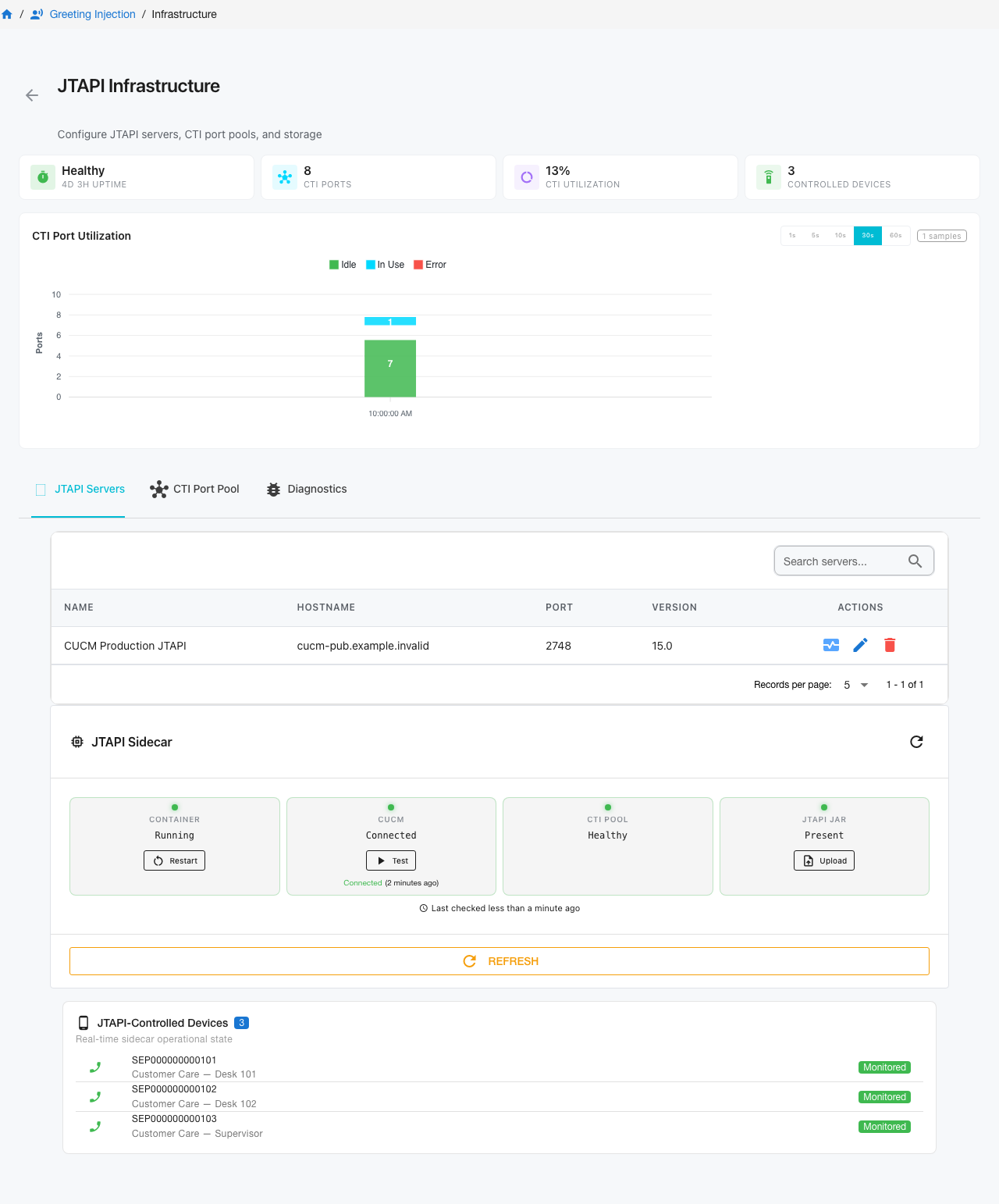
The health banner at the top shows system status at a glance — uptime, CTI port count, pool utilization, and controlled device count. Below it, three tabs organize the infrastructure:
| Tab | Purpose |
|---|---|
| JTAPI Servers | CUCM connections and credentials |
| CTI Port Pool | Port provisioning, configuration, and CUCM audit |
| Diagnostics | Sidecar logs and troubleshooting tools |
JTAPI Subsystem Health
The JTAPI Sidecar panel below the server table displays real-time status for each component of the injection subsystem:
- Container — whether the JTAPI sidecar process is running. Use the Restart button to cycle the sidecar without restarting the full application.
- CUCM — connection state to the Cisco Unified Communications Manager. Use Test to verify credentials and network reachability on demand.
- CTI Pool — health of the provisioned CTI port pool. A healthy pool has registered ports available for injection.
- JTAPI JAR — whether the Cisco JTAPI library is loaded. Use Upload to install or replace the JAR file if it is missing or needs updating.
Below the sidecar health, JTAPI-Controlled Devices shows every monitored phone and its current operational state (Monitored, Unregistered, etc.).
Adding a JTAPI Server
The JTAPI Servers table lists each configured CUCM connection with its Name, Hostname, Port, and Version. Actions per server include test connection, edit, and delete.
Click Add Server to provide the CUCM host and Application User credentials. After saving, click the edit icon to open the Edit JTAPI Services dialog.
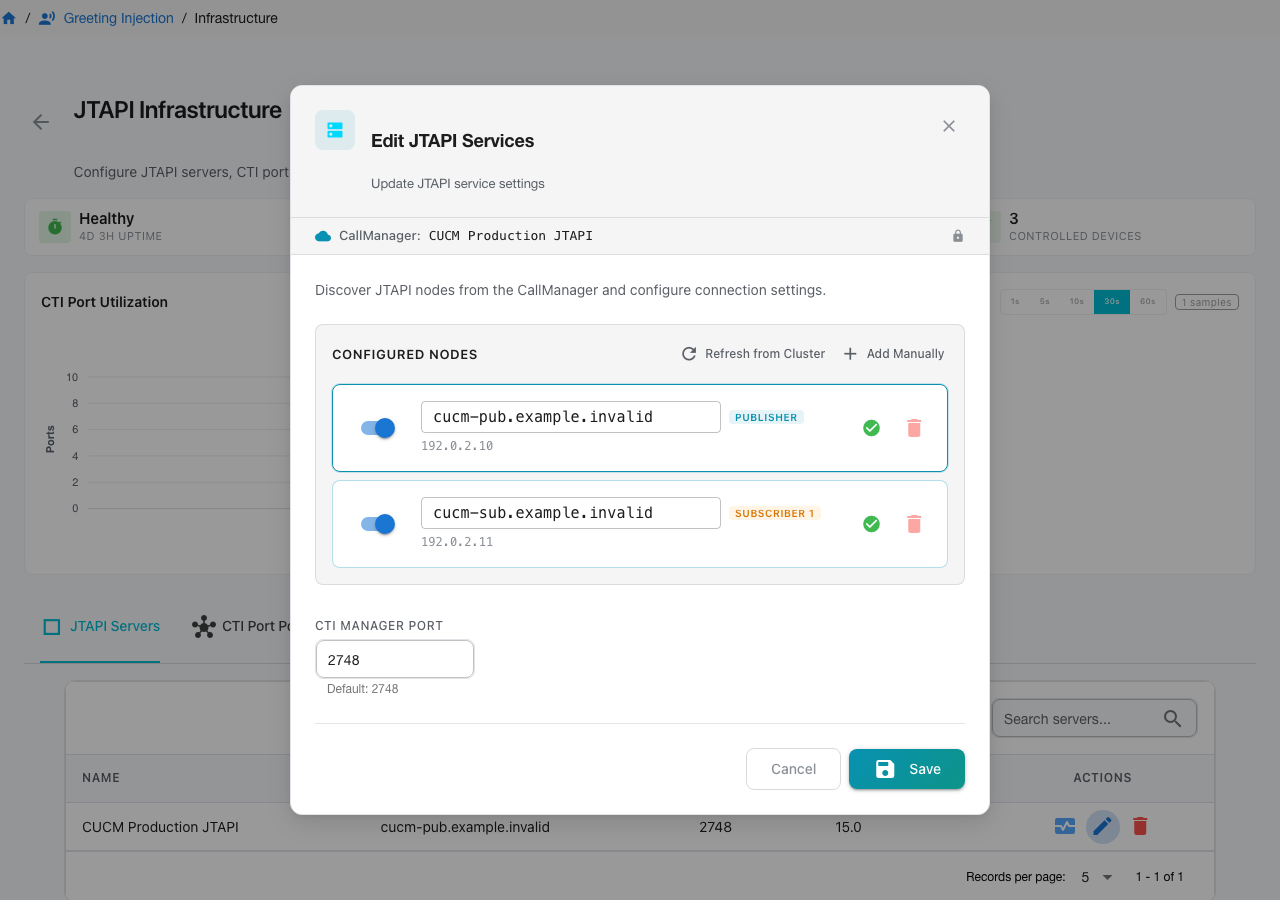
The dialog discovers JTAPI nodes from your CUCM cluster:
- Refresh from Cluster — queries CUCM for all available nodes (publishers and subscribers)
- Add Manually — enter a node hostname or IP directly
Step 2 — Configure the Application User
JTAPI greeting injection requires a CUCM Application User with CTI permissions. This is the same user that powers Phone Remote Control — if you already have one configured, you just need to verify the roles below are assigned.
In CUCM, navigate to User Management > Application User and create or edit a dedicated user (e.g., ct-jtapi-user). Assign these roles under Permissions Information > Add to Access Control Group:
| Role | Purpose |
|---|---|
| Standard CTI Enabled | Basic CTI functionality — required for all CTI operations |
| Standard CTI Allow Control of Phones supporting Connected Xfer and conf | Enables call bridging for greeting injection and phone remote control |
| Standard CTI Allow Control of Phones supporting Rollover Mode | Controls phones with rollover capabilities |
| Standard CTI Allow Call Monitoring | Monitors call states on controlled devices (recommended) |
Device association for CTI ports is handled automatically — when you provision ports in Step 3, Call Telemetry creates the ports in CUCM and associates them with this Application User. No manual device association is needed for the port pool.
For controlled phones (the endpoints you want to monitor for injection), Call Telemetry can auto-associate devices on Essentials license and higher. Otherwise, add them manually via Device Association on the Application User.
See CTI Application User for the full walkthrough with screenshots.
Step 3 — Provision the CTI Port Pool
Greeting injection uses CTI ports to bridge audio into calls. Pool sizing and CUCM placement (Device Pool/CSS/MRGL) are the most common root causes of injection failures.
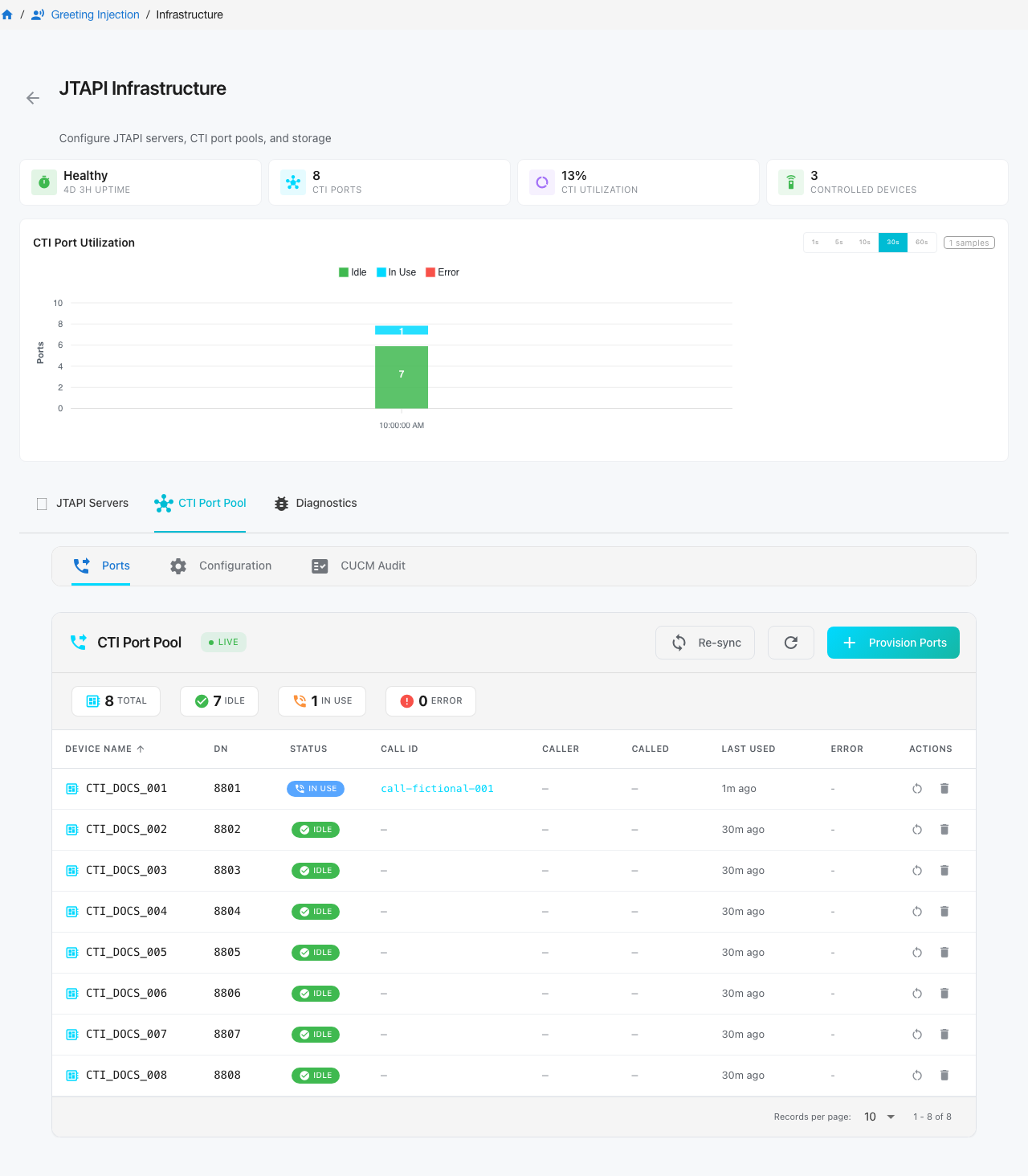
The CTI Port Pool tab has three sub-tabs:
| Sub-tab | Purpose |
|---|---|
| Ports | Live view of all provisioned ports with real-time status |
| Configuration | Pool size, DN range, and CUCM placement settings |
| CUCM Audit | Compare database state against live CUCM and fix discrepancies |
CTI Port Utilization
The CTI Port Utilization chart at the top of the page tracks port usage over time with selectable intervals (1 hour through 60 days). Ports are color-coded: Idle (green), In Use (blue), and Error (red). Use this to identify peak usage patterns and determine if your pool needs to grow.
Ports Tab
The Ports tab shows every provisioned CTI port with live status:
| Column | Description |
|---|---|
| Device Name | CTI port device name in CUCM (e.g., CTJTAPI10001) |
| DN | Directory number assigned to the port |
| Status | Current state: Idle, In Use, or Error |
| Call ID | Active call identifier (when in use) |
| Caller / Called | Calling and called numbers for the active injection |
| Last Used | Timestamp of the most recent injection on this port |
| Error | Error message if the port is in an error state |
The summary badges above the table show counts at a glance — Total, Idle, In Use, and Error. The Sidecar Connected badge confirms the JTAPI sidecar is communicating with the pool.
Actions:
- Provision Ports — create new ports based on the Configuration tab settings
- Re-sync — synchronize port state between Call Telemetry and the JTAPI sidecar
- Per-port restart and delete via the Actions column
How CTI Port Allocation Works
Each greeting injection requires one CTI port for the duration of the audio playback. When a call matches a greeting policy, Call Telemetry:
- Claims an available CTI port from the pool
- Bridges the port into the active call via JTAPI
- Streams the greeting audio through the port (RTP)
- Releases the port back to the pool when playback completes
A port is occupied from the moment the bridge is initiated until the audio finishes — typically 3–10 seconds for a standard greeting. If every port in the pool is occupied when a new injection is requested, that injection is queued until a port frees up, which delays or drops the greeting.
Sizing the Pool
Estimate how many CTI ports you need based on your call volume, policy match rate, and greeting length. CTI ports are lightweight in CUCM — an oversized pool costs nothing at idle.
Provisioning
Navigate to Settings > CTI Pool, select a JTAPI server, then open the Configuration tab.
| Field | Description |
|---|---|
| Pool Size | Number of CTI ports to create (1-100) |
| Port Name Prefix | Prefix for port device names in CUCM (default: CTI_) |
| DN Range Start | Starting directory number for the ports |
| DN Range End | Ending directory number (calculated from pool size if omitted) |
| Device Pool | CUCM Device Pool — determines registration, region, and media resources |
| Partition | Line partition for the directory numbers |
| Calling Search Space | CSS that controls which numbers the CTI ports can reach |
Device Pool, Partition, and CSS are populated from your CUCM configuration via AXL — select from the dropdown or type to search.
Click Save Configuration, then Provision Ports. The provisioner creates the CTI port devices in CUCM, associates them with the Application User, and syncs them to the JTAPI sidecar. Monitor progress in the slide-out drawer and verify registration on the Ports tab.
See Troubleshooting for connection failures, CTI pool issues, injection errors, CUCM audit, and diagnostics.