Greeting Injection Audio Library
The Audio Library manages the greeting audio that Call Telemetry injects into Cisco CUCM calls via JTAPI. Upload recordings, record directly from your browser, or generate greetings from text using TTS — all audio is automatically transcoded for telephony playback.
Navigate to Greeting Injection > Greeting Management and select the Audio Library tab.
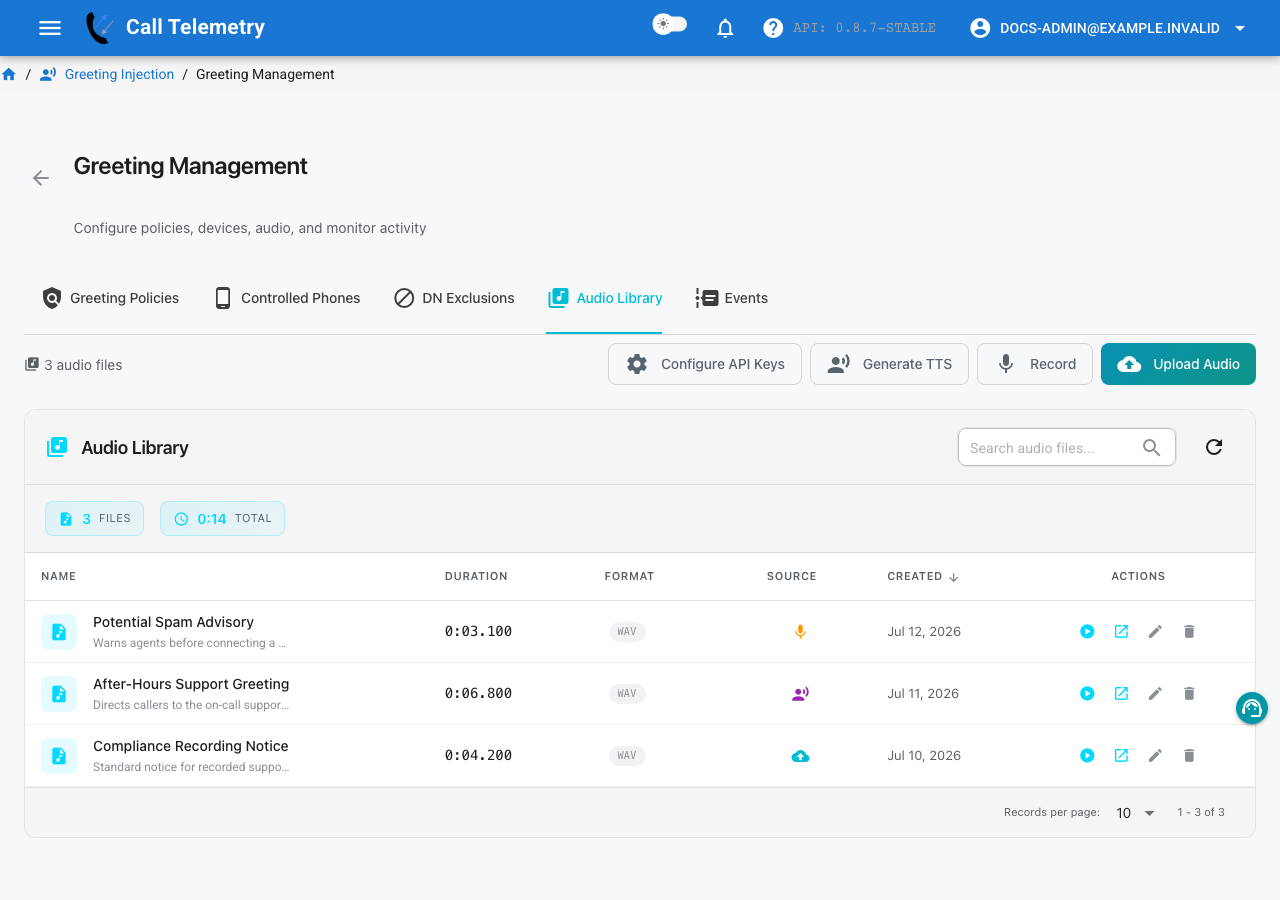
The library shows all audio files with their duration, format, source (upload, TTS, or recording), and creation date. Action buttons on each row let you preview, open in a new tab, rename, or delete a file.
Adding Greeting Audio
Four methods are available from the action bar:
| Action | Description |
|---|---|
| Upload Audio | Upload a .wav, .mp3, .ogg, .flac, or .opus file (max 10 MB) |
| Record | Record a greeting directly from your browser microphone |
| Generate TTS | Create greeting audio from text using text-to-speech |
| Configure API Keys | Set up external TTS provider credentials |
Audio Transcoding
Call Telemetry accepts .wav, .mp3, .ogg, .flac, and .opus files for upload.
All uploaded and generated audio is transcoded for telephony playback. Greeting playback follows the call's negotiated codec — G.711 (µ-law/A-law), G.722, and G.729 are all supported, so the injected audio matches whatever codec CUCM negotiated for that call leg. The original file is preserved for preview and download; injection always uses the transcoded version.
Text-to-Speech Greeting Generation
Click Generate TTS to create greeting audio from text:
- Enter your greeting text (keep it under ~500 characters for natural pacing)
- Select a voice from the dropdown
- Click Generate — the file is added to your library immediately
- Preview the result before assigning it to a greeting policy
Write in natural spoken language, not formal prose. Read it aloud before generating — awkward phrasing on paper sounds worse through TTS.
TTS Provider Configuration
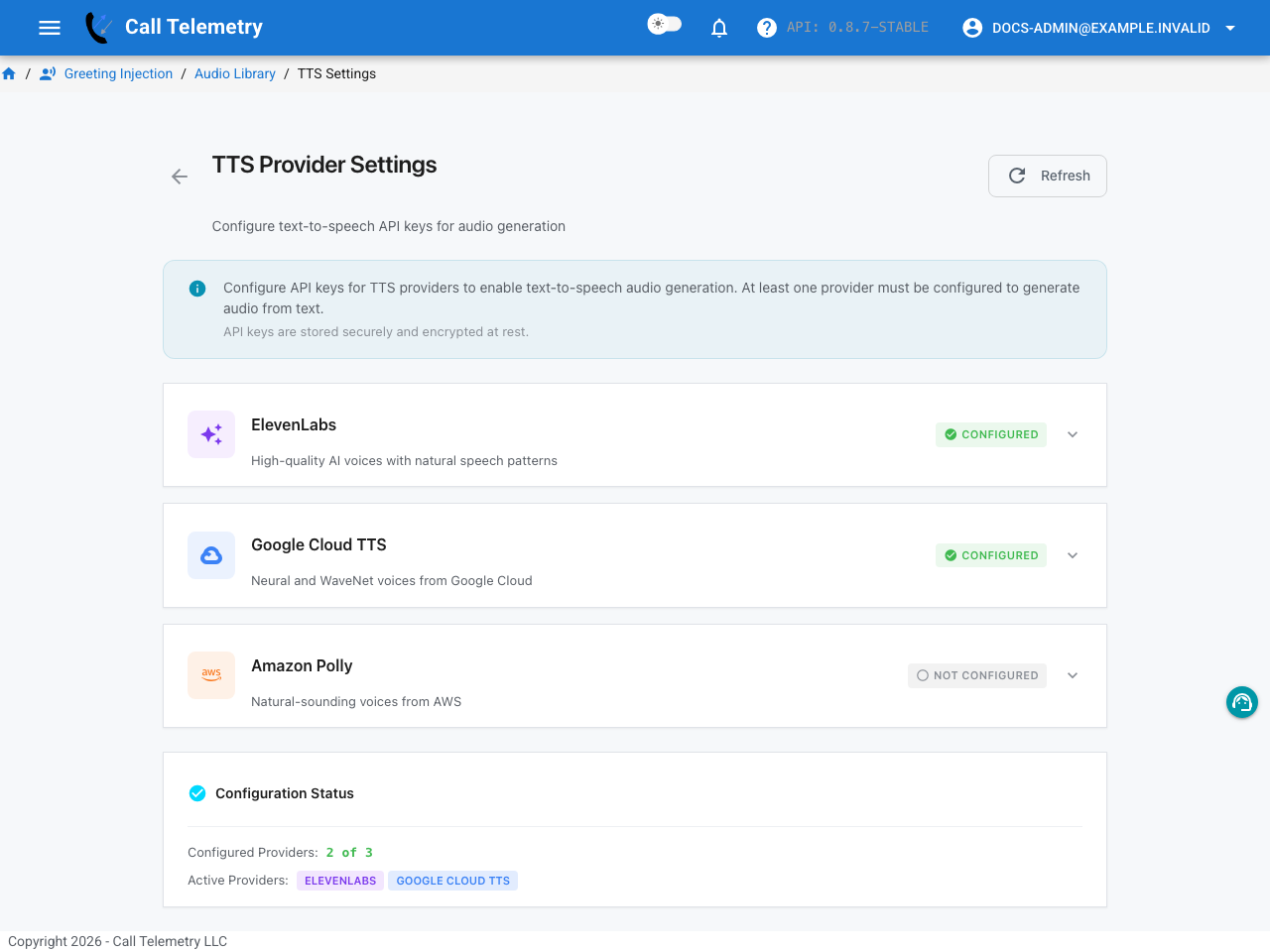
Click Configure API Keys to open the TTS Provider Settings page. At least one provider must be configured to generate audio from text. API keys are stored securely and encrypted at rest.
| Provider | Description |
|---|---|
| ElevenLabs | High-quality AI voices with natural speech patterns |
| Google Cloud TTS | Neural and WaveNet voices from Google Cloud |
| Amazon Polly | AWS text-to-speech service |
Expand a provider card, enter your API key, and click Save. The status badge shows Configured or Not Configured for each provider.
Browser Recording
Click Record to capture greeting audio directly from your browser microphone. This is useful for quick one-off greetings or testing injection without preparing an audio file in advance.
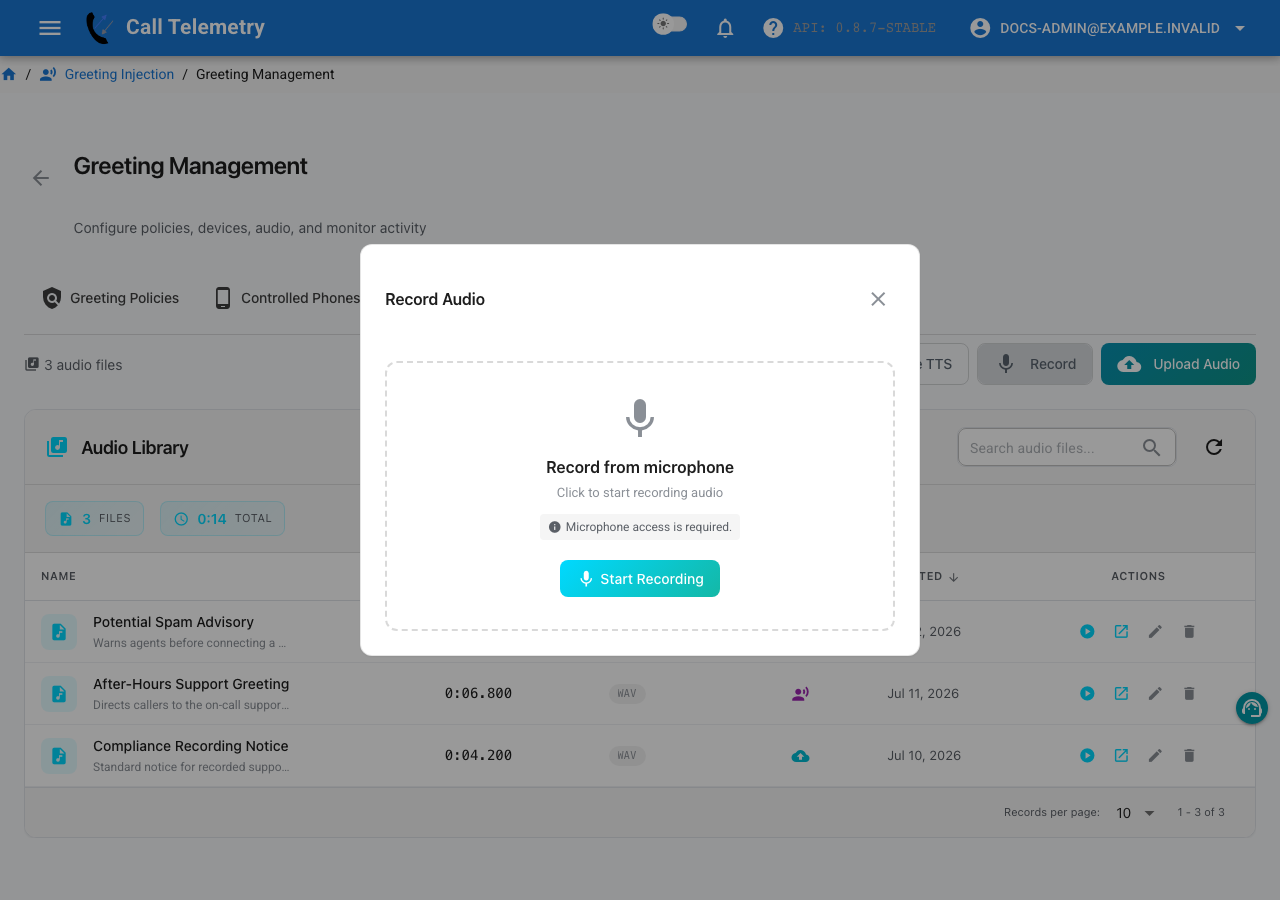
Click Start Recording, speak your greeting, then stop and save. Microphone access is required — your browser will prompt for permission on first use. The recording is added to your library immediately.
Related
- Greeting Policies — assign audio to injection policies
- Storage Pools — manage audio storage quotas
- Troubleshooting — diagnose audio and transcoding issues