Air-Gapped Installation
Run the Call Telemetry appliance on a network with no internet access by loading every container image and fixing DNS before you open the first-run setup page.
An air-gapped appliance cannot pull a missing image later, so the work happens up front: build offline media that contains the images you need, apply it, and confirm object storage is either running or deliberately off. To upgrade an appliance that is already running, use Air-Gapped Appliance Upgrade.
Requirements
- Call Telemetry Appliance deployed on the isolated network
- A workstation with internet access and Docker to build the media, running either the
ctCLI or Call Telemetry Appliance Manager - Removable media, or an internal SFTP server, to move the bundle to the appliance
- SSH access to the appliance on port 2222
Requires appliance release 0.8.6.30 or later for ct storage load, --no-storage on ct factory-reset and ct bootstrap-admin, the ct doctor storage checks, and the ct offline image checks described on this page. Earlier releases do not include them.
What Object Storage Does
The appliance runs SeaweedFS, an S3-compatible object store, in the seaweedfs container. It is on by default. The appliance keeps these files in it:
| Storage Pool | Contents |
|---|---|
| Greetings | Audio files played by greeting injection |
| Recordings | Call recordings captured during monitored calls |
| Alert PDFs | Archived alert report PDFs |
CDR ingestion and CURRI policy routing do not require object storage. With storage off, greeting audio, recordings, and PDF archives are unavailable, and the rest of the appliance runs normally.
The jtapi profile also starts the SeaweedFS container, because greeting injection needs it. Turning storage off does not stop SeaweedFS while the jtapi profile is active.
Build Offline Media
Use either builder. Both write the same bundle layout: configuration files, an images.tar archive of container images, and a bundle-manifest.json that records the version, profiles, and whether storage is enabled.
Build with the ct CLI
Run this on the internet-connected workstation:
ct offline download <version>
By default the bundle carries every image in every profile that the target version defines: the base services plus storage, jtapi, syslog, otel, and any other profile in that version's docker-compose.yml. Turning on JTAPI, syslog, or the observability stack later is then a configuration change instead of a new media shipment.
The command writes calltelemetry-offline-<version>.tar.gz and a companion .sha256 file.
| Option | Purpose |
|---|---|
--profiles <list> | Profiles to package. Default all. Use none, or a comma-separated list such as jtapi,syslog,storage. |
--no-storage | The target runs with object storage off. Required when --profiles leaves out SeaweedFS. |
--for <inventory.json> | Include only the images the appliance in that inventory lacks. |
--format iso | Write an ISO image you can attach to a VM. Default is tar.gz. |
--chunk-size <size> | Split the archive into parts, for example 1G. |
--upload <url> | Upload the finished bundle to an SFTP server. |
Narrowing the profile list is an explicit choice. The command lists the services that become unavailable offline for every profile you leave out:
# Base services, storage, JTAPI, and syslog; the observability stack is left out
ct offline download <version> --profiles jtapi,syslog,storage

# Core services only, for an appliance that runs without object storage
ct offline download <version> --profiles none --no-storage
Because storage is on by default, a profile list that would leave SeaweedFS out of the bundle is refused unless you pass --no-storage. A list that includes jtapi already carries the SeaweedFS image. --no-storage writes storage: disabled into the manifest, so applying the bundle turns storage off instead of enabling it.
Build with Appliance Manager
Call Telemetry Appliance Manager builds the same bundles on macOS and Windows. Docker must be installed and running on the workstation, because the app pulls and saves the container images.
- Full Release selects every profile the chosen release defines and packs all of their images. A Full Release that cannot produce
images.tarfails instead of finishing with a config-only bundle. Clear a profile only when you are sure the appliance never needs it. Clearing storage asks you to confirm, and the bundle records that the appliance runs with object storage off. - Patch Bundle builds from the appliance's
inventory.jsonand contains exactly the images that appliance is missing. Without an inventory, the app builds a full bundle instead.
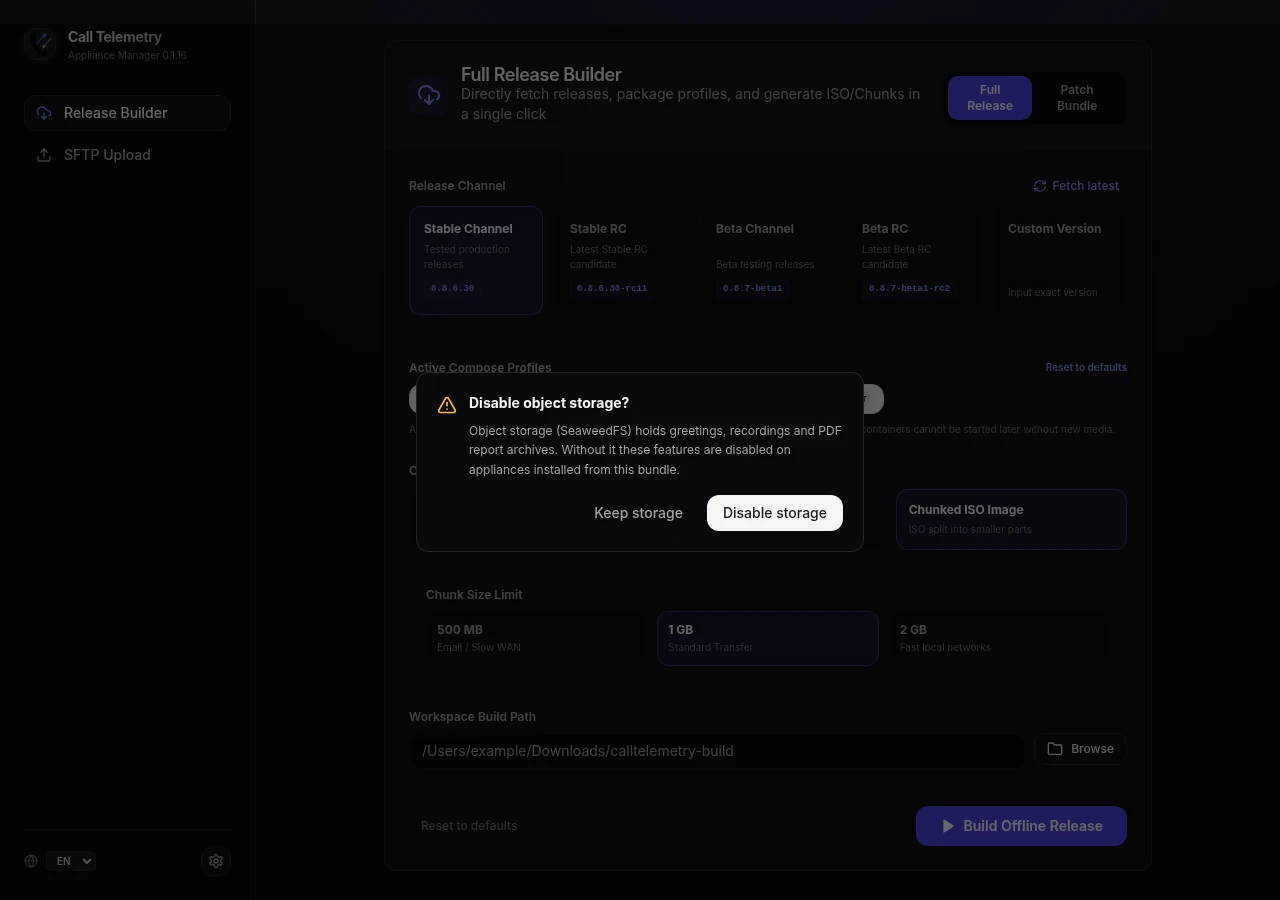
Use a current Appliance Manager to get this behavior; the minimum is listed under Component versions. The Patch Bundle steps are in the upgrade guide.
Build Only What an Appliance Lacks
An appliance holds only the images for its active profiles, so a comparison between two release versions cannot tell what a given appliance is missing. Ask the appliance instead:
# On the appliance
sudo ct offline inventory
This writes inventory.json with the installed version, the active profiles, your preferences, and every local image with its digest. Use --output <file> to choose another path, or --output - to print to the terminal. Copy the file to the build workstation:
# On the internet-connected workstation
ct offline download <version> --for inventory.json
The bundle contains the images the target version needs for that appliance's profiles that the appliance does not already hold. When the appliance holds everything, the result is a config-only bundle. --for cannot be combined with --profiles.
--from <version> no longer builds a differential bundle. It prints a warning and builds a full bundle. Use ct offline inventory with --for instead.
Inspect a Bundle Before You Move It
ct offline inspect <bundle.tar.gz | folder | /mnt/cdrom>
The command prints the manifest without applying anything:
Bundle: /tmp/calltelemetry-offline-<version>.tar.gz
Image payload: images.tar (5.2 GB)
Bundle manifest:
  Version  : <version>
  Kind     : full
  Profiles : jtapi,otel,storage,syslog
  Storage  : enabled
  Images   : 21
Kind is full, delta (built from an inventory), or config-only. Image counts and sizes vary by release.
Apply the Bundle
Transfer the bundle to the appliance's install directory, /home/calltelemetry/ on the default appliance account, with removable media or SFTP, then apply it from an SSH session on port 2222. Air-Gapped Appliance Upgrade covers transfer, ISO mounting, and chunked archives.
sudo ct offline apply /mnt/cdrom
Before it loads images, takes a snapshot, or writes any configuration, ct offline apply works out which profiles the appliance will run after the apply, including storage when default-on applies. It refuses to continue unless both of these are true:
- The bundle's profiles cover the profiles already configured on the appliance.
- Every image in that profile set is already loaded on the appliance or listed in the bundle's
images.tar.
A refusal lists the missing image references and the command to rebuild the media, and it changes nothing. A config-only bundle applies only when the appliance already holds every image it needs.
For images pinned by digest, apply also confirms the digest resolves after the images load. Docker's classic image store drops digests during docker load, which would make Docker try to pull the image and fail offline. Use a host with the containerd image store, which is the default in Docker 29 and later.
Turn Off Object Storage
If you do not need greeting audio, recordings, or PDF archives, turn storage off:
sudo ct storage disable
sudo ct storage status
ct storage disable removes the storage profile, sets S3_ENABLED=false, records your choice so later updates and restarts do not turn it back on, and stops the SeaweedFS container. To turn it on again, run sudo ct storage enable.
Commands that create the first administrator also accept --no-storage, which skips the storage attempt for that run and starts the appliance with storage off:
sudo ct bootstrap-admin <email> <password> --no-storage
ct factory-reset accepts the same flag. It deletes all appliance data, so use it only on an appliance you intend to wipe.
Without --no-storage, both commands try to enable storage first. If the SeaweedFS image is not on the appliance and its registry is unreachable, they print a warning, continue with storage off, and leave your preference unchanged. A later ct storage enable or ct storage load still works.
Load the SeaweedFS Image Manually
If the appliance has storage enabled but the SeaweedFS image is missing, ct storage enable stops before it changes anything and names the exact image it needs. Copy that reference from the message, or read it from the compose file:
grep -A8 '^ seaweedfs:' /home/calltelemetry/docker-compose.yml | grep image:
On a workstation with internet access, pull and save the same reference:
docker pull <seaweedfs-image>
docker save <seaweedfs-image> -o seaweedfs.tar
Copy seaweedfs.tar to the appliance, then load it:
sudo ct storage load seaweedfs.tar
ct storage load runs docker load, checks that the loaded image matches the one the installed compose file runs (and its digest, when pinned), and then enables storage. If the archive holds a different image, nothing is enabled and the command prints the expected and loaded references. A .tar.gz archive also works.
Set DNS for an Isolated Network
Point the appliance at a resolver it can reach, or at none. An appliance with no resolver fails name lookups immediately. An appliance that points at a resolver it cannot reach waits for every lookup to time out, and that wait can stall setup and other work that looks up a hostname.
Check what the appliance uses now:
cat /etc/resolv.conf
nmcli connection show
Set a reachable site resolver on the active connection:
sudo nmcli connection modify "<connection-name>" ipv4.dns "<resolver-ip>"
sudo nmcli connection up "<connection-name>"
To use no resolver, clear the list instead:
sudo nmcli connection modify "<connection-name>" ipv4.dns ""
sudo nmcli connection up "<connection-name>"
If DHCP hands out the unreachable resolver, also run sudo nmcli connection modify "<connection-name>" ipv4.ignore-auto-dns yes before you bring the connection up.
Check the Result with ct doctor
sudo ct doctor
The Storage check reports these states. Add -v for detail, or --json for scripts.
| Finding | Severity | Repair |
|---|---|---|
S3_ENABLED=true but no active profile starts SeaweedFS | Fail | sudo ct storage disable, or sudo ct storage enable if the image is present |
| Storage profile active but the SeaweedFS image is not on the appliance | Fail | sudo ct storage load <seaweedfs-image.tar>, or sudo ct storage disable |
| Storage profile active but the SeaweedFS container is not running | Fail | sudo ct storage enable |
| No configured resolver answered within 1 second while storage is on | Warning | Fix the resolver as described above, or disable storage |
| Preferences record storage on but the profile is not active | Warning | sudo ct storage enable, or sudo ct storage disable to record the opt-out |
A healthy appliance with storage on reports that SeaweedFS is ready. An appliance with storage off passes the check.
Troubleshooting
If the setup page fails on an isolated network, see Setup Wizard Fails on an Isolated Network.