Sync M365 Organization Users into Call Telemetry
Use Microsoft 365 organization-user sync to import directory users from a Microsoft Entra tenant into local Contacts. Check the saved app's permissions, review a bounded mapping sample, start manual runs or opt into a schedule, and review freshness and run outcomes from Policies → Local Contacts → Connectors.
Sync copies organization users into the local Contacts directory. It does not query Microsoft on every call; policy evaluation resolves the caller against the local directory. Personal mailbox contacts are never read.
Screenshots on this page use the real Vue and Quasar Connectors interface with a labelled synthetic M365 fixture. They do not show a live Microsoft tenant connection or prove appliance qualification.
Requirements
- A Call Telemetry appliance version that includes M365 organization-user sync.
- A saved M365 Organization User Sync app with the Microsoft Entra Tenant ID, Application (client) ID, and Client Secret of an app registration in that tenant.
- The
User.Read.Allapplication permission on that app registration, consented by a Microsoft Entra tenant administrator. - Organization access that can view Policies → Local Contacts → Connectors to review sync state and run history, and administrator access to save the app, change sync state, check permissions, preview mappings, start a run, and change its schedule.
- Organization users with a mapped name and at least one phone number.
Sync Is Unavailable by Default
New M365 sync sources ship off. Nothing runs just because an M365 app is saved: no scheduled refresh, no manual run, and no tenant traffic. An authorized operator must enable Organization user sync for the saved app before any run can start, and schedule is a separate opt-in on top of it.
While the saved configuration, credentials, or consent are not ready, the dashboard shows a Source is unavailable notice, and manual and scheduled runs stay blocked until the saved app settings are corrected.
- Light theme
- Dark theme
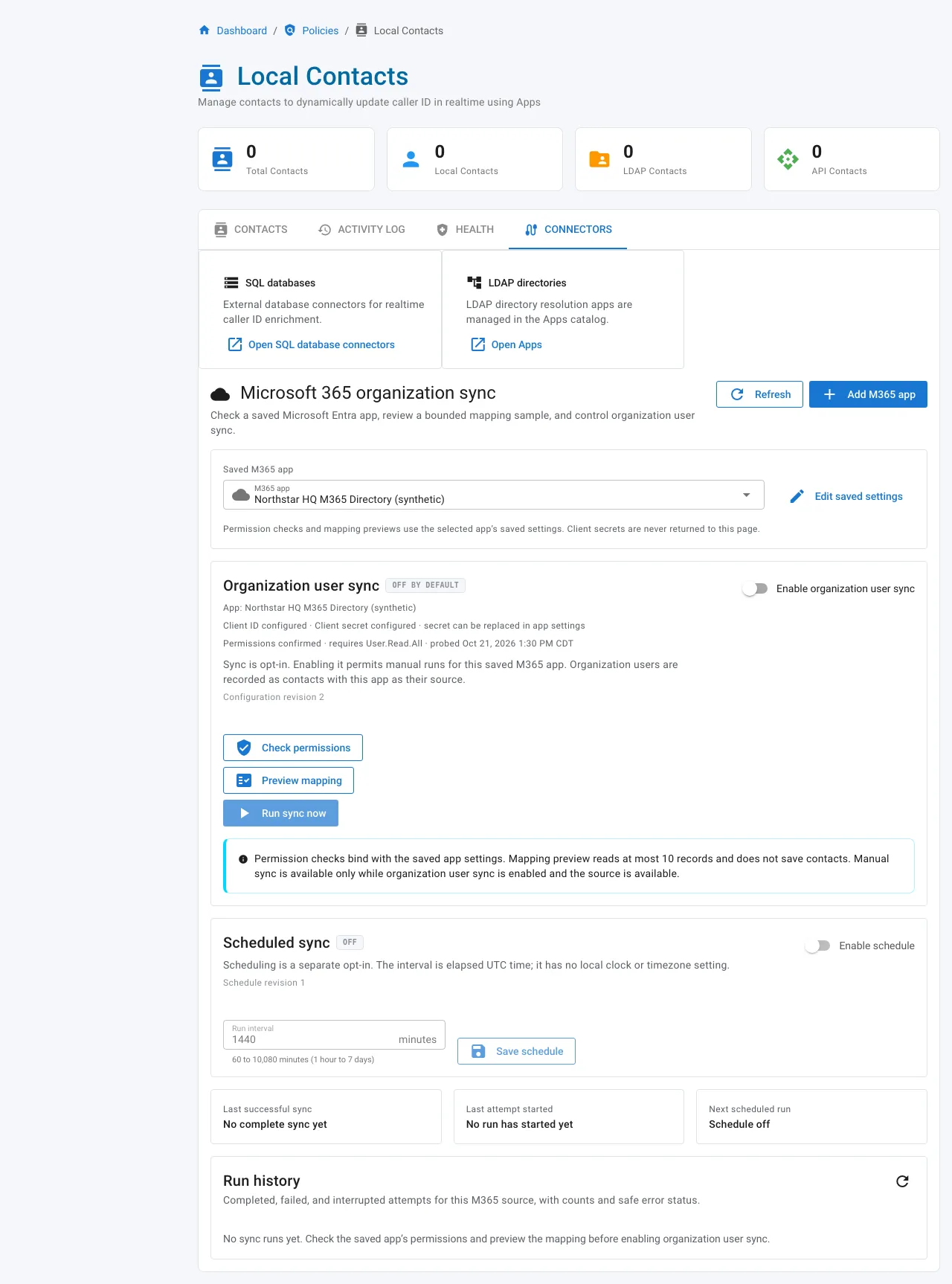
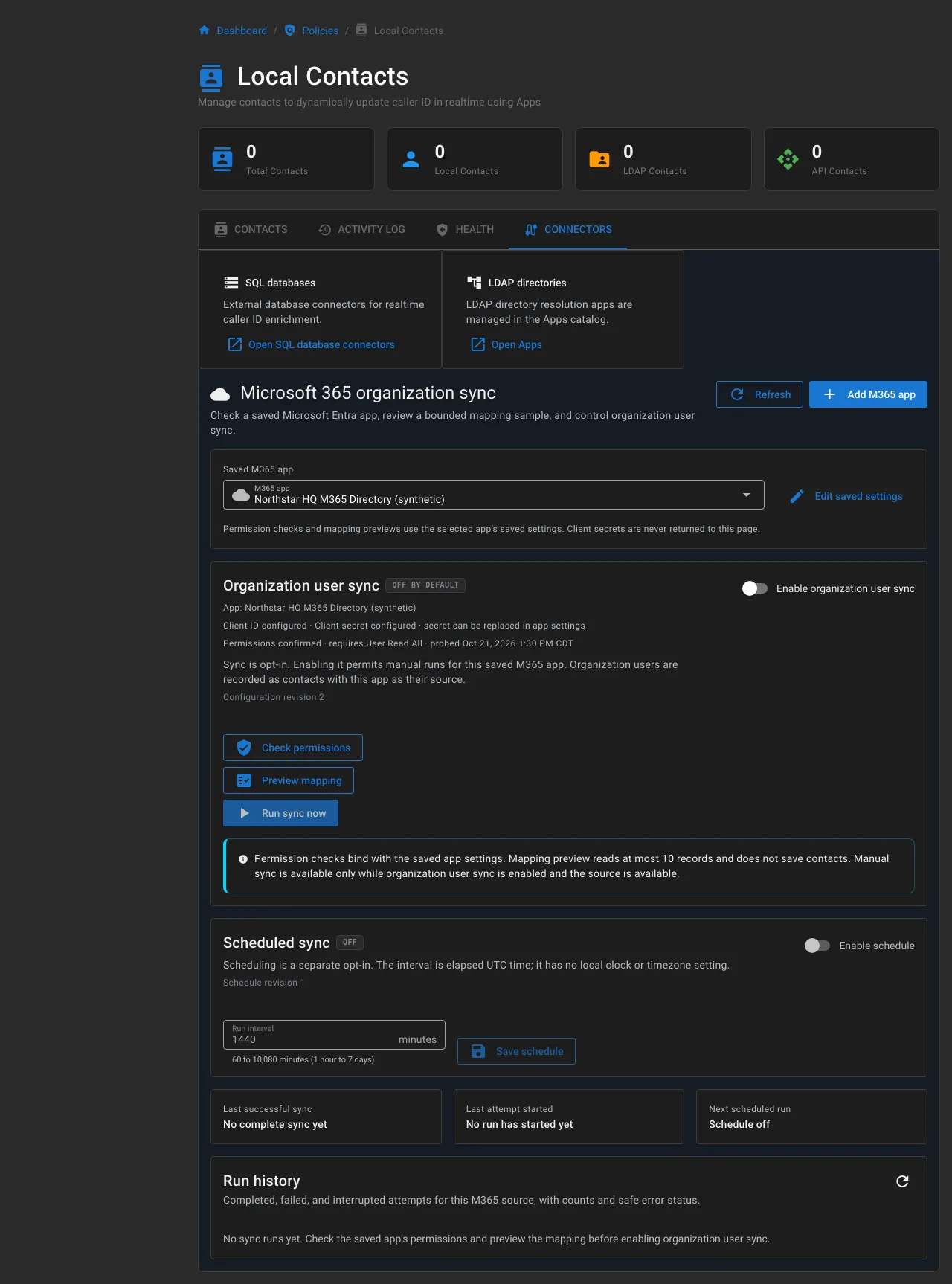
This capture shows the synthetic saved app before opt-in: Enable organization user sync is off, the manual run action stays unavailable, and run history has no entries. The badges read Off by default and Off.
Save the M365 App and Enter Credentials
- Open Policies → Local Contacts → Connectors and select Add M365 app.
- Enter the Tenant ID and Application (client) ID of your Microsoft Entra app registration.
- Enter the Client Secret for the registration. Secrets are write-only: the dashboard never displays one, and saving a blank secret keeps the stored value. To replace a secret, enter a new one and save.
- Grant the
User.Read.Allapplication permission in Microsoft Entra and have a tenant administrator consent to it. - Select Create (or Update when editing) to save the app.
The app editor also states the scope boundary: the registration requires
User.Read.All, and personal mailbox contacts are not read.
- Light theme
- Dark theme
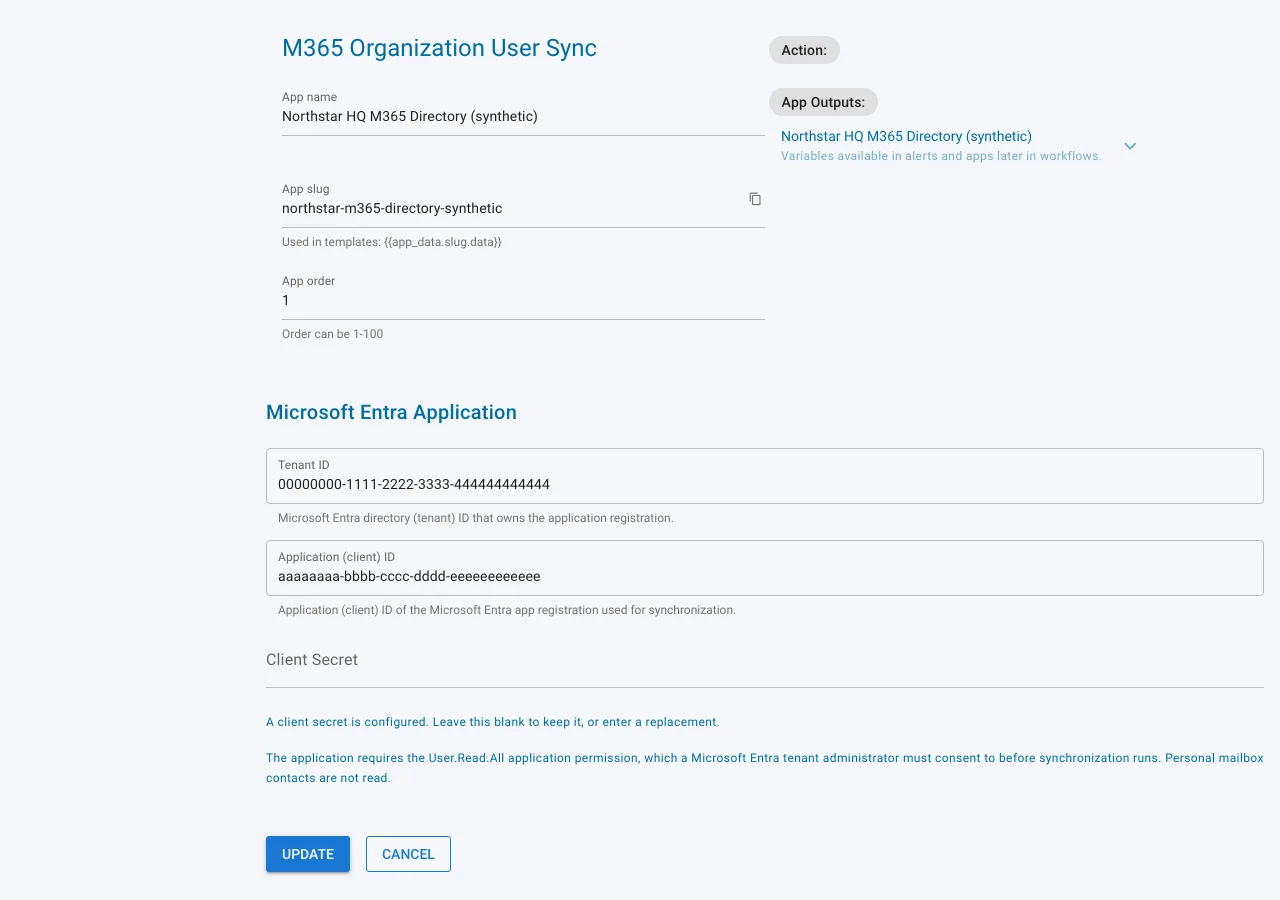
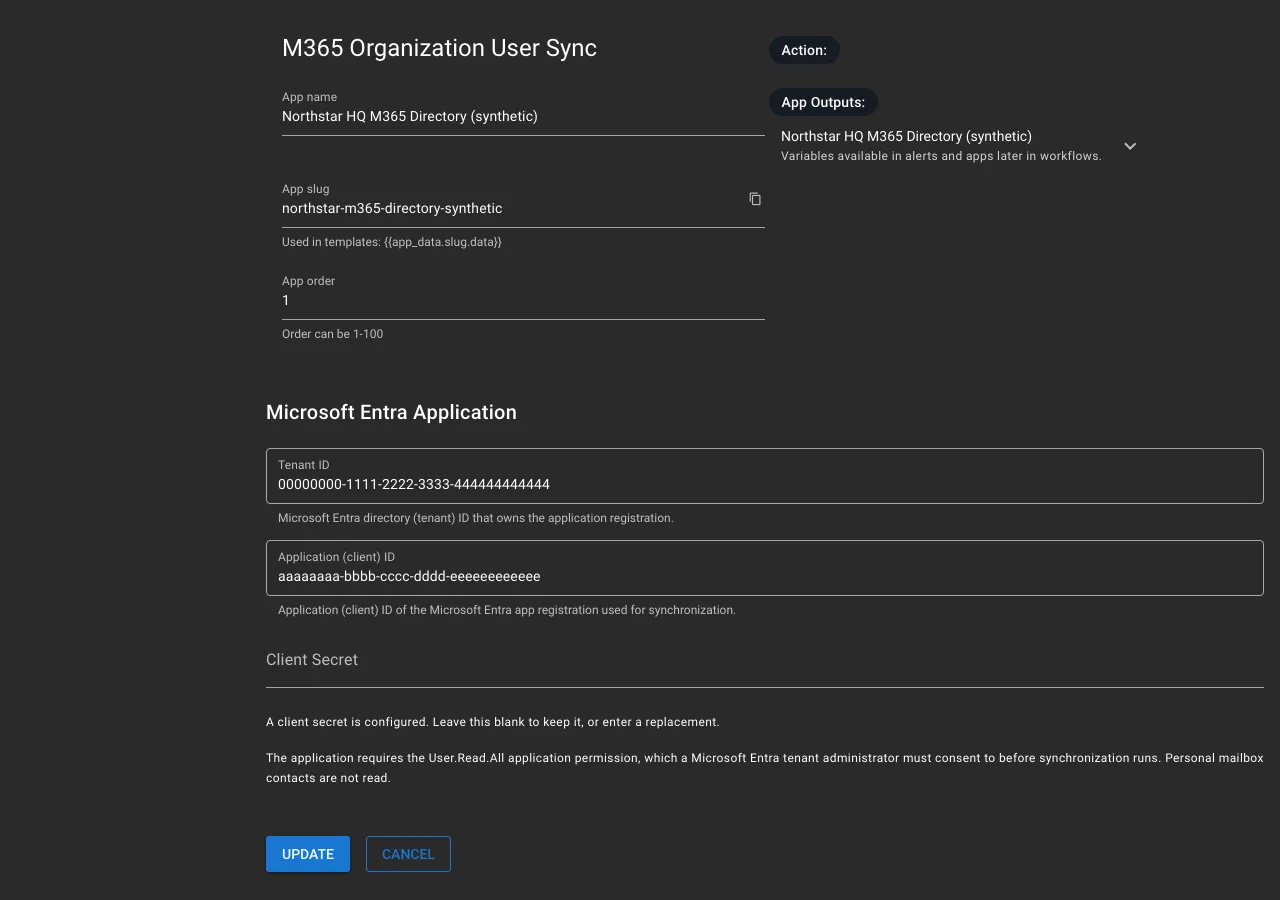
This capture shows the synthetic saved app's editor. The client secret field is blank while the status line confirms a secret is configured; leave it blank to keep the saved secret.
Check Permissions and Preview the Mapping
- Back on Connectors, select the saved app in the M365 app picker.
- Select Check permissions. The check binds with the saved app settings
and reports one of three outcomes:
- Permissions confirmed — the saved Entra app has the required application permissions.
- Required permissions missing — the named permissions still need administrator consent before sync can run. The notice includes the provider correlation ID for support follow-up.
- Permissions not confirmed — the check returned no definitive status. Review the saved app settings and try again.
- Select Preview mapping to inspect a bounded sample of organization users, at most 10 per request. Preview is read-only: it does not save contacts. The summary reports sample size, records seen, mapped, and rejected counts, and a notice tells you when more organization users are available beyond the sample.
Check the preview for records that lack a usable name or phone number before enabling synchronization. A preview is only a sample; it is not a count of the complete tenant.
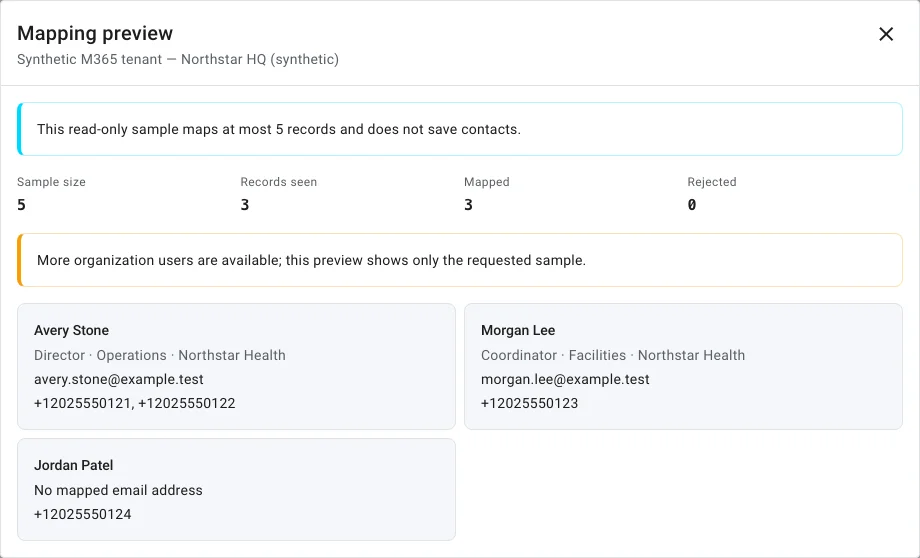
This synthetic sample shows the read-only preview dialog with its bounded sample notice and per-user mapping results.
Enable Organization User Sync and Start a Manual Run
- Confirm the saved app's settings and permission status are correct.
- Turn on Enable organization user sync and confirm the dialog. Sync is opt-in: enabling it permits manual runs for this saved app, and organization users are recorded as contacts with this app as their source.
- Select Run sync now. The action stays disabled until sync is enabled and the source is available.
- The queued receipt opens the run's details. Queued means Call Telemetry accepted the request — not that enumeration finished or that contacts are ready. Follow the run in Run history until it reaches a terminal state.
- Light theme
- Dark theme


This capture shows the opt-in confirmation dialog for the synthetic saved app. Sync stays off until this dialog is confirmed.
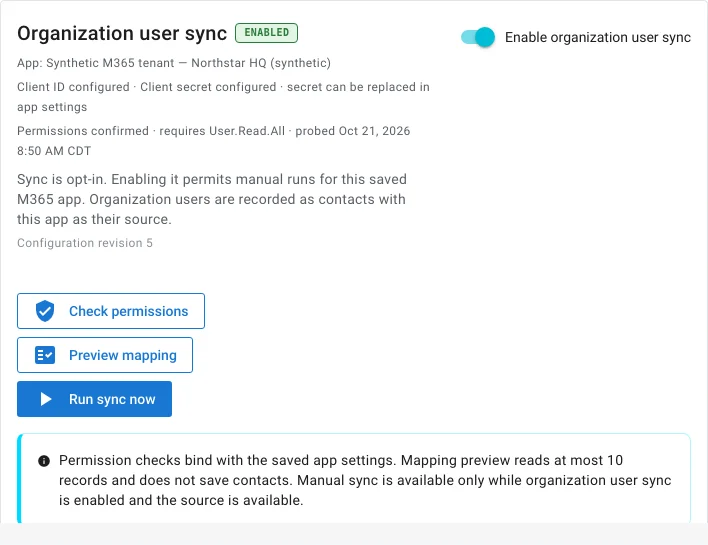
This crop shows the selected synthetic M365 app after organization user sync has been enabled. The credential row reports only whether a client ID and secret are configured — never their values.
Each manual request carries an idempotency key. If a request fails before the run is accepted, retrying the same request reuses that key instead of creating a duplicate run. Requesting a run while one is already active for the source resolves to the current run rather than starting a second one.
Enabling Organization user sync does not start an automatic run. Select Run sync now to refresh immediately, or configure the separate schedule below.
Enable a Schedule and Check Freshness
Scheduled sync is a separate opt-in and starts off by default. Organization user sync must be enabled before a schedule can be saved.
- In Scheduled sync, turn on Enable schedule.
- Set Run interval. The default is 1,440 minutes (24 hours); accepted intervals are 60–10,080 minutes (1 hour to 7 days).
- Select Save schedule. Saving sets the next run time; it does not start a sync immediately.
- Review the freshness summary: Last successful sync, Last attempt started, and Next scheduled run.
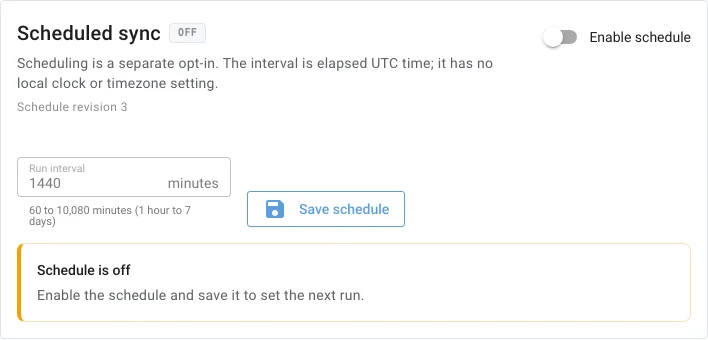
The schedule remains off until you enable and save it. The interval is elapsed UTC time; there is no local clock or time-zone setting.
- Light theme
- Dark theme


This capture shows the synthetic saved app's schedule panel after opt-in: Enable schedule is on, the interval is 1,440 minutes, and Save schedule commits changes to the next run time.
Run history identifies scheduled runs separately from manual runs. Turning off Organization user sync also turns off the saved schedule, so no new manual or scheduled runs start. Existing contact records remain associated with the source. If you enable sync again, enable and save the schedule separately to resume scheduled refreshes.
Review Run History
Run history shows whether each run was manual or scheduled, its state, pages processed, records seen, contact outcome counts, retry status, and a safe error explanation. It never includes credentials, tenant identifiers, or raw provider payloads.
| Run state | Meaning |
|---|---|
| Queued | The run request was accepted and is waiting to start. |
| Running | The worker is reading provider pages and preparing the commit. |
| Complete | The run's final batch committed atomically with its contacts, checkpoint, and outcome counts. There is no partial state: a run is Complete only when its whole batch committed. |
| Failed | The run stopped without committing. Previously synchronized contacts and the checkpoint stand. |
| Interrupted | The run stopped because its configuration or source state changed before it could commit. |
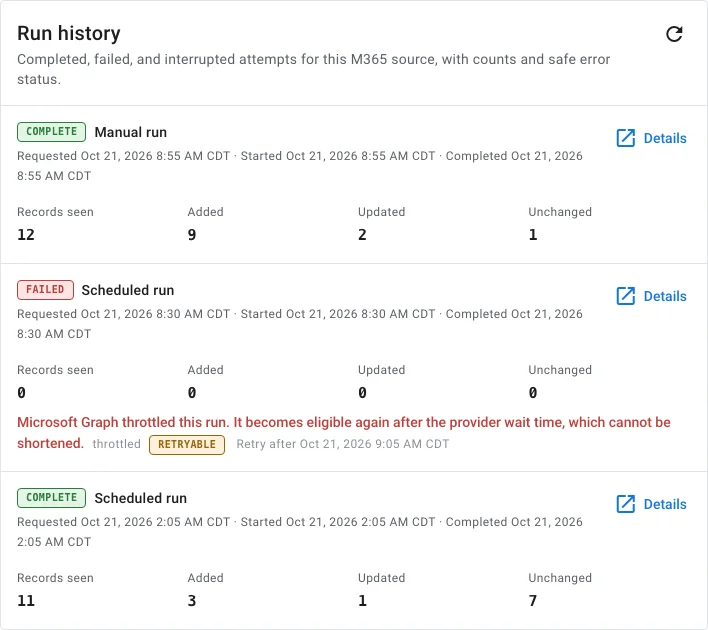
The counts distinguish records seen, added, updated, unchanged, and rejected. A failed run explains what happened in safe, operator-readable terms and shows a Retryable badge with the earliest time the source becomes eligible again. The provider's wait time cannot be shortened; volume is bounded so throttled sources back off to the hourly scheduler tick.
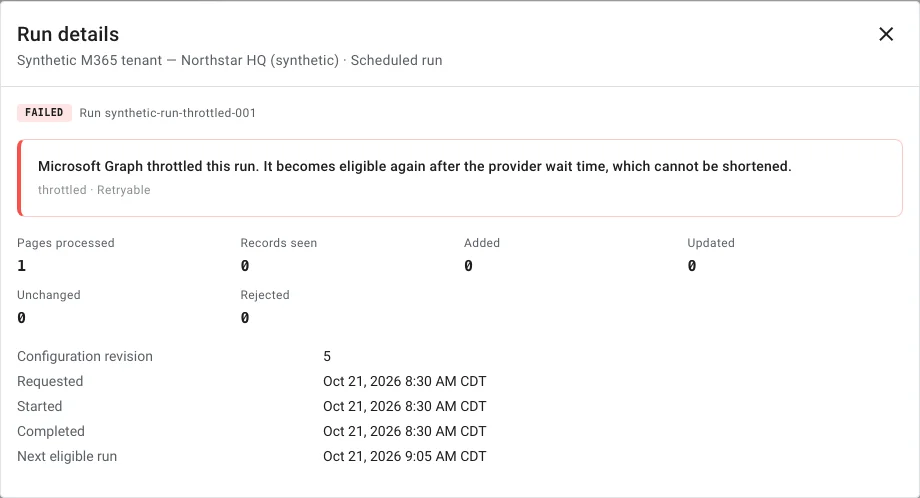
Diagnostic example only: this synthetic throttled run shows the safe error explanation and the provider retry deadline. It is not a successful sync, a live tenant result, or runtime qualification.
- Light theme
- Dark theme
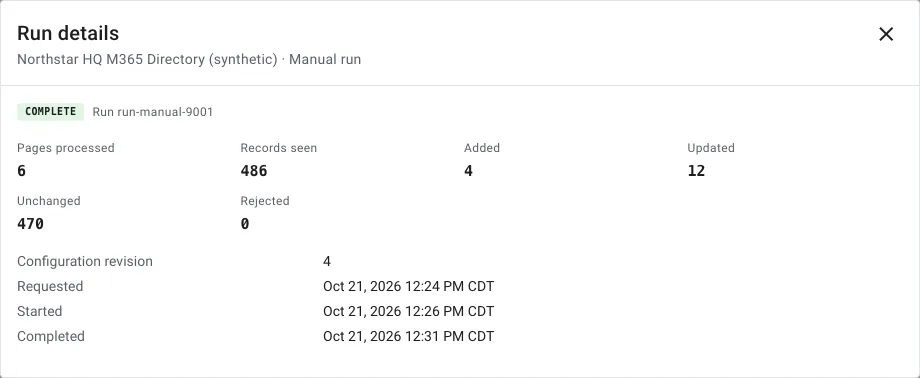
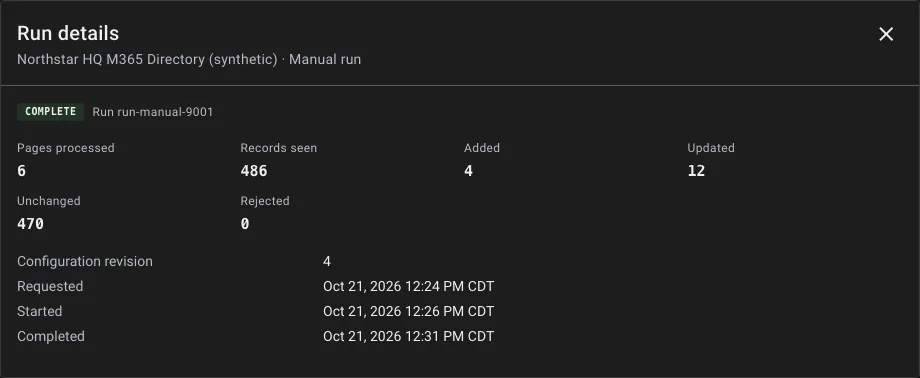
This capture shows the run details dialog for the synthetic completed manual run: durable counts, pages processed, configuration revision, and request, start, and completion timestamps.
Safe Retention and Source Ownership
- Absence is never deletion. A run that sees fewer users does not delete contacts missing from the latest enumeration.
- Removals are tombstoned. When a directory user is removed, the synced contact for that exact record is deactivated and the removal metadata is retained. If the user returns, the next run restores it.
- Ownership is source-scoped. Each synced contact belongs to its organization and saved M365 app. Repeat runs refresh contacts owned by that same app, including after a directory rename. M365 sync never takes over a phone number owned by a manual contact, another connector, an API source, or a live-lookup cache; competing claims are recorded as conflicts and the existing contact remains unchanged.
- Failed runs do not corrupt state. Each run commits as one atomic batch: any failure rolls back that batch, and the prior contacts and checkpoint stand until a run succeeds.
- Disabling is not destructive. Turning off Organization user sync stops new runs but does not remove contacts that earlier runs wrote.
Tenant Isolation
Each sync source is bound to one organization, one saved M365 app, and one Entra tenant. Sources, runs, records, and phone ownership are scoped by that identity, so records are never attached across tenants or applications. At most one active source can exist per app and organization; rebinding to a different tenant requires retiring the current source first. All M365 API access is per-organization: requests and history from one organization never touch another's sources.
Troubleshoot
The dashboard shows Source is unavailable. The saved configuration or credentials are not ready for runs. Open Edit saved settings, correct the tenant, client ID, or secret, and check permissions again. Manual and scheduled runs stay blocked until the source is available.
The permission check reports missing permissions. Grant the named application permissions in Microsoft Entra and have a tenant administrator consent to them, then run Check permissions again. Use the correlation ID from the notice when contacting support.
The run failed with a throttling notice. Microsoft Graph rate-limited the run. It becomes eligible again after the provider wait time shown in run history, which cannot be shortened. No action is required; the schedule and the hourly scheduler tick will retry when eligible.
The run failed and asks for a full resynchronization. Microsoft Graph asked this source to restart change tracking. Previously synchronized contacts and the checkpoint are preserved; the next eligible run rebuilds the checkpoint from a full enumeration before contacts change again.
The run failed with a credential error. Entra rejected the saved client secret or none is configured. Enter a replacement secret in the app settings, then start a new run.
The run reports a stale-configuration error. The saved M365 settings changed before the run could finish. Review the current settings and start another manual run.
No next scheduled run appears. Confirm Organization user sync and Enable schedule are both on and that you saved the schedule. Disabling sync also disables its schedule.
A contact is absent from the latest directory scan. Sync never deletes missing contacts. Tombstoned records are retained; remove or update a contact through the existing Contacts workflow after verifying its source.
Related Guides
- Contacts & CRM Overview — choose how to populate and use local Contacts.
- Local Contacts — review manually maintained and imported contacts.
- LDAP Contact Sync — import directory contacts from LDAP sources.
- SQL Connectors — import contacts from a supported SQL database.
- External API Contact Resolution — live call-time lookups, separate from contact import.