Sync LDAP Contacts into Call Telemetry
Use LDAP Contact Sync to explicitly enable a saved LDAP app as a source for local Contacts, preview a bounded sample, start manual runs or opt into a schedule, and review freshness and run outcomes. Call-time LDAP lookup remains a separate feature.
Screenshots on this page use the real Vue and Quasar Contacts interface with a labelled synthetic LDAP fixture. They do not show a live directory connection or prove appliance qualification.
Requirements
- A Call Telemetry appliance version that includes LDAP Contact Sync.
- An organization-owned saved LDAP app that you can select in Contacts → Connectors.
- Organization access with policy_read to view sync configuration and run history, and policy_admin to change sync state, test the saved connection, preview mappings, start a run, and change its schedule.
- Directory records with a stable object identifier (the current default is
objectGUID), plus a mapped contact name and at least one phone number.
LDAP Contact Sync uses the saved LDAP app configuration. It is separate from the LDAP Contact Resolution app, which queries the directory during policy evaluation.
Transport and Run Limits
Native contact sync requires an encrypted, verified directory connection. When the saved app enables SSL/TLS, sync uses LDAPS. Otherwise, sync requires a successful StartTLS upgrade before binding; disabling that setting does not allow an unencrypted native sync. Use the port configured for that mode on your directory server.
The sync transport verifies the server certificate and hostname using the appliance runtime's trusted certificate authorities and supports TLS 1.2 and 1.3. A private CA must be trusted by that runtime. If verification fails, correct the hostname, certificate chain, or trust configuration; native sync does not offer a certificate-verification bypass.
Each run requests pages of 100 entries and is bounded to 100 pages and 10,000 records. A directory that requires more enumeration does not count as a complete sync. Review the run state and sanitized error, then narrow the saved search scope appropriately. These are synchronization limits; the mapping preview is separately capped at 10 sample records. LDAP referrals are not followed.
Select an LDAP App and Preview the Mapping
- Open Contacts & CRM → Contacts → Connectors.
- Choose LDAP directories, then select a Saved LDAP app. If you need to adjust the directory connection or search scope, choose Edit saved settings and save those settings before testing or previewing.
- Confirm the saved LDAP app maps a contact name and at least one phone number.
Company, department, email, and title are optional. LDAP Contact Sync uses an
immutable directory object identifier (by default,
objectGUID); names, distinguished names, and phone numbers are not stable record identity. - Select Test connection to check the saved connection. This test does not start a sync run or write contacts.
- Select Preview mapping to inspect mapping results for up to 10 sample records. Preview does not save the sample as Contacts.
Check the preview for records that lack a usable name, phone, or identifier before enabling synchronization. A preview is only a sample; it is not a count of the complete directory.
Enable Contact Sync and Start a Manual Run
New LDAP sync sources show Off by default. They do not sync just because an LDAP app exists, you test its connection, or you preview a mapping. To opt in, turn on Enable contact sync for the saved LDAP app and save the change.
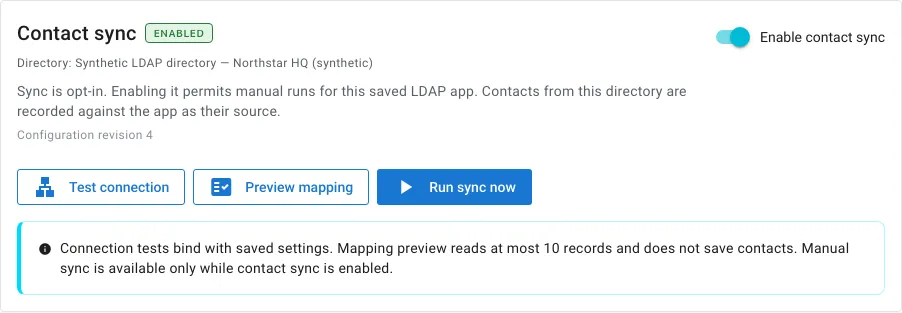
This crop shows the selected synthetic LDAP app after contact sync has been enabled. The visible actions test the saved connection, preview a mapping, or start a manual run.
- Confirm the LDAP app's connection and mapping settings are saved.
- Enable Contact sync and save the source state.
- Select Run sync now to queue a manual full sync.
- Open Run history and follow the run until it reaches a terminal state.
A queued response means that Call Telemetry accepted the request. It does not mean enumeration completed or that the contacts are ready to use. A duplicate request for an active source resolves to its current run instead of creating a second concurrent run.
Enabling Contact sync does not start an automatic run. Select Run sync now to refresh the local source immediately, or configure the separate schedule below.
Enable Scheduled Sync and Check Freshness
Scheduled sync is a separate opt-in and starts off by default. Contact sync must be enabled before you can enable a schedule.
- In Scheduled sync, turn on Enable schedule.
- Set Run interval. The default is 1,440 minutes (24 hours); accepted intervals are 60–10,080 minutes (1 hour to 7 days).
- Select Save schedule. Saving sets the next run time; it does not start a sync immediately.
- Review Last successful sync, Last attempt started, and Next scheduled run in the freshness summary.
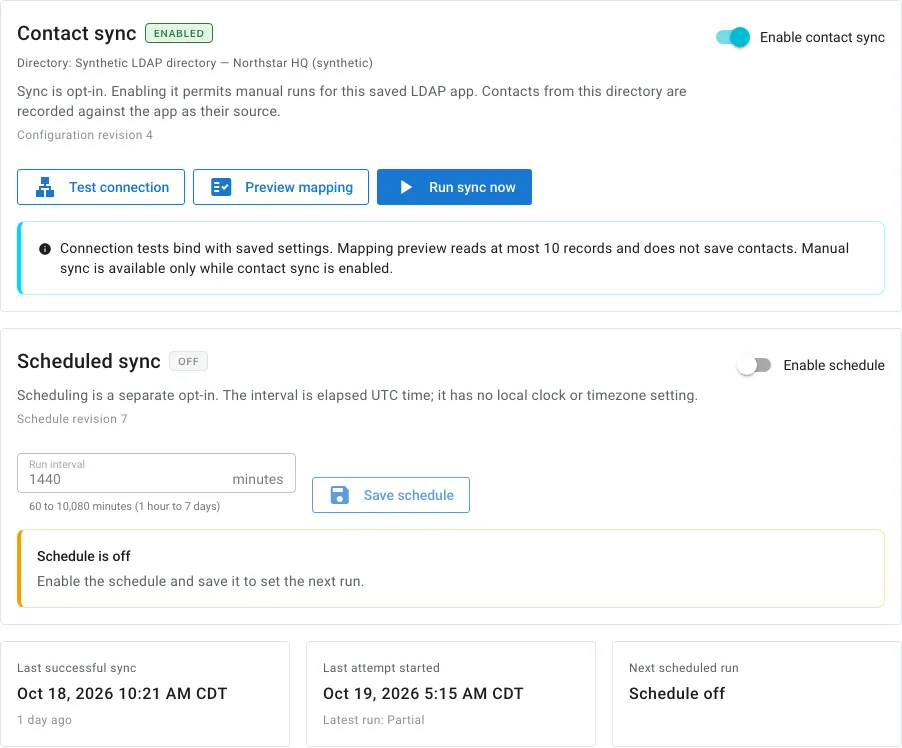
The schedule remains off until you enable and save it. Freshness shows that no next scheduled run is configured.
The interval is elapsed UTC time. There is no local clock or time-zone setting. Run history identifies scheduled runs separately from manual runs.
Turning off Contact sync also turns off its saved schedule, so future manual and scheduled runs stop. If you enable Contact sync again, enable and save the schedule separately to resume scheduled refreshes. Contacts from earlier runs remain in the directory.
Understand Source Ownership
Each synchronized record belongs to its organization, saved LDAP app, and immutable directory-object identifier. Repeat runs can update phone contacts owned by that same LDAP app, including after a directory rename.
LDAP sync does not take over a phone contact owned by a manual entry, another connector, an API source, or another source. A competing phone claim is recorded as a conflict; the existing contact remains unchanged.
A full scan does not delete contacts that are absent from the latest result. The run API does not calculate missing-contact counts. Disabling Contact sync stops new runs, but it does not remove contacts that earlier runs wrote.
Review Run History
Run history shows whether each run was manual or scheduled, enumeration state, processed pages, records seen, contact outcome counts, retryability, and a sanitized error code. It does not include raw directory records.
| Run state | Meaning |
|---|---|
| Queued | The run request was accepted and is waiting to start. |
| Running | The worker is reading pages and saving their outcomes. |
Complete (succeeded) | The worker completed directory enumeration. Rejected or conflicted records can still appear in the counts. |
| Partial | Enumeration did not complete after one or more pages committed. Those contacts remain saved. |
| Failed | Enumeration stopped before any page outcomes were committed. Review the sanitized error code and counts. |
| Interrupted | The run stopped because its execution or source state changed. |
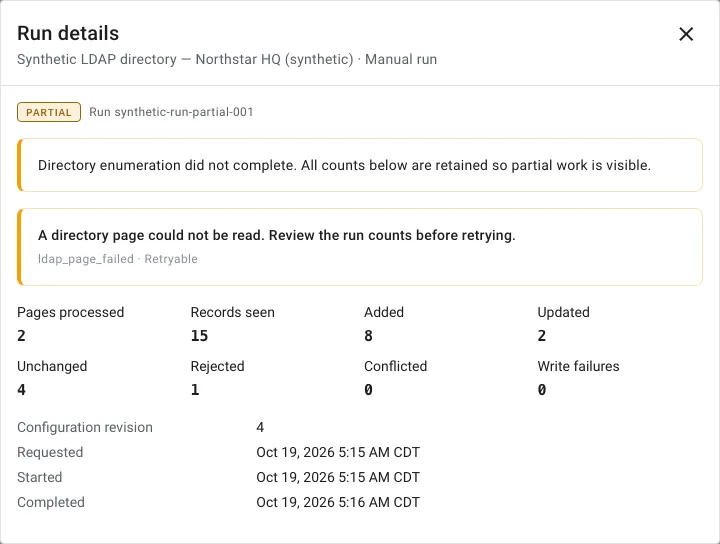
Diagnostic example only: this synthetic partial run shows a retryable page error and counts retained from completed pages. It is not a successful sync, a live directory result, or runtime qualification.
The counts distinguish records seen, added, updated, unchanged, rejected, conflicted, and write failures. Rejected records could not be mapped or validated. Conflicted records could not safely claim a phone already owned by another source. Review the sanitized error code, correct the saved LDAP settings or directory condition, and start a new manual run. A retry does not roll back contacts saved by earlier committed pages.
Troubleshoot
The connection test fails. Review the saved LDAP server, search, and TLS settings, then test the saved app again. A connection test is separate from a full sync.
The preview returns no usable contacts. Check the search base and filter, then confirm the selected identifier, name, and phone attributes match the directory schema.
The run is partial or failed. Use its sanitized error code to identify the failure category. Earlier committed pages remain in Contacts; correct the cause before starting another manual run.
No next scheduled run appears. Confirm Contact sync and Enable schedule are both on and that you saved the schedule. Disabling Contact sync also disables the schedule.
The conflict count is nonzero. Review the existing contact's source. LDAP sync leaves contacts owned by manual entry or another source unchanged.
A contact is absent from the latest directory scan. Full sync does not delete missing contacts. Remove or update a contact through the existing Contacts workflow after verifying its source and ownership.
Related Guides
- Contacts & CRM Overview — choose how to populate and use local Contacts.
- M365 Organization-User Sync — import directory users from a saved Microsoft 365 app.
- Local Contacts — review manually maintained and imported contacts.
- LDAP Contact Resolution — query LDAP during policy evaluation.
- SQL Connectors — import contacts from a supported SQL database.