PostgreSQL Contact Resolution
Connect a PostgreSQL database to display caller names on Cisco IP Phones in real-time. When customers call, Call Telemetry executes a SQL query to retrieve their name from your CRM, ERP, or custom database — replacing the raw phone number on the agent's phone display.
Watch the PostgreSQL CRM Integration Video Tutorial for a visual walkthrough.
Requirements
- Call Telemetry Appliance 0.8.6 or later
- Call Telemetry Premium License
- Cisco CallManager 8.5+ with CURRI API Integration
- Configured External Call Control Profile Inspection - A route pattern, translation pattern, or phone extension must be enabled for Call Telemetry policy inspection
Configuration Overview
Setting up PostgreSQL caller ID takes about 10 minutes:
- Create a policy rule to intercept incoming calls
- Configure PostgreSQL connection and SQL query
- Map database results to caller ID display
- Test the call
Step 1: Create Call Policy and Rule
First, set up a policy to intercept incoming calls for CRM lookup.
Quick Setup
- Navigate to Policies → Add Policy
- Name it "CRM Lookup Policy"
- Add a rule with trigger pattern
.*to match all calls - Or use specific patterns like
408.*for area codes
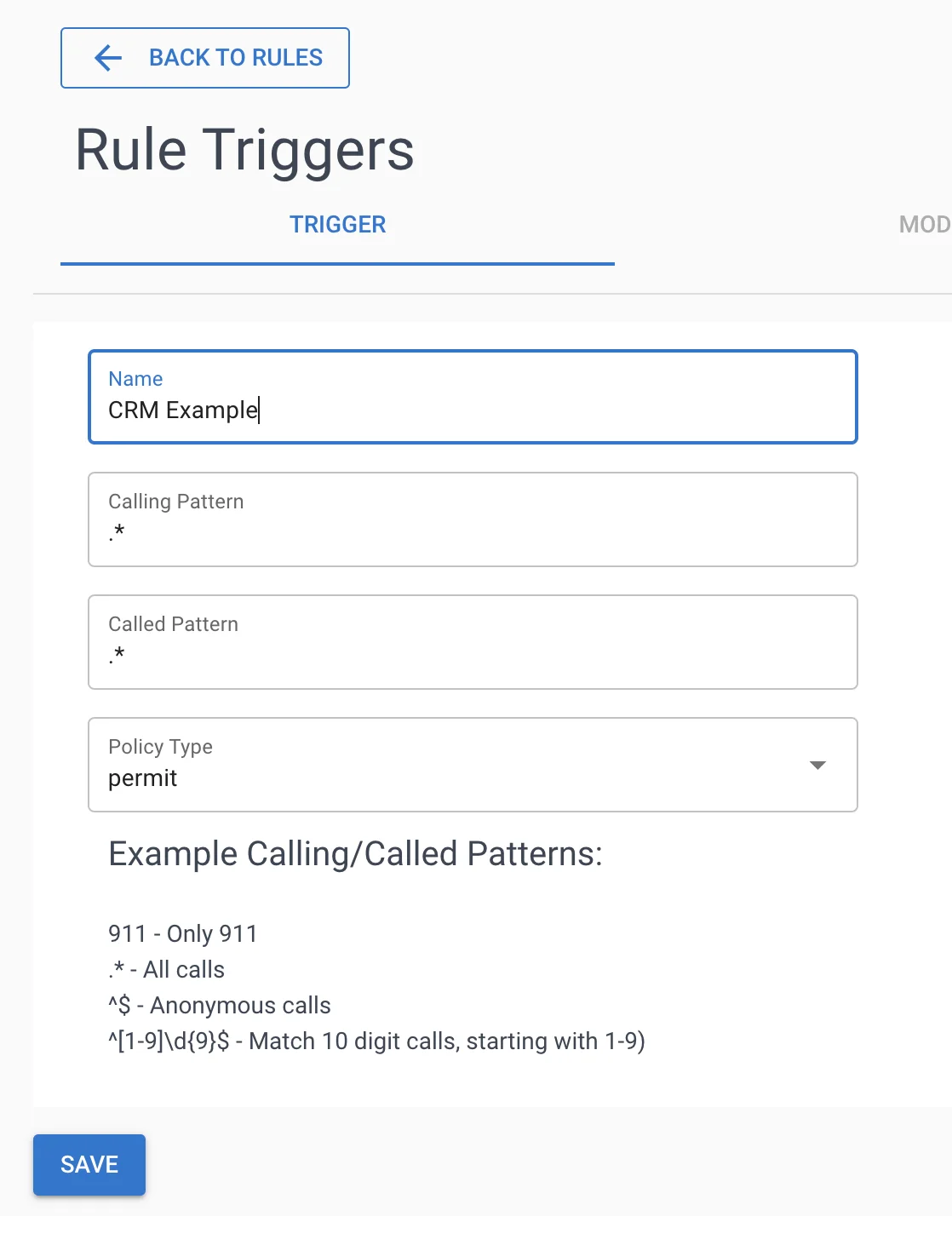
Verify Policy Is Active
Your policy should show "Registered" status and accumulate hits as calls arrive. Check Call Policy History to confirm it's working.
New to policies? See Policy Configuration Guide and Rule Triggers Guide.
Step 2: Configure PostgreSQL Database Connection
Create the PostgreSQL App
- Go to Realtime Policies → Apps
- Click Add → Select PostgreSQL (under Realtime tab)
- Configure your database connection:
Connection String Format:
host=yourserver.com dbname=customerdb user=readonly password=secretpass
SQL Query Requirements:
- Must return exactly one value (the name to display)
- Use
{event.calling_number}for the caller's phone number - Test your query directly in PostgreSQL first
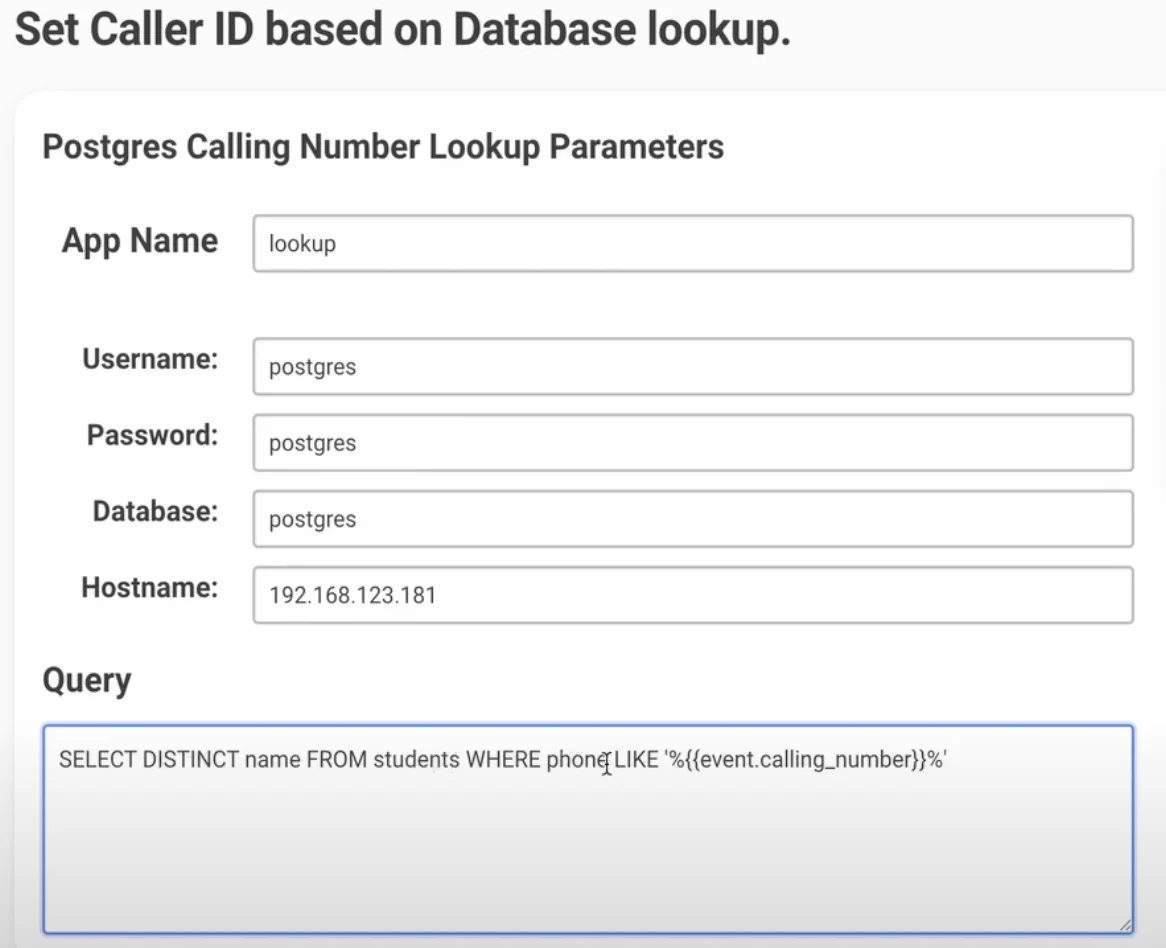
Step 3: Associate PostgreSQL App with Your Rule
- Open your CRM Policy and select the rule
- Click the + button next to your PostgreSQL App
- The app now executes for every matching call
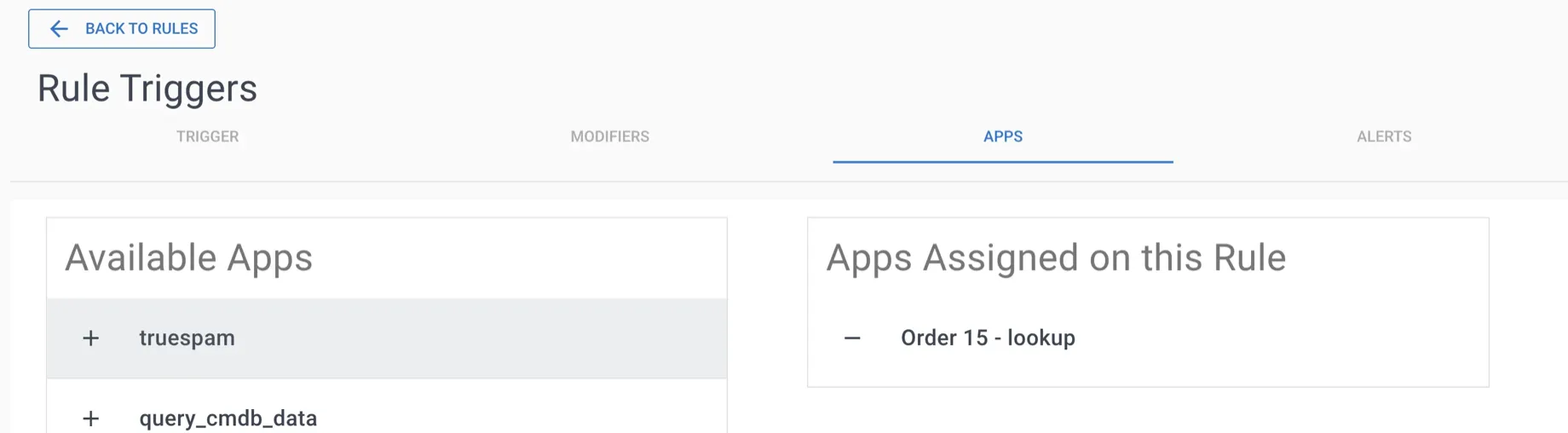
Step 4: Test Database Query Results
Use Call Tests to verify your PostgreSQL query returns the expected customer name:
- Navigate to Policies → Call Test
- Enter a test calling number that exists in your database
- Run the test and check
app_data.lookup.data.results
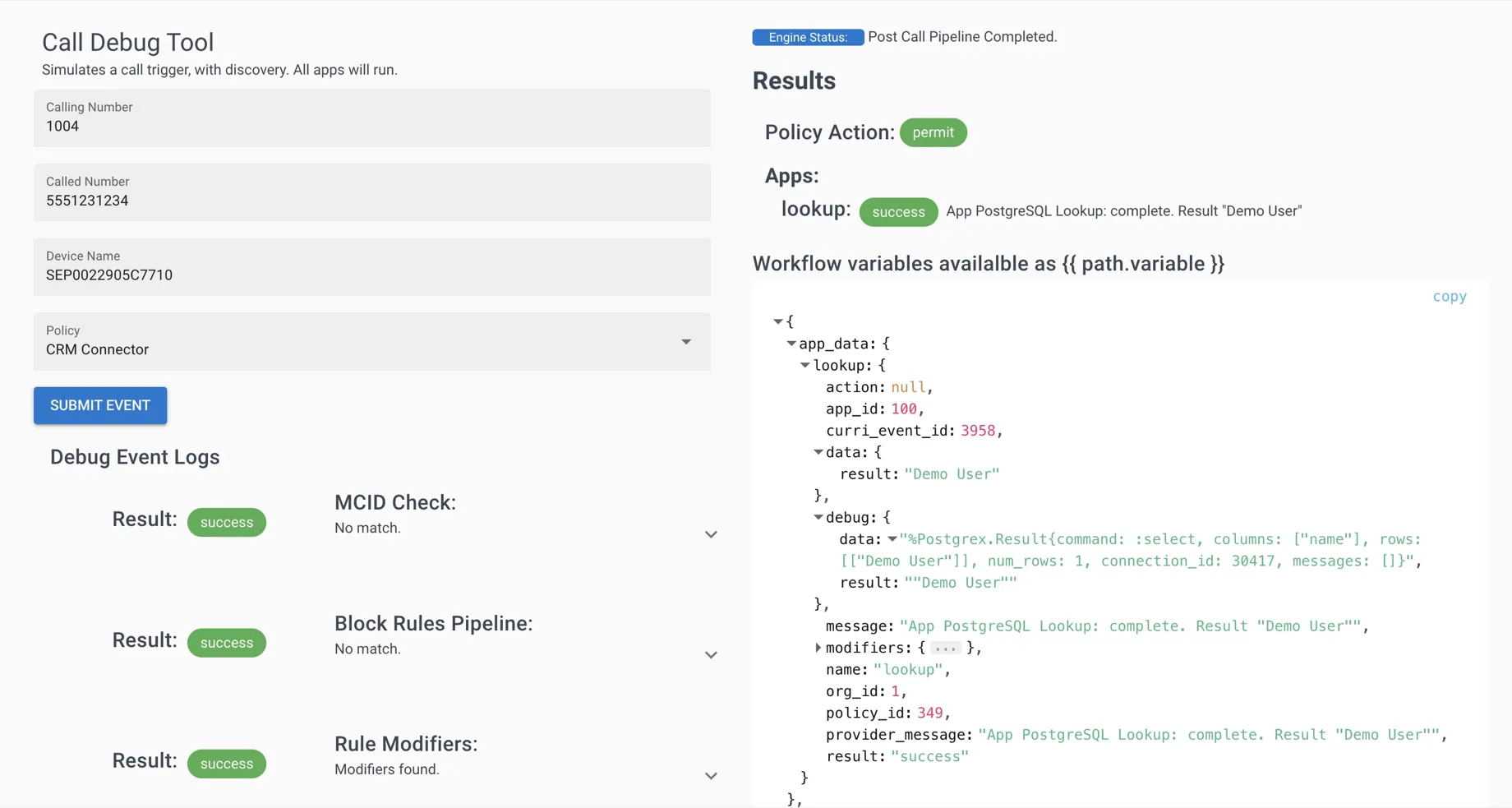
You should see the customer name returned from your database.
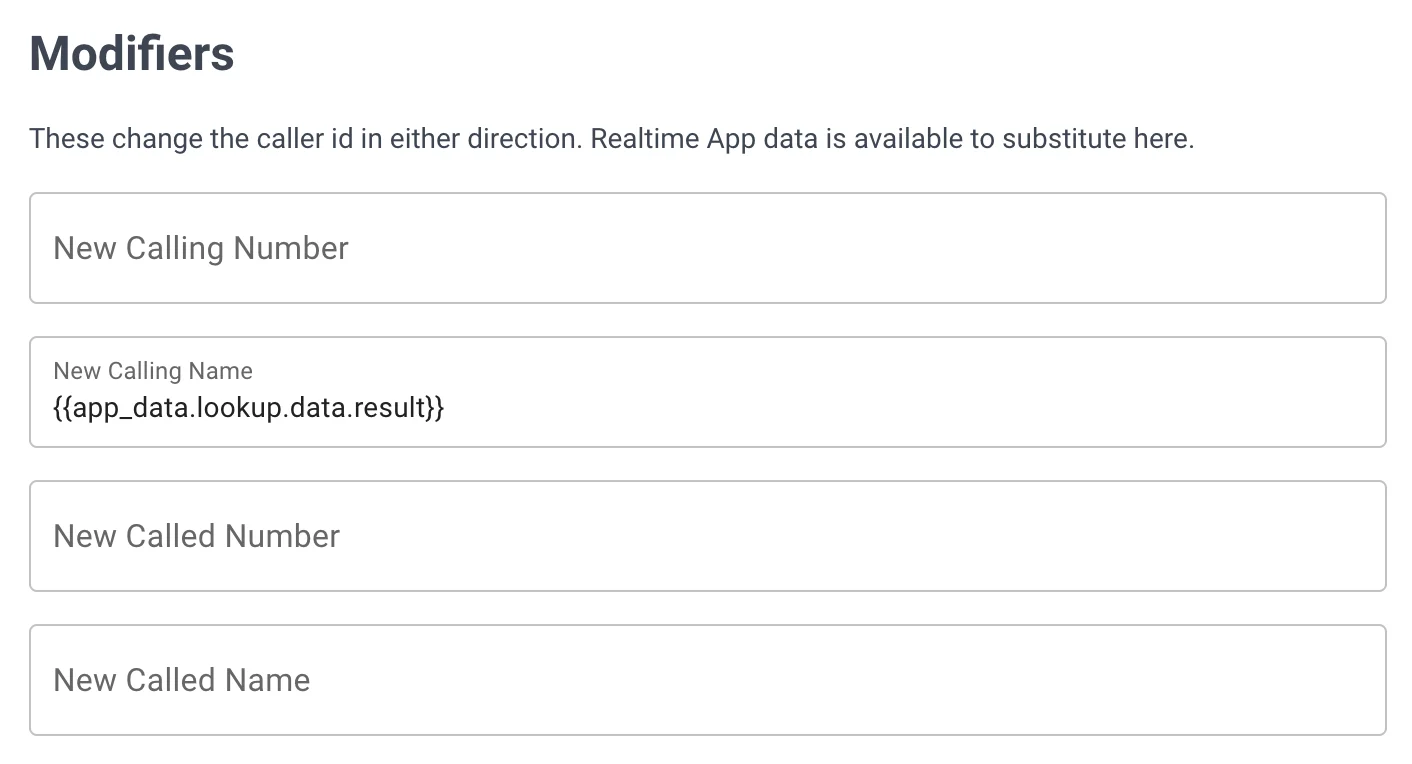
Step 5: Display Customer Name on Phones
Map the database result to the caller ID display:
- In your rule, find the Calling Party Name field
- Enter:
{app_data.lookup.data.results} - Save the rule
Now when customers call, their name from PostgreSQL replaces the phone number on agent displays.
Step 6: Verify Caller ID Display
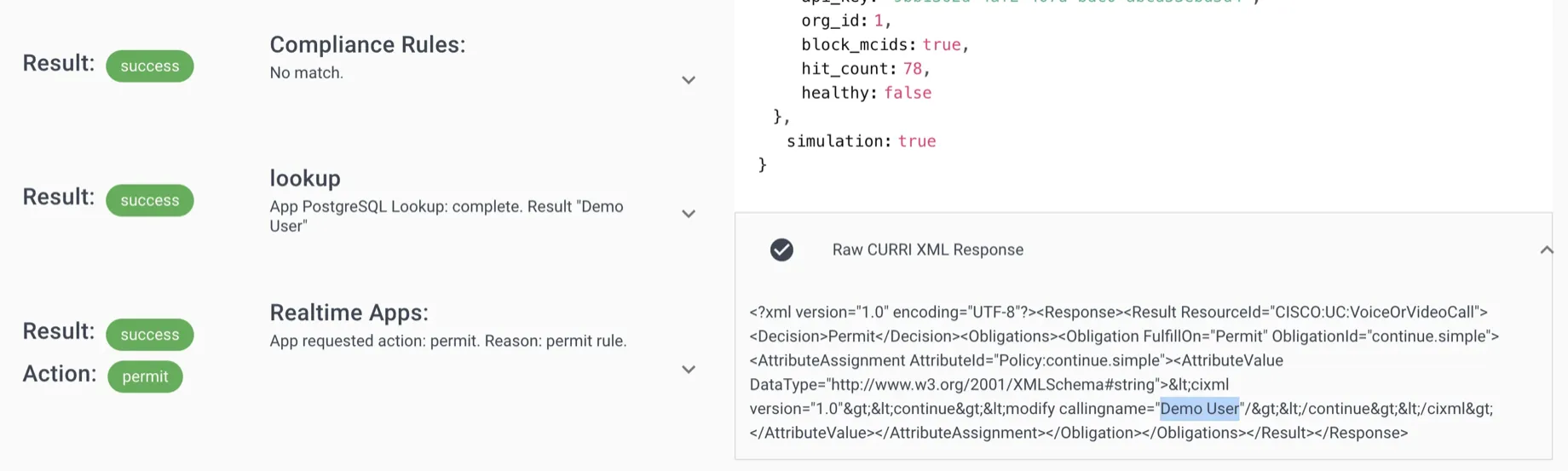
Confirm the integration works end-to-end:
- Run another call test with a known customer number
- Check the CURRI API response (right panel)
- Verify
calling_nameshows your database value - Make a real test call to see the name on phones
Troubleshooting
No name displayed?
- Verify phone number format matches database (with/without country code)
- Check PostgreSQL user has SELECT permissions
- Test query directly in psql or pgAdmin
- Review Call Test results for error messages
Connection errors?
- Verify network connectivity from Call Telemetry to PostgreSQL
- Check firewall rules allow port 5432
- Confirm connection string format is correct
Related Topics
- REST API Contact Resolution -- Connect external CRM systems via webhooks
- LDAP Contact Resolution -- Active Directory integration
- CRM & Contact Resolution Overview -- All data source options