Configure CUCM CDR Webhooks
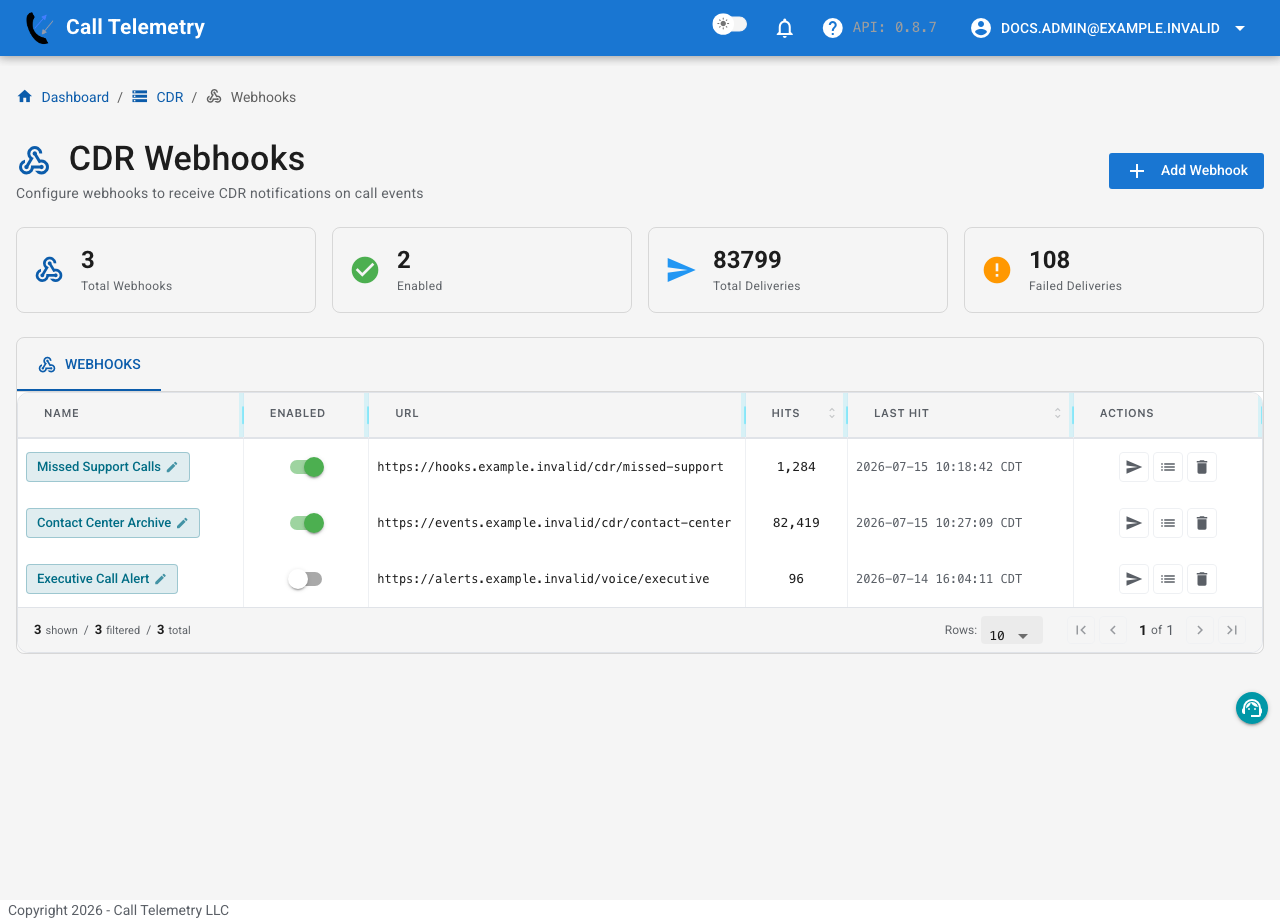
PremiumCDR webhooks send completed Cisco Unified Communications Manager call detail records to an external JSON endpoint. Add conditions when the receiving system needs only specific calls, such as unanswered support calls, international traffic, or calls longer than a threshold.
Use a CUBE call event webhook instead when the destination needs call-state changes before the call ends.
Before you begin
- Use Call Telemetry
0.8.7or later with an Essentials or higher license. - Complete CUCM CDR integration and confirm new records appear in CDR reporting.
- Prepare an HTTP or HTTPS endpoint that accepts
POSTrequests with a JSON body. HTTPS is recommended. - Decide how the endpoint will authenticate requests. A dedicated token in a custom header is easier to rotate than a shared credential.
Add a CDR webhook
- In the sidebar, open CDR > Webhooks.
- Select Add Webhook.
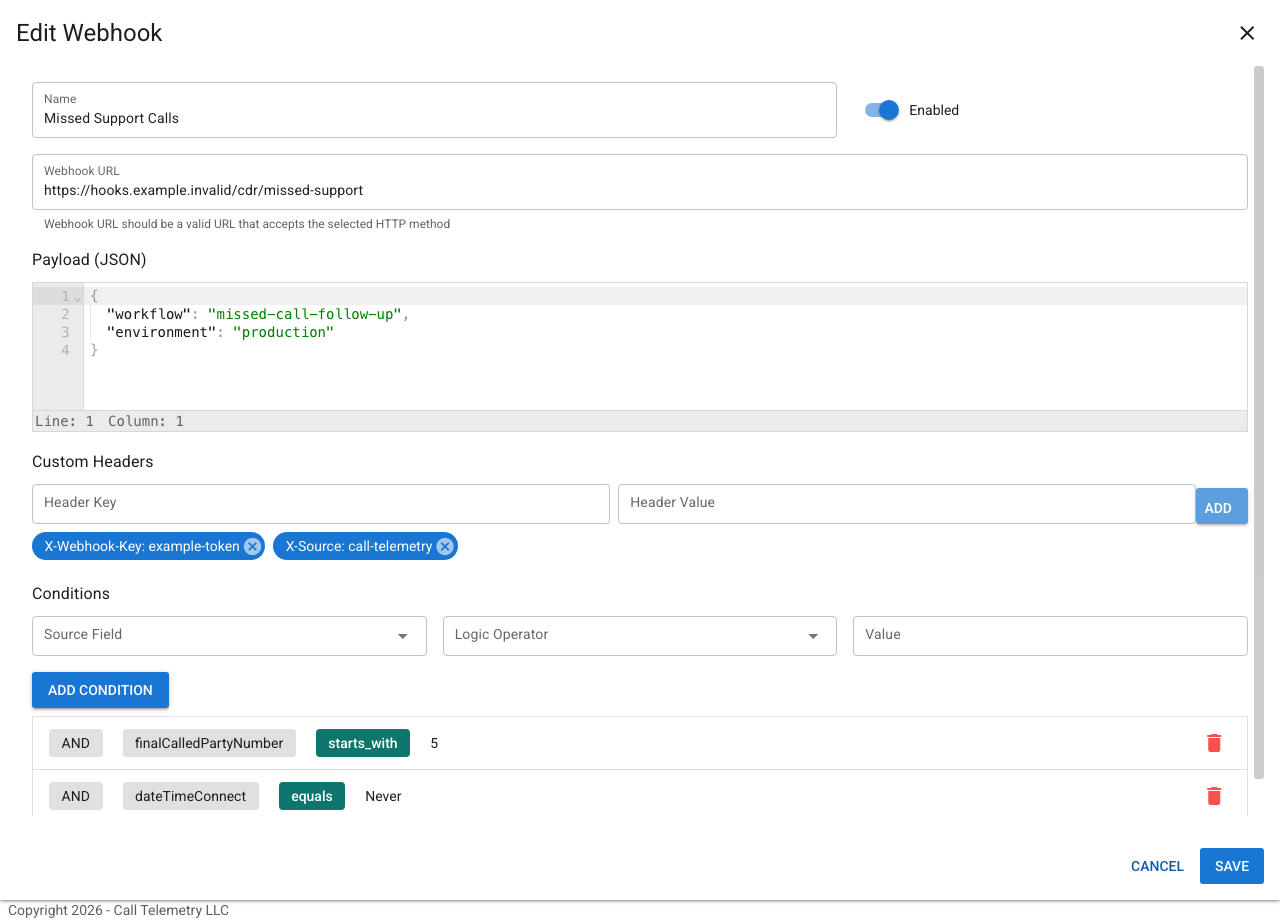
- Enter a descriptive Name and the destination Webhook URL.
- Leave Enabled on if the webhook should begin processing matching CDRs after you save it.
- In Payload (JSON), enter any integration-specific metadata to include under the
metakey. - Add optional Custom Headers, such as
Authorizationor an integration-specific signature key. - Add one or more Conditions.
- Select Save.
Filter which CDRs are sent
Each condition contains a Source Field, Logic Operator, and, when required, a Value. Conditions are joined with and, so a record must satisfy every listed condition before Call Telemetry sends it.
For example, an integration for missed support calls could require both:
finalCalledPartyNumberequals a support number.durationequals0.
Keep conditions as narrow as the business workflow requires. A webhook with no useful filters can send every processed CDR and create unnecessary traffic at the destination.
Understand the payload
Call Telemetry sends a JSON object with three top-level keys:
name: the webhook name.meta: the JSON you entered in Payload (JSON).cdr: the complete CDR that matched the conditions.
The CDR object contains many CUCM fields. The shortened example below shows the envelope and commonly used values:
{
  "name": "Missed Support Calls",
  "meta": {
    "workflow": "support-follow-up",
    "source": "call-telemetry"
  },
  "cdr": {
    "globalCallID_callId": "28001",
    "callingPartyNumber": "+12515550124",
    "finalCalledPartyNumber": "+12515550140",
    "dateTimeOrigination": "2026-07-15T15:03:17Z",
    "dateTimeDisconnect": "2026-07-15T15:03:23Z",
    "duration": 0
  }
}
Treat the CDR body as an extensible object. Parse the fields your integration needs and tolerate additional fields.
Test and monitor delivery
From the CDR Webhooks table:
- Select Send Test Payload to verify that the destination is reachable and accepts the request.
- Select View Logs to inspect production delivery attempts.
- Use the Enabled switch to pause or resume delivery without deleting the configuration.
- Review Hits, Last Hit, Total Deliveries, and Failed Deliveries for a quick health check.
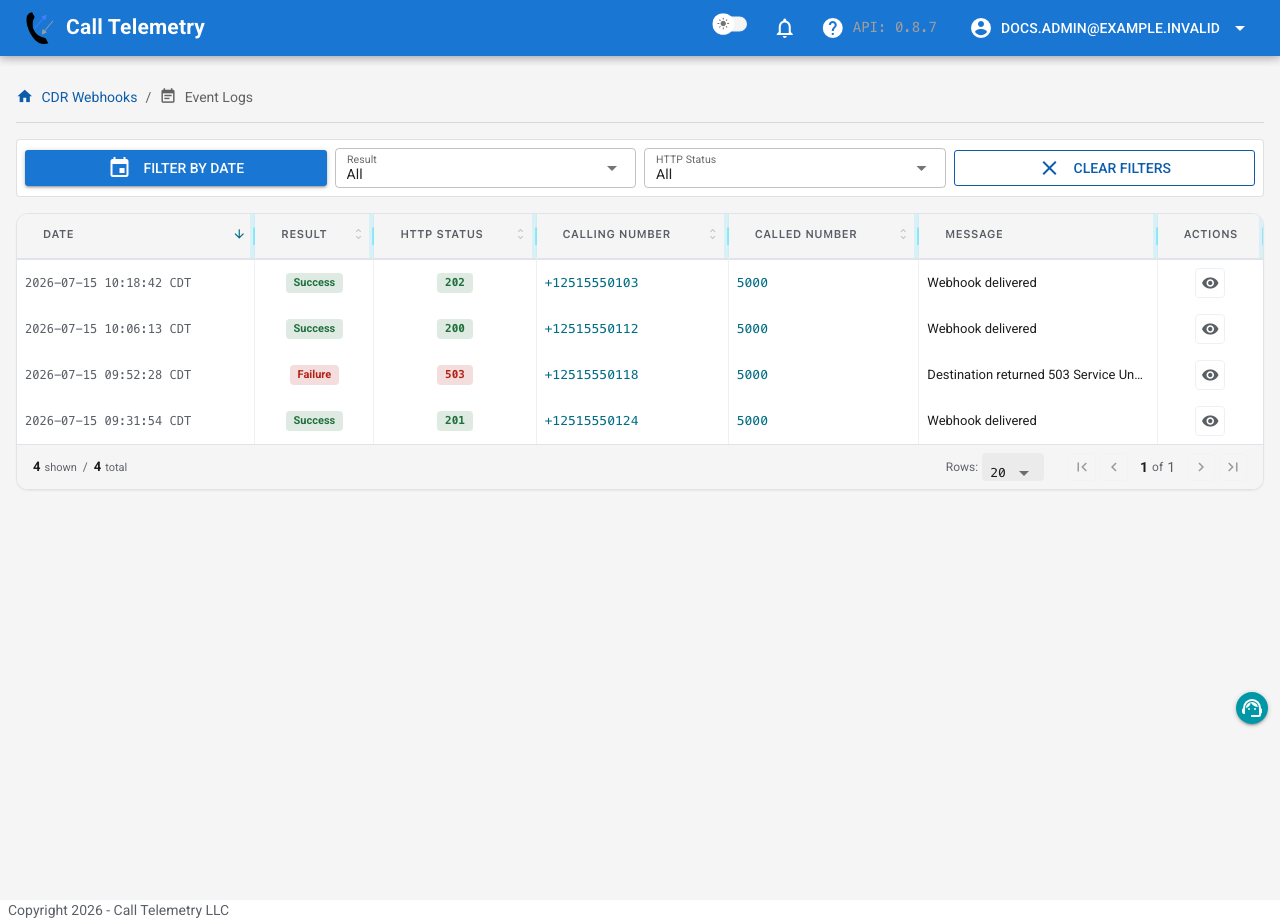
The Event Logs page can filter by date, result, and HTTP status. Open an event to inspect its request, response, and error details.
Resolve delivery problems
| Symptom | What to check |
|---|---|
| No new hits | Confirm CDRs are arriving, the webhook is enabled, and a recent CDR satisfies every condition. |
401 or 403 | Verify the authentication header and rotate the destination secret if necessary. |
404 | Check the destination path and environment. |
5xx | Inspect the response body, then check the receiving service's logs. |
| Connection or timeout error | Test DNS, routing, firewall rules, TLS trust, and endpoint response time from the appliance network. |