Manage Backup Storage and Retention
Storage controls keep backup workflows from consuming appliance capacity without visibility. Open an SFTP account and review Storage Quota before enabling automated cleanup.

Essentials+ — per-account quota visibility and controls.
Review and Set the Account Quota
The quota panel shows Used, Limit, Remaining, and the last disk calculation. Enter a per-account Quota only when the account needs a limit different from the organization default.
Before setting a limit, account for:
- The size of a complete DRS set.
- The number of retained generations required by the recovery policy.
- Temporary overlap while a new backup is arriving.
- Replication or evidence workflows that may need the source files after validation.
Use the refresh control to recalculate from disk when the displayed value appears stale.
Configure Auto-Purge Watermarks
Select Auto-Purge and enable it only after confirming the retention requirement and quota size.
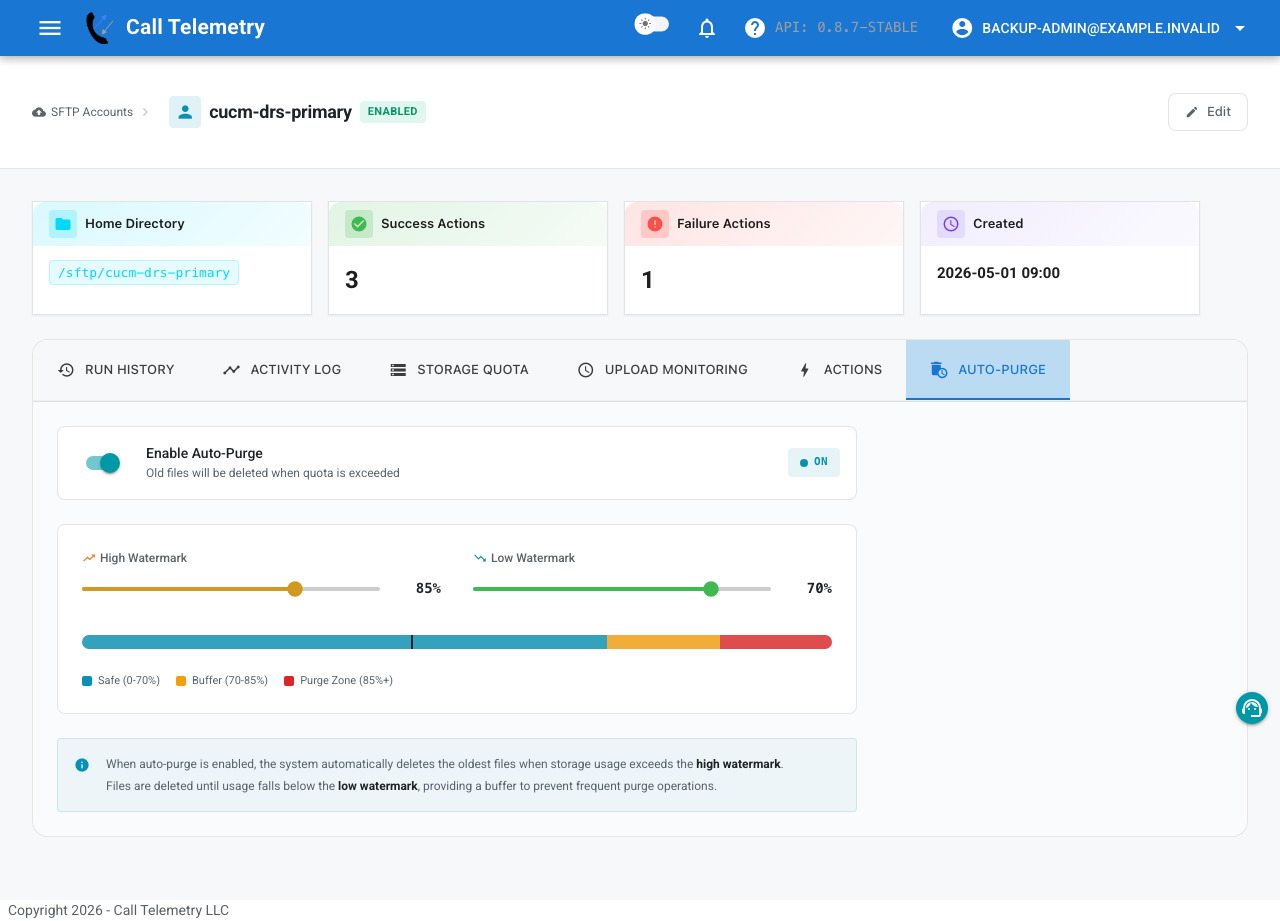
Essentials+ — automatic high/low watermark cleanup controls.
- High Watermark starts cleanup when usage crosses the configured percentage.
- Low Watermark is the target usage after cleanup.
- The space between them prevents repeated purge cycles near a single threshold.
Auto-purge removes the oldest files until usage falls below the low watermark. It is disabled by default. Do not enable it unless another retained copy or the remaining local generations satisfy the recovery policy.
Audit Storage Activity
Use Activity Log to review SFTP logins, uploads, file operations, and their source addresses. Use Run History to distinguish file cleanup from validation, notification, or cloud-action failures.
Use Live Events on the main SFTP Action Accounts page for a real-time view of active transfers across accounts. Live Events is operational visibility, not durable backup evidence; use Activity Log and Run History for the audit trail.
If a backup is unexpectedly absent:
- Check whether auto-purge ran.
- Confirm the account quota and current usage.
- Review the activity timestamp and source.
- Confirm that any configured Amazon S3 or Azure Blob action succeeded.
- Run and validate a new backup if the retained set no longer meets policy.
Complete the Operational Loop
Return to the CUCM Backup Dashboard after storage changes and confirm that each cluster still has a recent healthy validation.