CT-AI: Getting Started
CT-AI lets you ask plain-English questions about your calls, devices, and policies — and get data-grounded answers in seconds. This guide covers everything from first-time admin setup to your first query.
Feature Requirements
- Call Telemetry Server Appliance or Docker Deployment
- Call Telemetry Premium or Demo License
- CDR Integration with Cisco CallManager — CT-AI queries your CDR/CMR data. Verify recent call activity in Reporting > Overview before your first query.
- CURRI Policy Integration (optional) — enables AI-powered policy investigation, rule testing, and violation analysis
- CUBE XCC Integration (optional) — enables CUBE gateway health monitoring and SIP quality analytics
- An LLM provider API key — OpenAI, Anthropic, OpenRouter, Azure OpenAI, or a self-hosted Ollama instance
- Organization Administrator permissions to configure the AI provider in Settings > AI Settings
Admin Setup
Complete this once per organization in Settings > AI Settings.
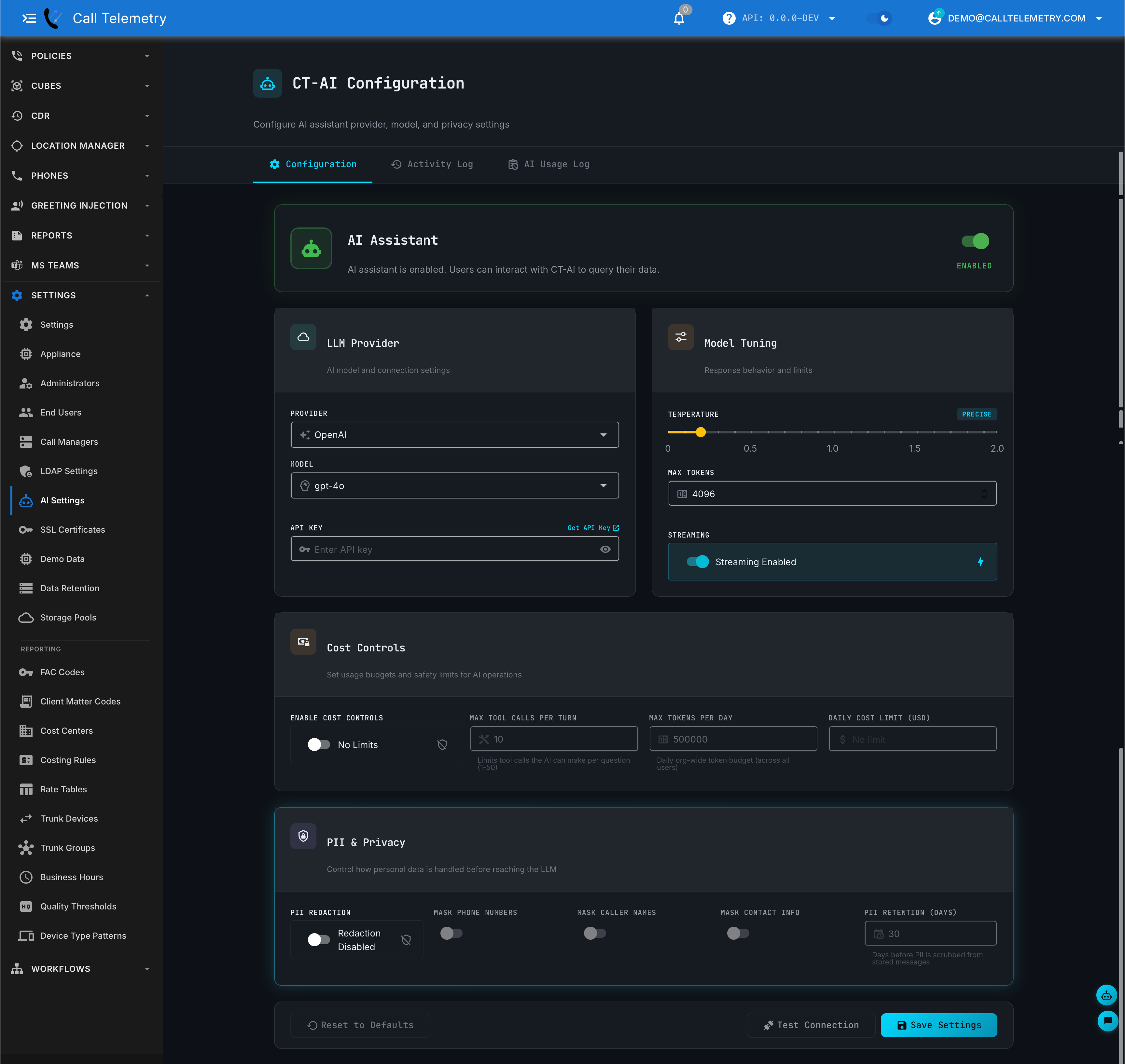
Step 1 — Connect a Provider
| Provider | Auth | Notes |
|---|---|---|
| OpenAI | API key | GPT-5.x, GPT-4.x, o-series reasoning models |
| Anthropic | API key | Claude Opus, Sonnet, Haiku |
| OpenRouter | API key | 100+ models behind one key — browse openrouter.ai/models |
| Ollama | Endpoint URL | Self-hosted, on-premises. No data leaves your network |
| Azure OpenAI | API key + endpoint + deployment | Enterprise Azure-hosted models |
Step 2 — Configure and Test
- Enter credentials (and endpoint/deployment for Azure or Ollama).
- Choose a model from the dropdown.
- Click Test Connection — you should see a green success indicator.
- Click Save Settings.
CT-AI works great on Anthropic Claude Haiku 4.5 — a good balance of agentic tool use, cost, and model intelligence.
Step 3 — Verify
Open AI Chat and run:
Show blocked outbound calls from the last 24 hours.
If you get a data-grounded response with deep links, you're all set.
Runtime and Cost Controls
| Setting | What it does |
|---|---|
| Temperature | Lower = more consistent answers. Higher = broader exploration |
| Max Tokens | Caps response length and per-query cost |
| Max Tool Calls per Turn | Prevents over-querying in a single response |
| Max Tokens per Day | Hard daily token budget per org |
| Daily Cost Limit (USD) | Hard org-wide spend cap |
Privacy and Data Handling
CT-AI can mask phone numbers, caller names, and contact info before they reach any LLM provider. With Ollama, no data leaves your network at all. See Security & PII for redaction settings, audit logging, and retention policies.
5-Minute UI Quickstart
Step 1 — Open AI Chat
Click AI in the left sidebar.
Step 2 — Ask a Specific Question
Start with a concrete prompt that includes a time range:
Show me blocked outbound calls from the last 24 hours and why they were blocked.
You should see:
- A streamed response that builds in real time
- Tool activity cards showing which analytics tools CT-AI is using
- Deep links back into Call Telemetry reports and pages
Step 3 — Refine in the Same Thread
Follow up without starting over — CT-AI keeps the conversation context:
Now group that by site and call out the top 3 patterns.
Step 4 — Validate
Click a deep link in the response and confirm the destination page matches the AI summary. This is a good habit to build trust in the results.
Prompt Tips
The best prompts follow a simple pattern:
What you want + time range + scope (optional) + output format (optional)
Examples:
"Analyze call quality for SEP001122334455 over the last 7 days, show trend and top failure causes."
"Top 10 least-used phones in the past 60 days."
"Why were calls to extension 4500 failing yesterday?"
For the full list of capabilities, see the Feature Overview.
MCP Integration
The Model Context Protocol (MCP) lets AI assistants like Claude Desktop query your Call Telemetry data directly — without opening the web UI. CT-AI exposes all 16 capabilities as MCP tools through the @calltelemetry/ct-ai-mcp package.
Installation
npm install -g @calltelemetry/ct-analytics-mcp
Or run directly with npx (no install required):
npx @calltelemetry/ct-analytics-mcp
Environment Variables
| Variable | Description | Example |
|---|---|---|
CT_HOST | Your Call Telemetry instance URL | https://ct.example.com |
CT_API_KEY | API key with CT-AI permissions | ct_api_xxxxx |
CT_ORG_ID | Organization ID | 1 |
Claude Desktop Configuration
Add to your Claude Desktop config file:
macOS: ~/Library/Application Support/Claude/claude_desktop_config.json
Windows: %APPDATA%\Claude\claude_desktop_config.json
{
  "mcpServers": {
    "calltelemetry": {
      "command": "npx",
      "args": ["@calltelemetry/ct-analytics-mcp"],
      "env": {
        "CT_HOST": "https://ct.example.com",
        "CT_API_KEY": "ct_api_xxxxx",
        "CT_ORG_ID": "1"
      }
    }
  }
}
After saving, restart Claude Desktop. You should see a "CallTelemetry" entry in the MCP tools panel.
Example Queries via MCP
Once configured, ask your AI assistant questions that reference your Call Telemetry data:
"Check my Call Telemetry system — why did the call from 5551234 to 5559876 fail yesterday?"
"Use Call Telemetry to test if rule R-100 would block a call to 19005551234."
The AI invokes CT-AI capabilities via MCP, retrieves live data, and returns results with the same PII redaction policies as the web UI. See the Feature Overview for all 16 available tools.
Next Steps
- Feature Overview — Full scope, capabilities, and template queries
- Security & PII — Redaction, retention, and compliance controls